Phaser 4 examples
Camera
- 68 examples
Examples 68
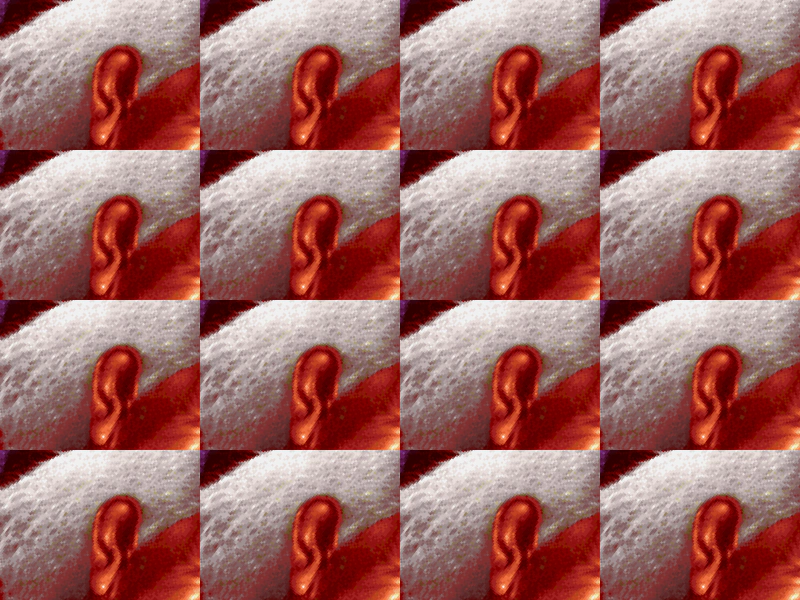 16 Camera GridDemonstrates how to create and position multiple cameras in a grid layout to display the same scene across several viewports simultaneously.
 Add Camera On ClickDemonstrates how to dynamically add multiple cameras to a scene on a pointer event, creating a grid of viewports that all render the same scene objects.
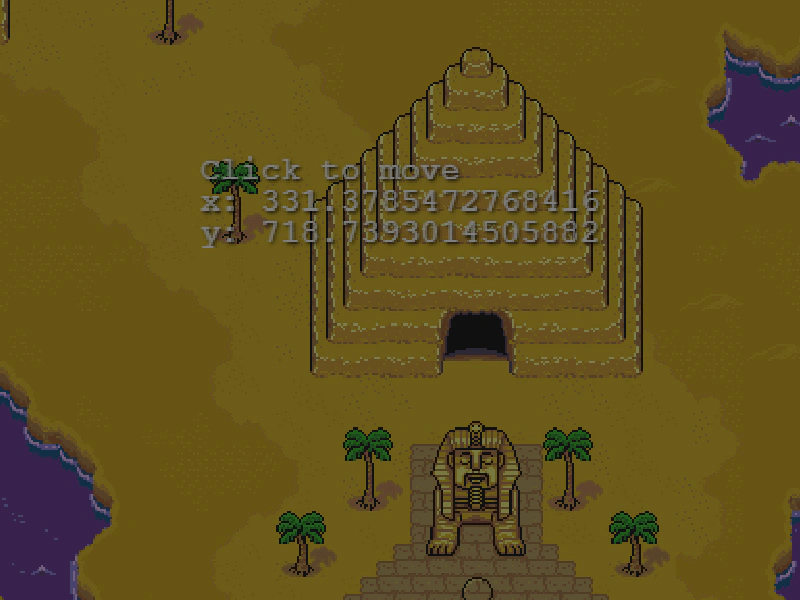 Camera AlphaThis example demonstrates how to adjust the transparency of a camera using its alpha property, affecting the visibility of all game objects rendered by that camera.
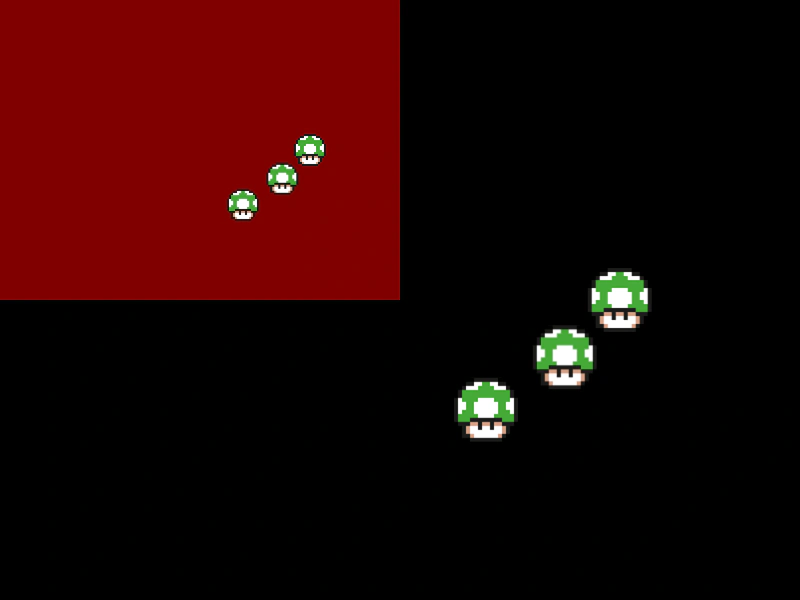 Camera Background ColorLearn how to set a specific background color and alpha for an individual camera using RGBA values.
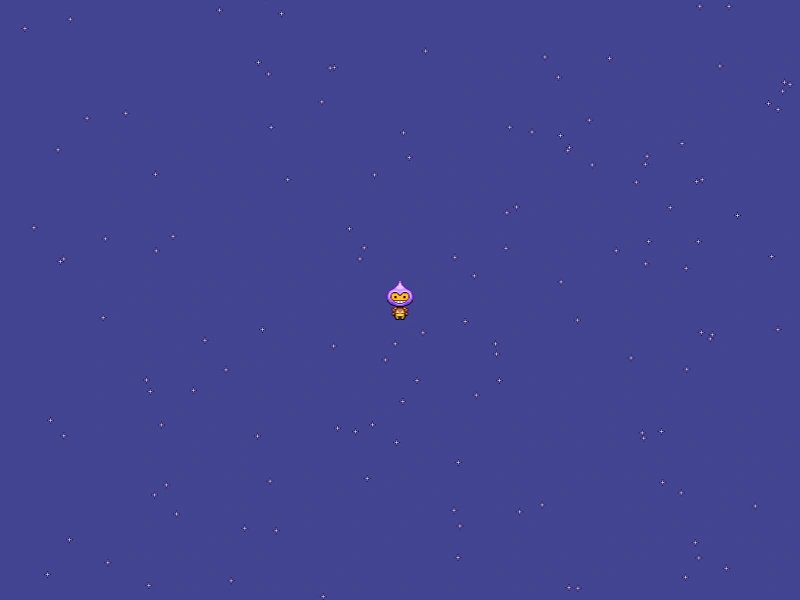 Camera Background Color InterpolationLearn how to smoothly transition the camera's background color between two values based on a sprite's vertical position using color interpolation.
 Camera Blur ShaderDemonstrates how to apply a built-in blur filter to a specific camera and use camera ignore lists to keep certain game objects sharp.
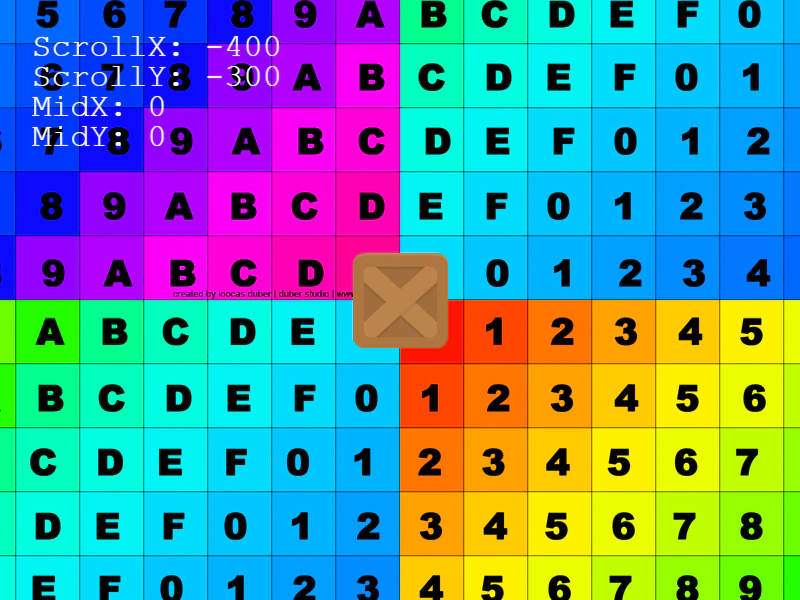 Camera Bounds with Negative CoordinatesThis example demonstrates how to set camera and physics world bounds using negative coordinates, allowing the camera to scroll into areas behind the (0,0) origin while following a player.
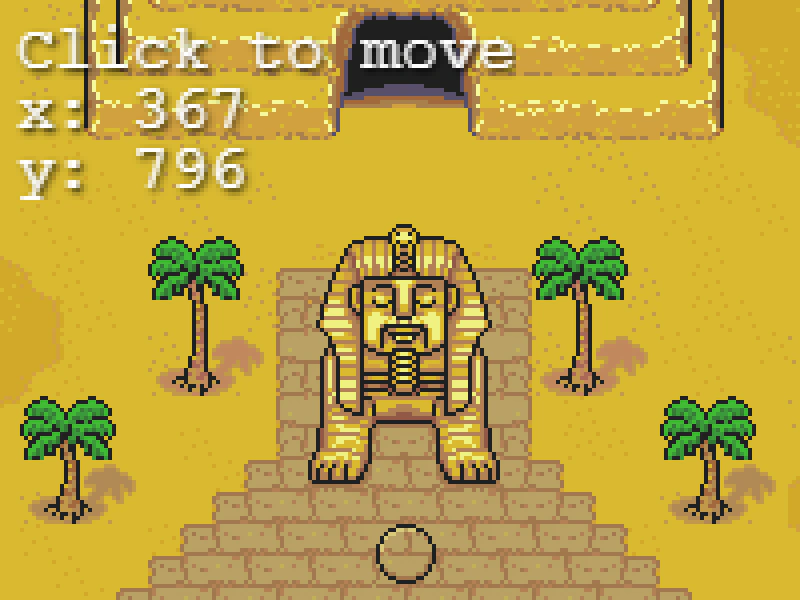 Camera Center OnUse the centerOn method to snap the camera focus to specific world coordinates, demonstrated with a zoomed-in view of a large map.
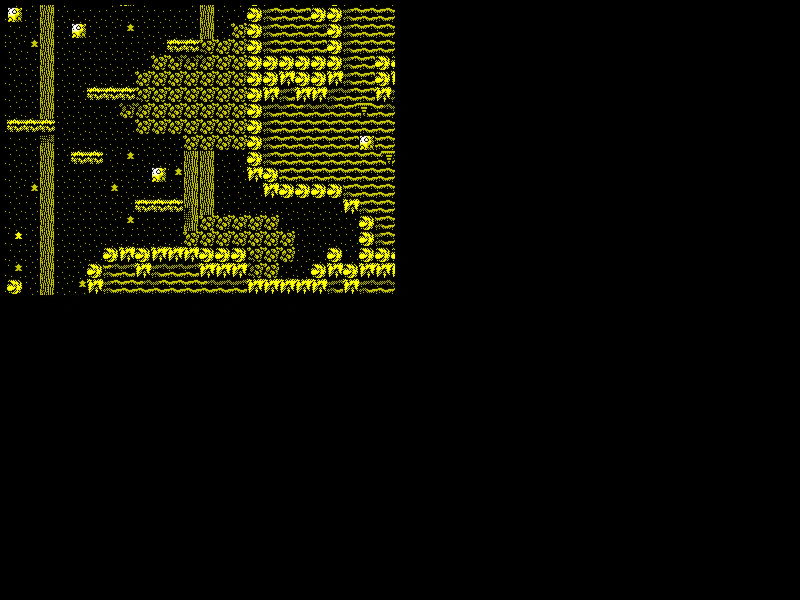 Camera Effect CallbacksDemonstrates how to sequence multiple camera effects like flash, shake, and fade by using completion callbacks to trigger the next effect in a chain.
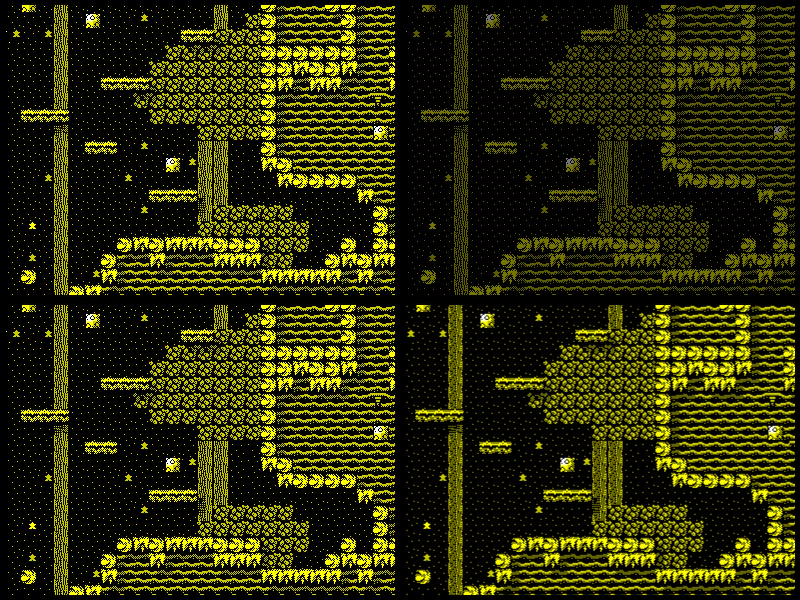 Camera EffectsDemonstrates the built-in camera special effects including fading, flashing, and shaking using multiple cameras and viewports.
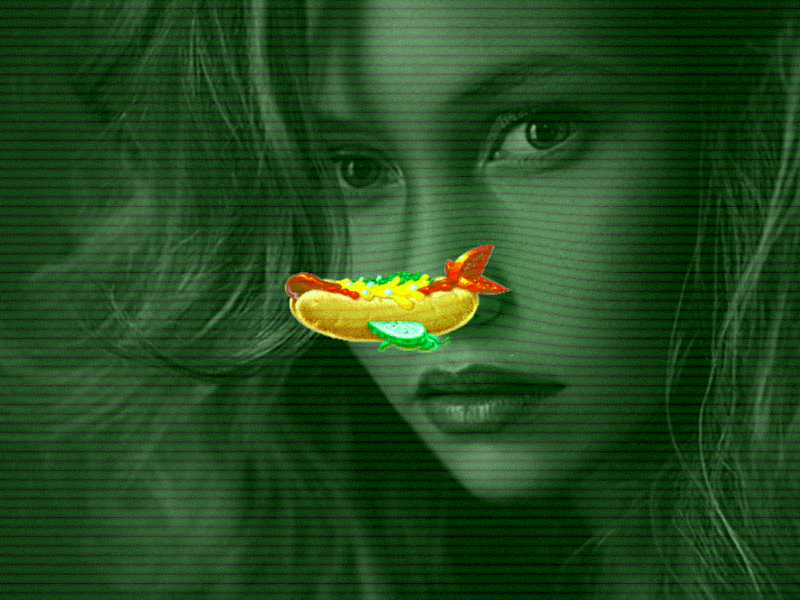 Camera External Filter ScanlineDemonstrates applying an external shader filter to a camera and updating the shader's uniform values based on mouse input.
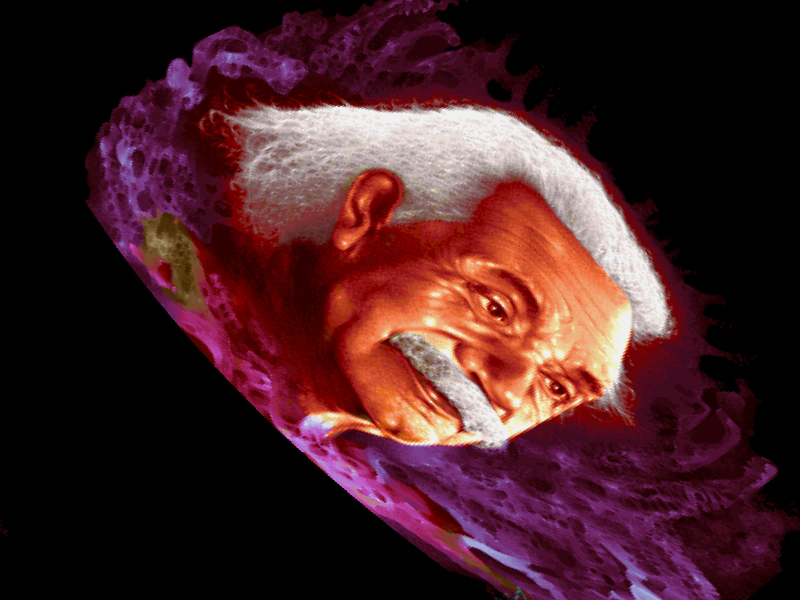 Camera External FiltersDemonstrates applying, toggling, and combining multiple external post-processing shaders on a camera using filter controllers.
 Camera External Shader FilterDemonstrates how to apply a custom post-processing shader effect to a camera using the external filters API and render nodes.
 Camera Fade EffectDemonstrates how to trigger a camera fade-out effect with custom colors and durations, while using event listeners to detect when the fade starts and completes.
 Camera Fade In and OutDemonstrates how to use camera fade effects to transition a scene in and out, using the fade completion event to chain effects.
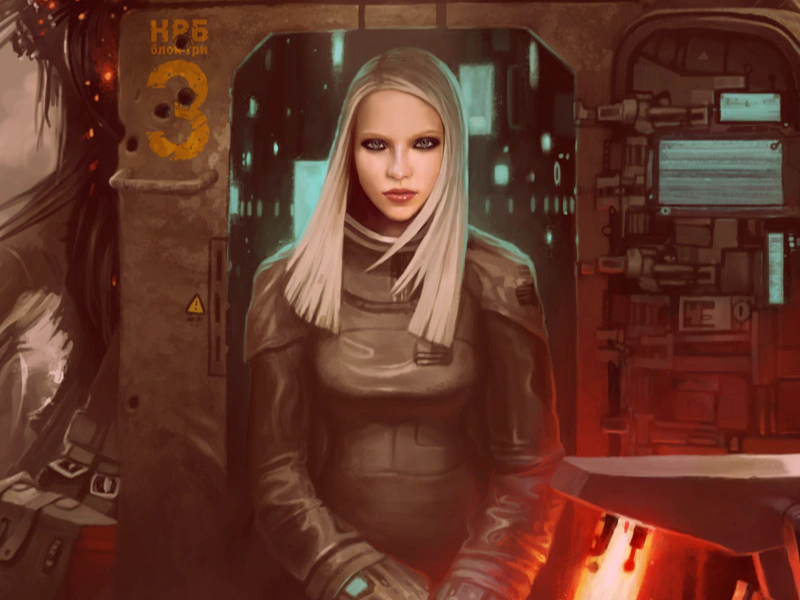 Camera Fade Out and InDemonstrates how to chain camera fade effects using the camera fade completion event to transition between different scenes or images.
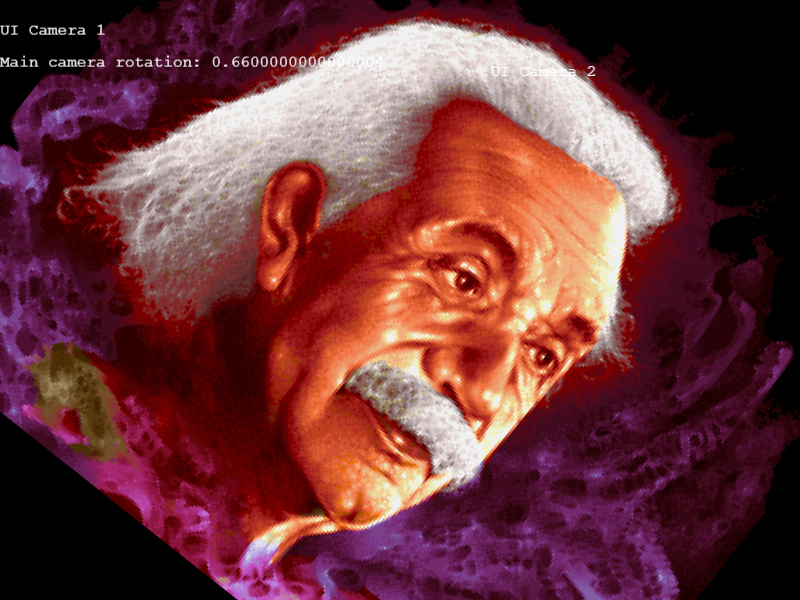 Camera FilterDemonstrates how to use the cameraFilter property to control which Game Objects are rendered by specific cameras, allowing for independent UI layers and isolated camera effects.
 Camera Filter ShaderDemonstrates applying a custom post-processing shader filter to a camera view, affecting all rendered content including background images and fixed UI elements.
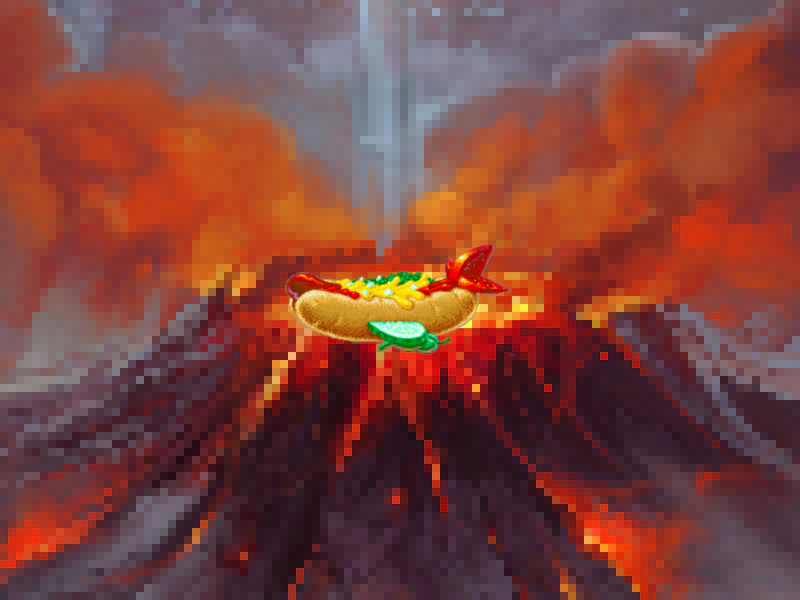 Camera Filters and Layer IsolationDemonstrates how to apply external post-processing filters to specific cameras and use the ignore method to isolate which game objects are rendered by each camera.
 Camera Flash EffectTrigger a camera flash effect on user input and use event listeners to respond when the flash effect begins and finishes.
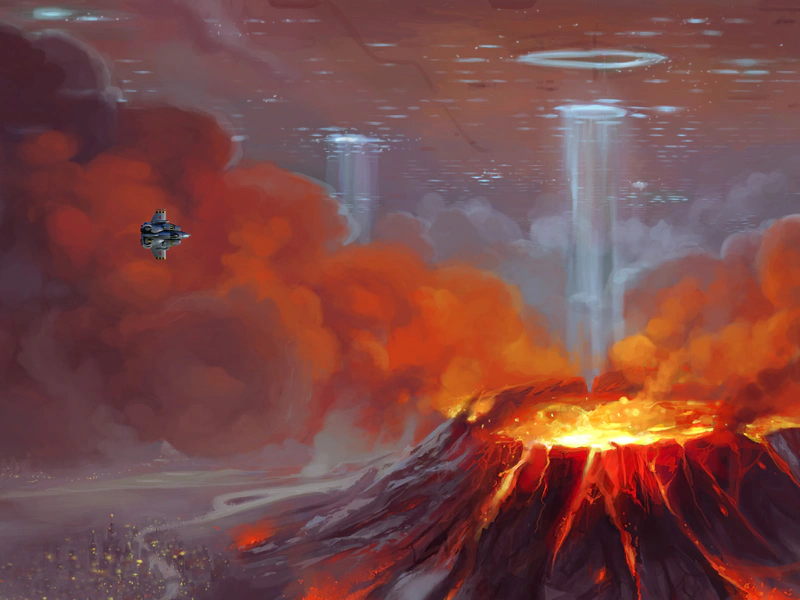 Camera Follow OffsetDemonstrates how to use followOffset to adjust the camera position relative to its target, shifting the view as the player moves left or right.
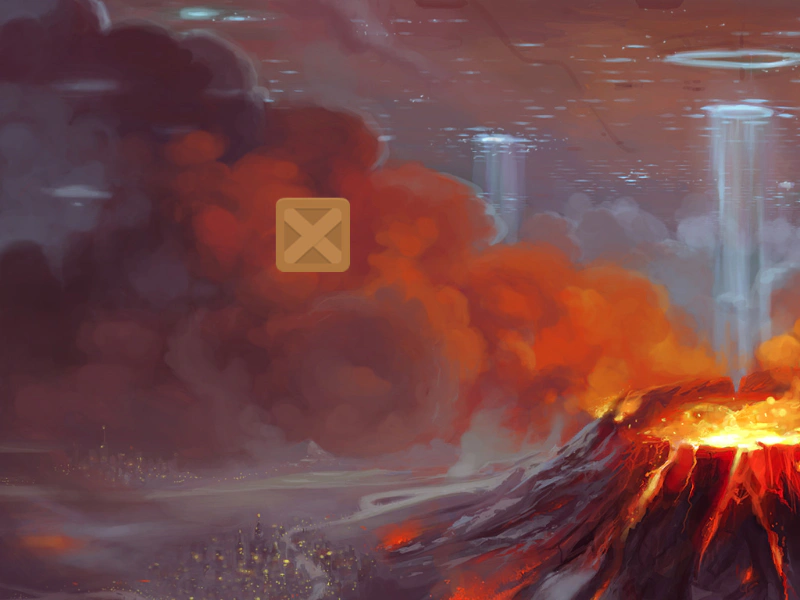 Camera Follow SpriteDemonstrates how to have the main camera follow a user-controlled physics sprite while constrained within specific world bounds.
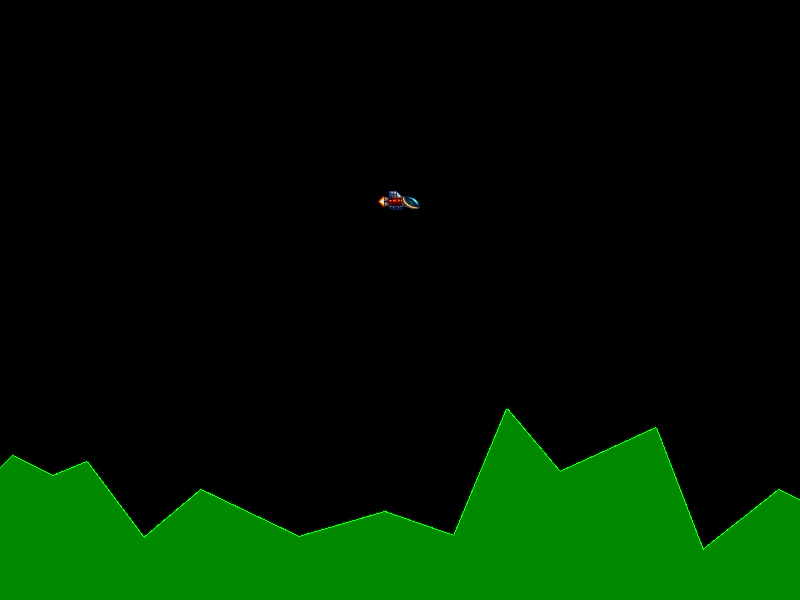 Camera Follow with Graphics LandscapeCreate a procedurally generated landscape using the Graphics API and configure the camera to follow a Matter physics-enabled sprite across a wide world.
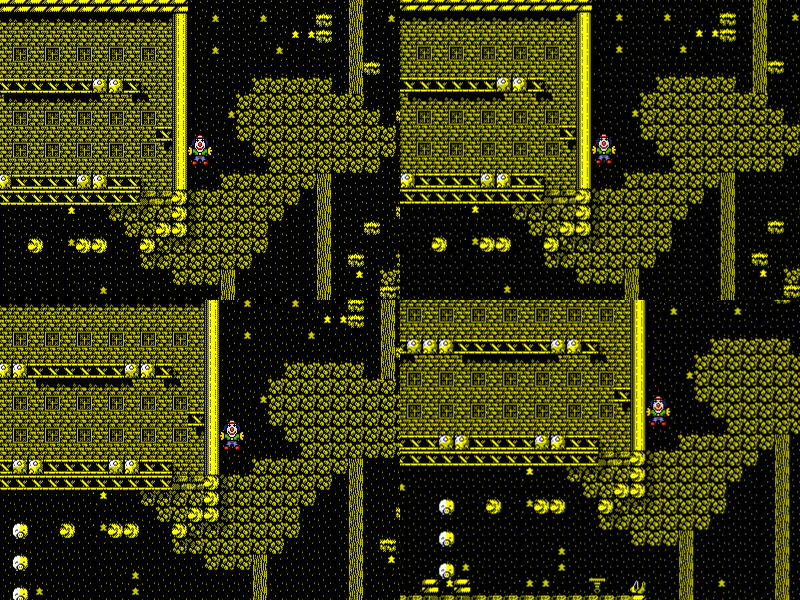 Camera Follow with LerpThis example demonstrates how to have multiple cameras follow a single sprite simultaneously, using different lerp (interpolation) values to achieve varying levels of smooth movement and tracking delays.
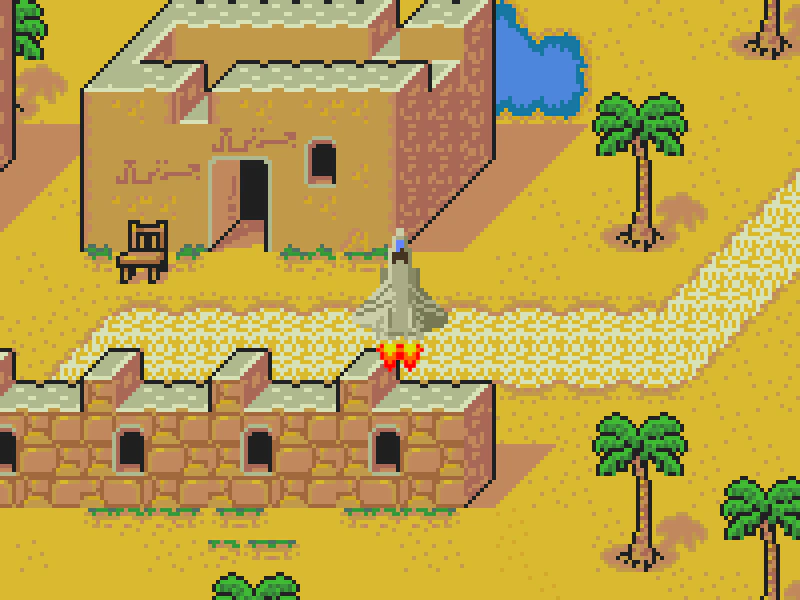 Camera Follow with ZoomDemonstrates the camera following a moving sprite with a high zoom level applied, constrained within specified world bounds.
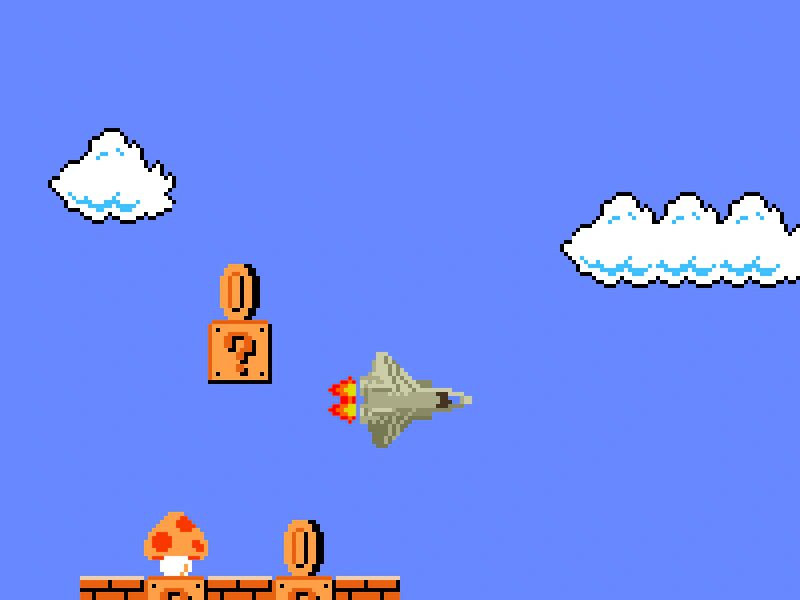 Camera Follow with Zoom and TilemapDemonstrates a camera following a moving sprite across a tilemap while maintaining a zoom level and staying within defined map boundaries.
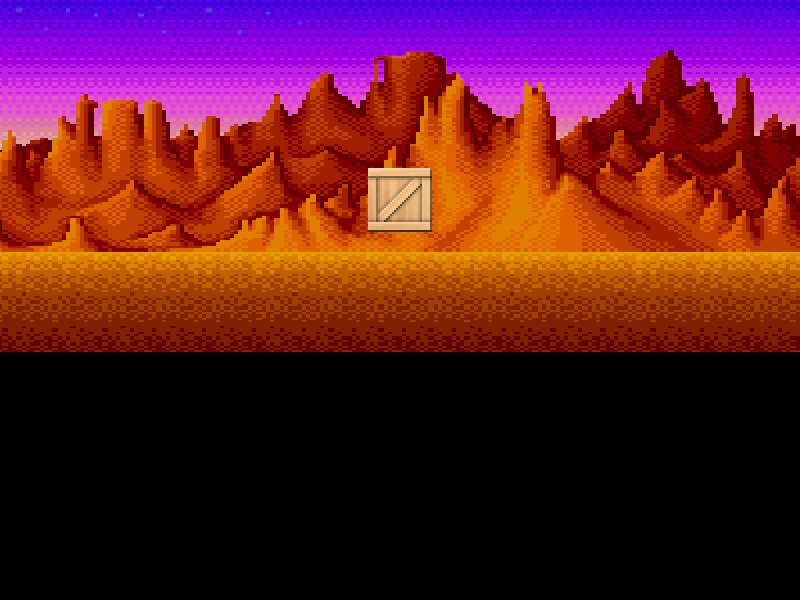 Camera Following with Small BoundsDemonstrates a camera following a sprite within defined world bounds that are smaller than the game viewport in one dimension, combined with a 2x zoom level.
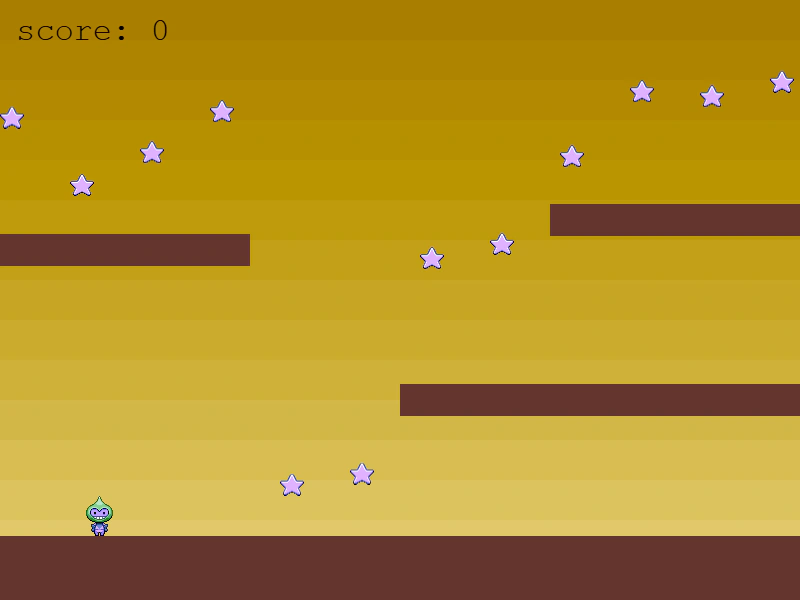 Camera Hue Rotate ShaderThis example demonstrates how to apply a post-processing hue rotation shader to the main camera, which affects the visual appearance of the entire game scene.
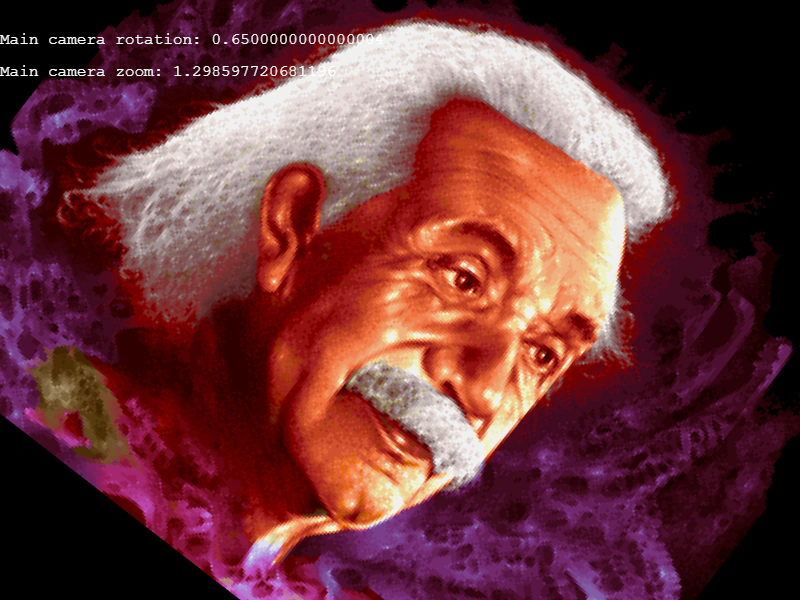 Camera IgnoreDemonstrates how to exclude specific Game Objects from being rendered by a camera using the ignore method, useful for creating UI layers that remain static while the main camera moves or rotates.
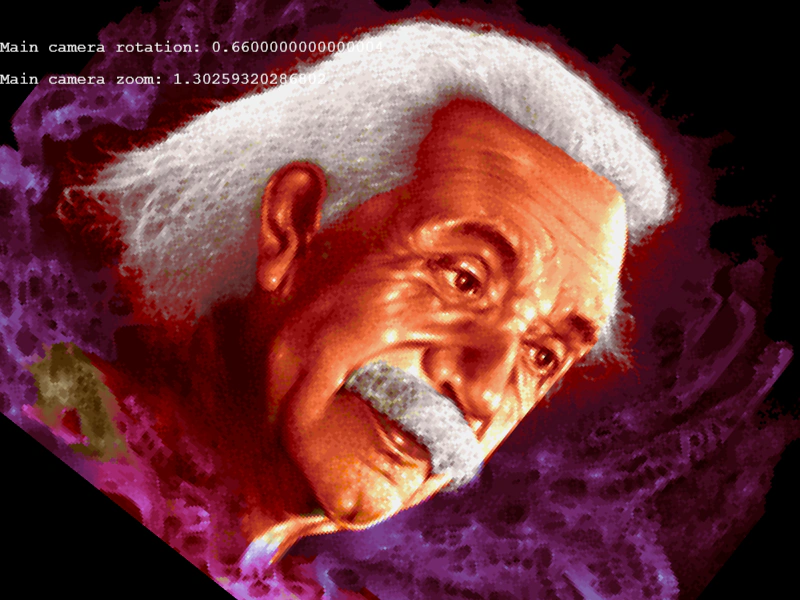 Camera Ignore ContainerDemonstrates how to use multiple cameras to render different game objects by using the ignore method, specifically excluding a Container and its children from the main camera to create a stable UI overlay.
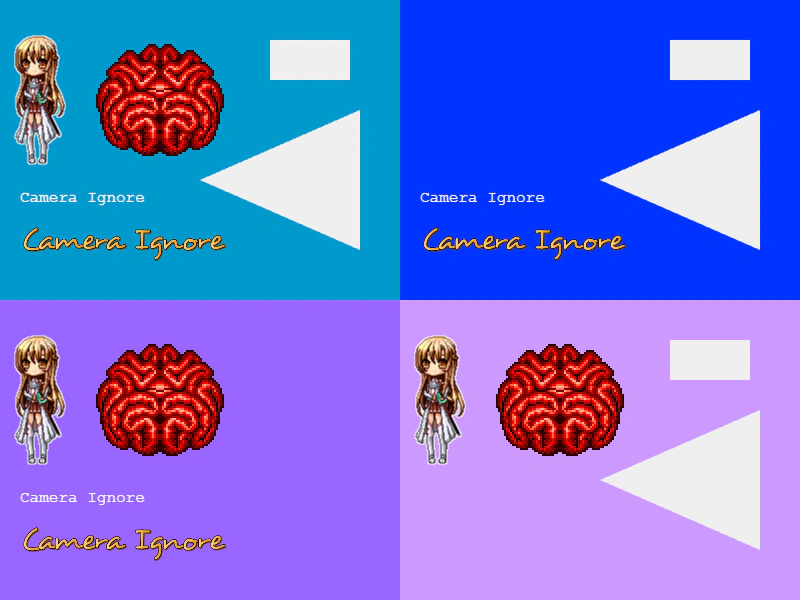 Camera Ignore ContainersDemonstrates how to use the Camera ignore method to selectively hide entire Containers and all their children from being rendered by specific cameras.
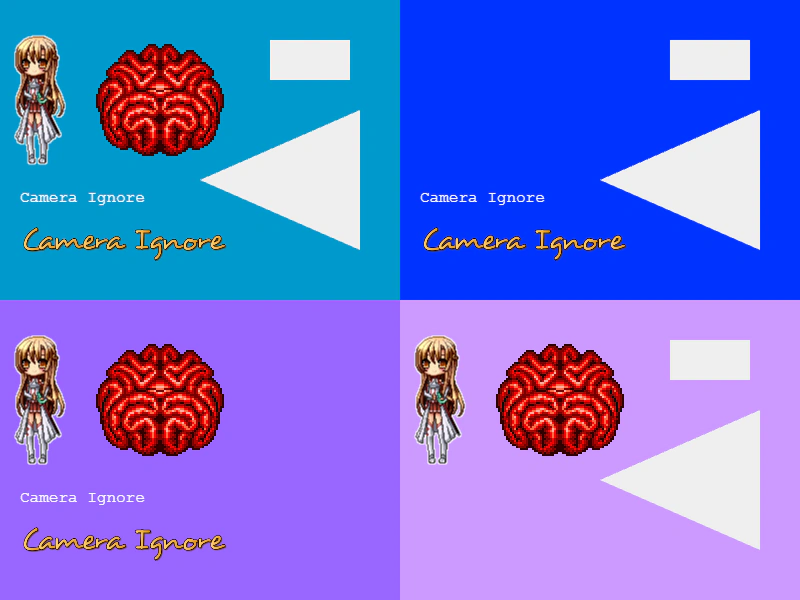 Camera Ignore Game ObjectsDemonstrates how to use the Camera ignore method to prevent specific Game Objects from rendering in a particular camera view.
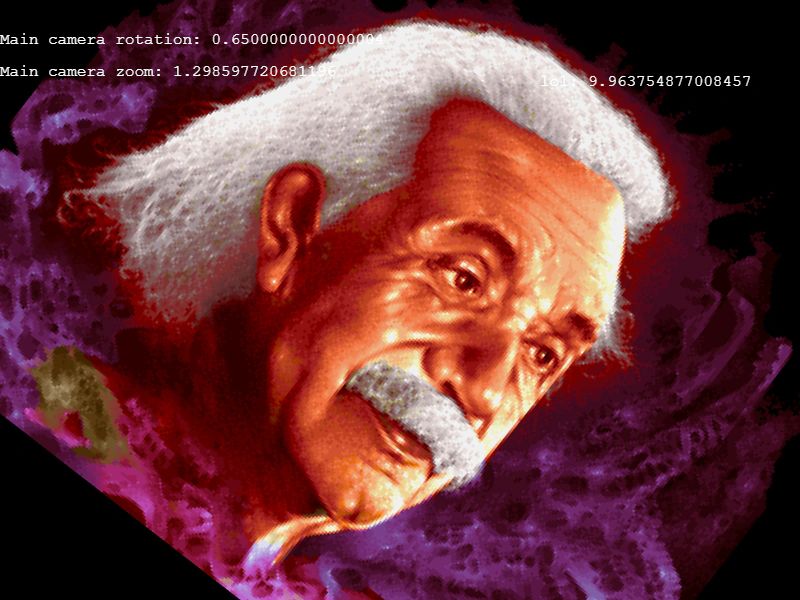 Camera Ignore Group ChildrenLearn how to exclude specific Game Objects or entire Group contents from being rendered by a Camera to create isolated UI layers.
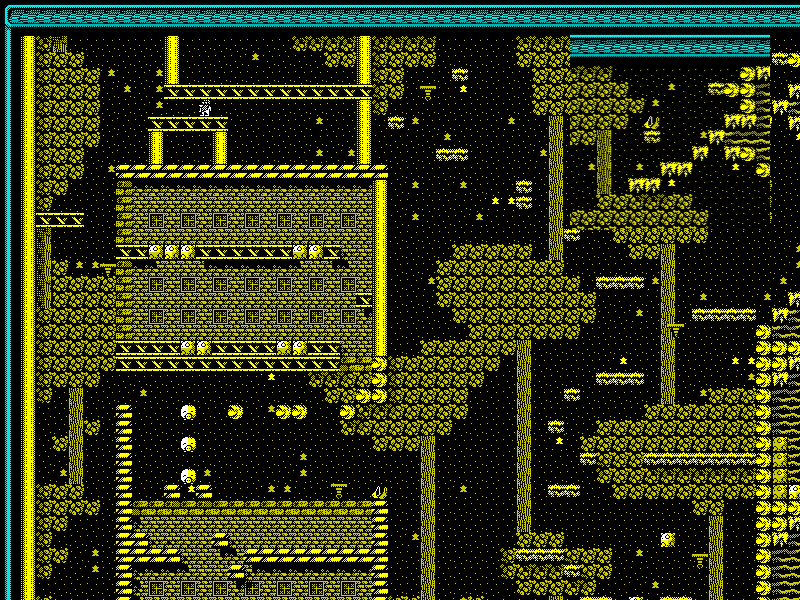 Camera OverlapDemonstrates creating a secondary camera that overlaps the main view to display a specific, independently scrolling area of the scene.
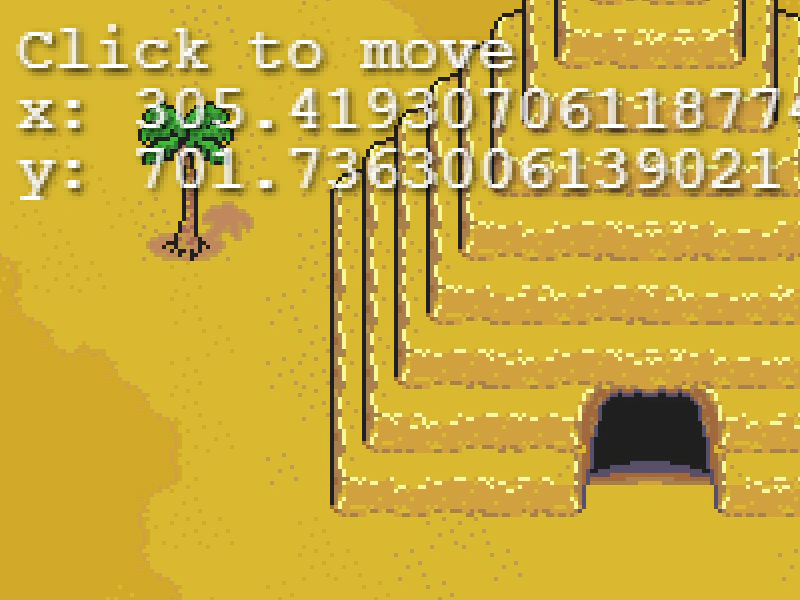 Camera Pan to LocationDemonstrates how to use the camera pan effect to smoothly move the viewport to specific coordinates using different durations and easing functions.
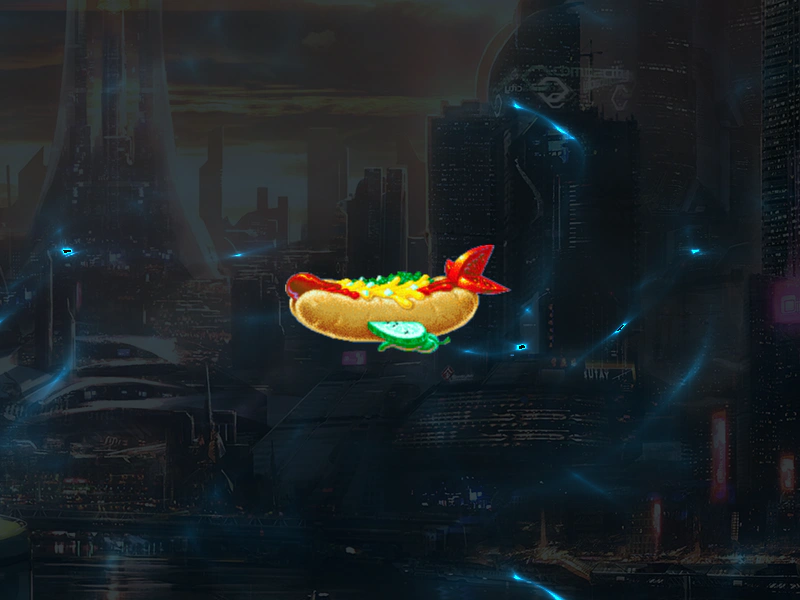 Camera Plasma Shader FilterApply a dynamic plasma shader effect to the main camera view while using smoothed keyboard controls to navigate.
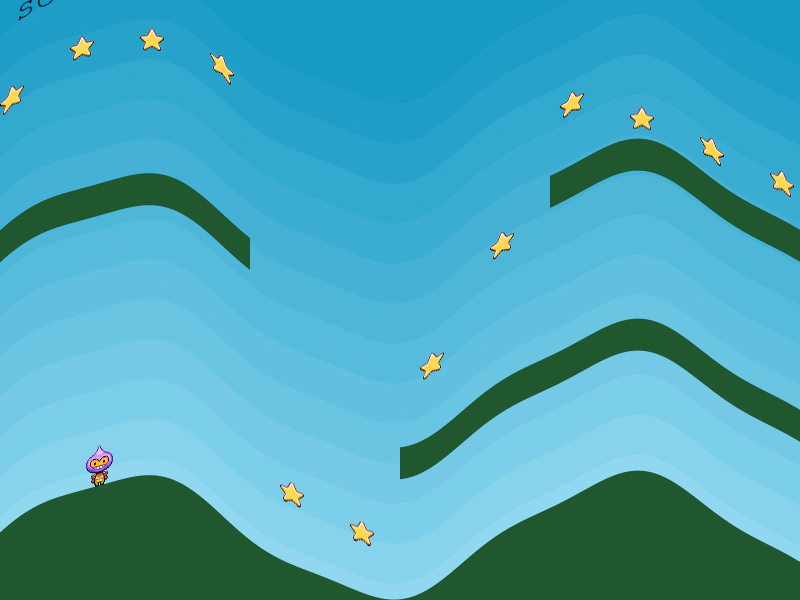 Camera Post-Processing Shader EffectDemonstrates applying a full-screen post-processing shader filter to a camera, creating a visual wave distortion effect over the entire game scene.
 Camera Post-Processing Shader FilterDemonstrates applying a custom shader filter to the entire camera view. The post-processing effect is applied to all rendered objects, including background elements and sprites with fixed scroll factors.
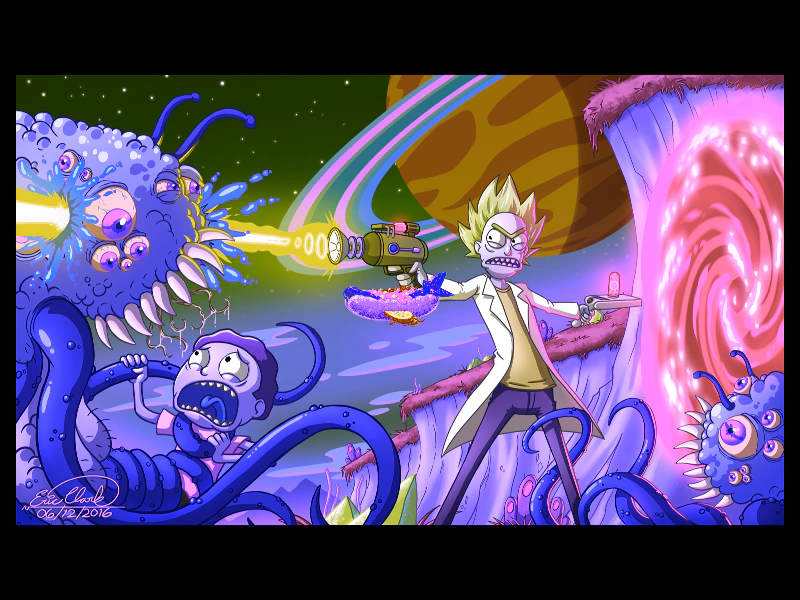 Camera Shader FilterApply an external shader filter to a camera to process its entire rendered output, featuring a hue rotation effect and smooth camera controls.
 Camera Shake EffectLearn how to apply a screen shake effect to the main camera and use the camera shake start and complete events to trigger logic.
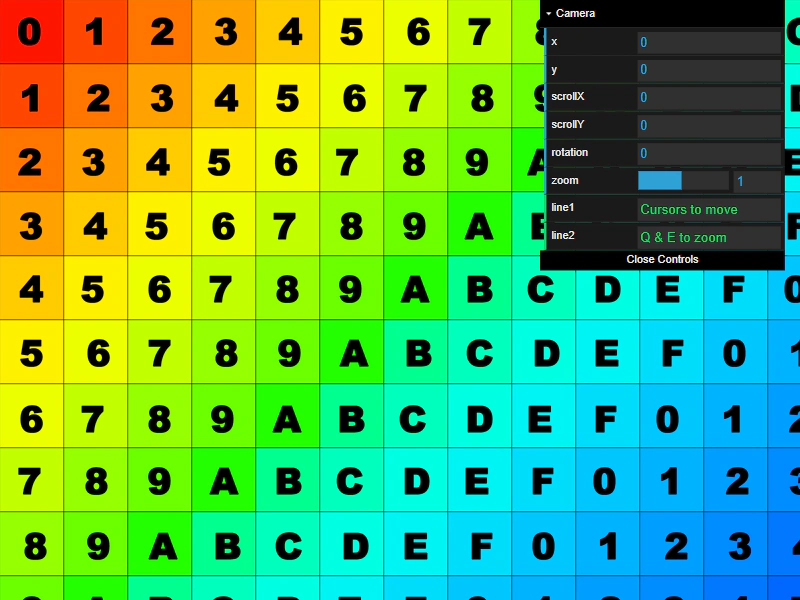 Camera Smoothed Key ControlUse the SmoothedKeyControl class to pan and zoom the camera using keyboard inputs, featuring smooth acceleration and deceleration.
 Camera ViewportDemonstrates how to define the position and size of the camera's rendering area within the game canvas using the setViewport method.
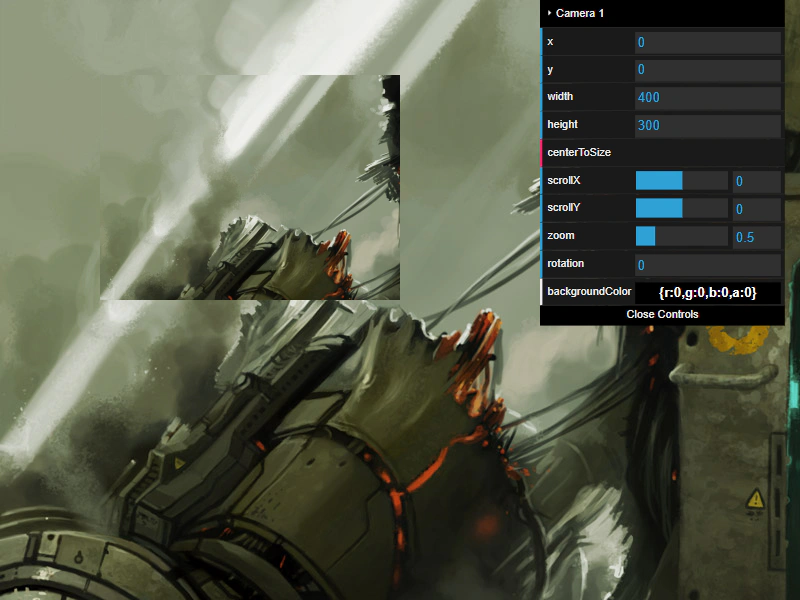 Camera Viewport BasicsLearn how to add a secondary camera and manipulate its basic properties including viewport size, scroll position, zoom, rotation, and background color.
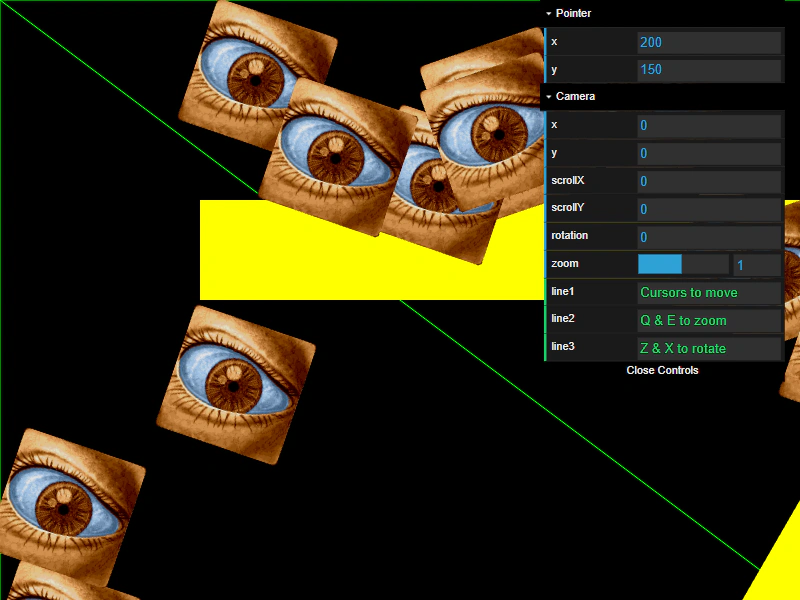 Camera World Points and Hit TestingDemonstrates using getWorldPoint to convert screen coordinates into world coordinates for accurate hit detection on geometry and interactive sprites, even when the camera is zoomed, rotated, or panned.
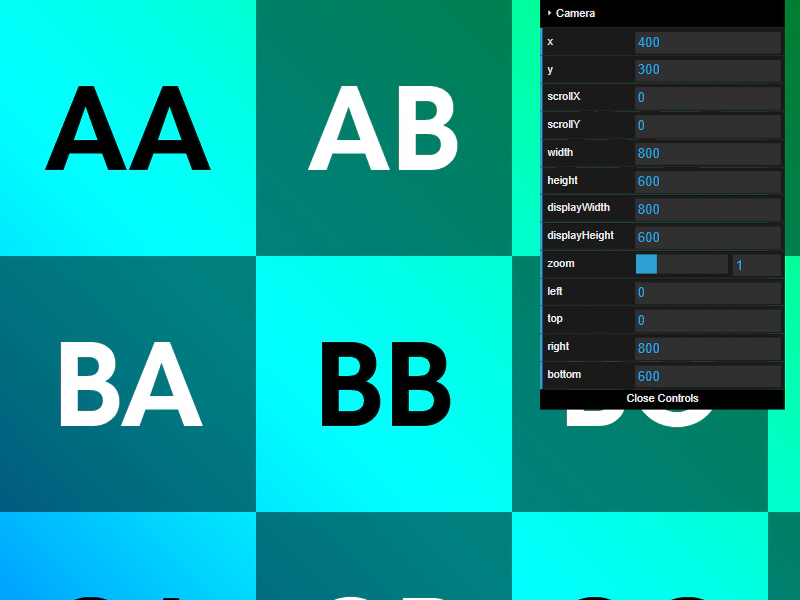 Camera World View PropertiesDemonstrates how the camera's worldView rectangle tracks the visible area of the game world as you scroll and zoom using keyboard controls.
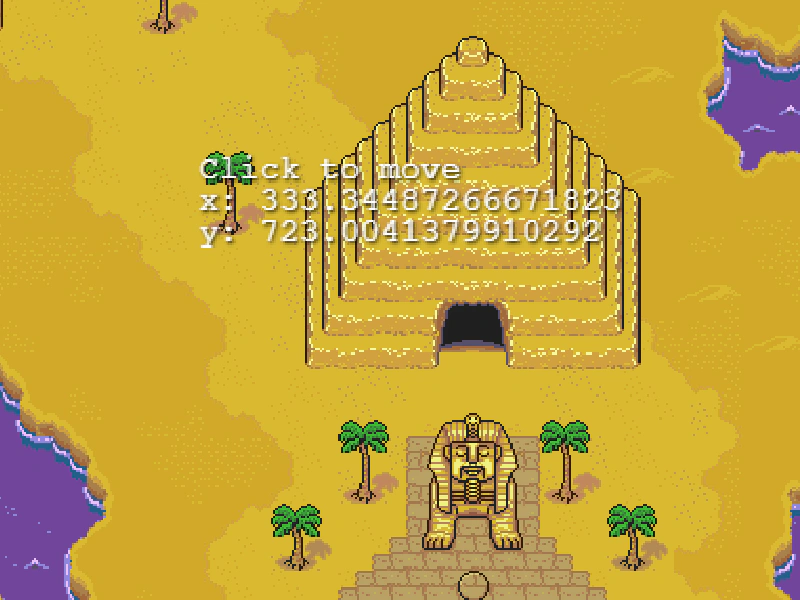 Camera Zoom To and PanDemonstrates how to smoothly transition the camera zoom level and position simultaneously over a set duration.
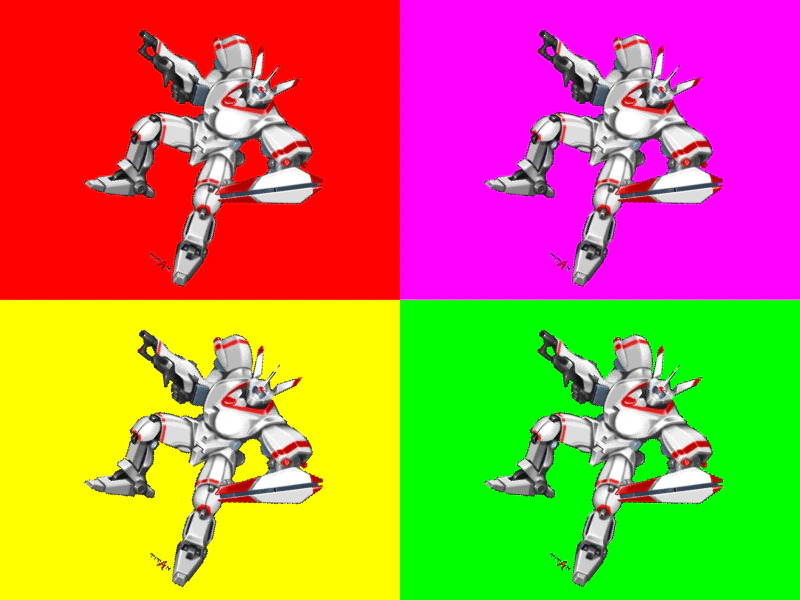 Cameras from Scene ConfigurationThis example demonstrates how to define multiple cameras directly within a Scene configuration object, including their dimensions, screen positions, and background colors.
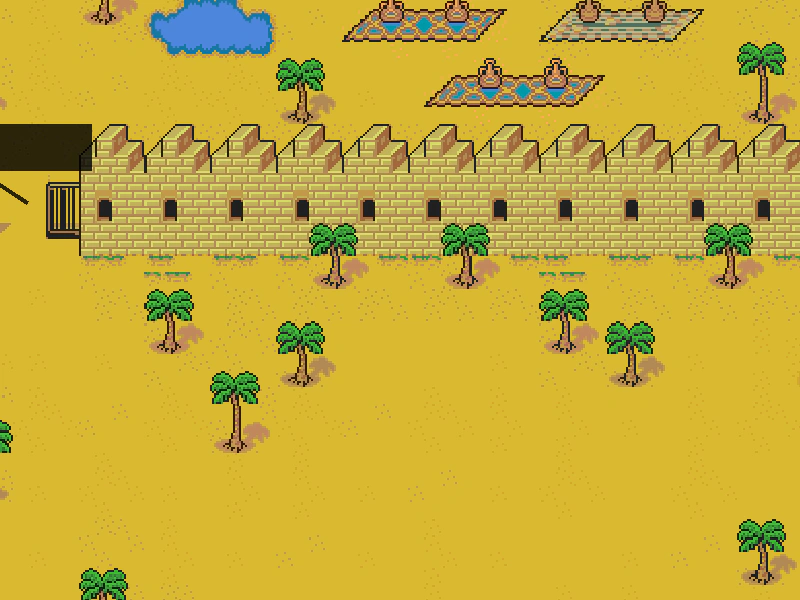 Cross Scene Object PlacementCalculate screen-space positions for UI elements in an overlay scene based on world-space coordinates in a background scene, factoring in camera panning and zoom levels.
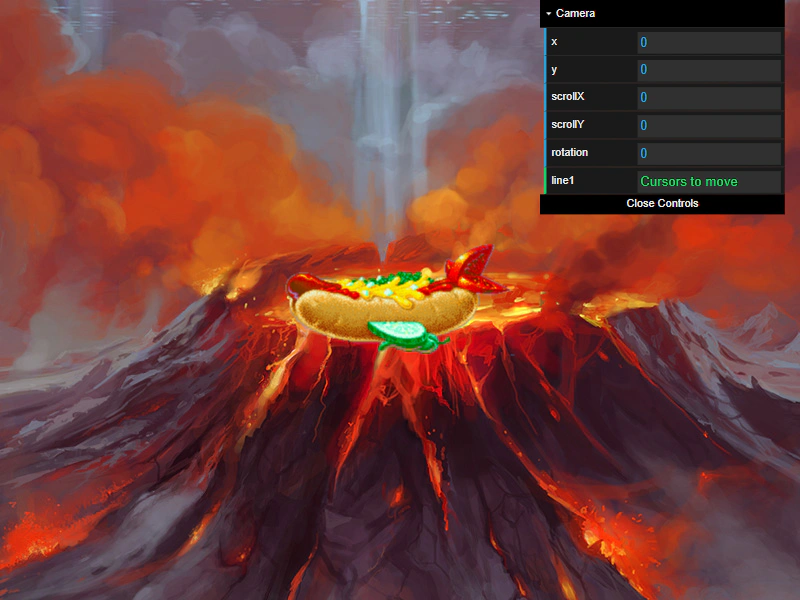 Fixed to Camera via Scroll FactorDemonstrates how to keep a sprite stationary on the screen while the camera moves by using the setScrollFactor method.
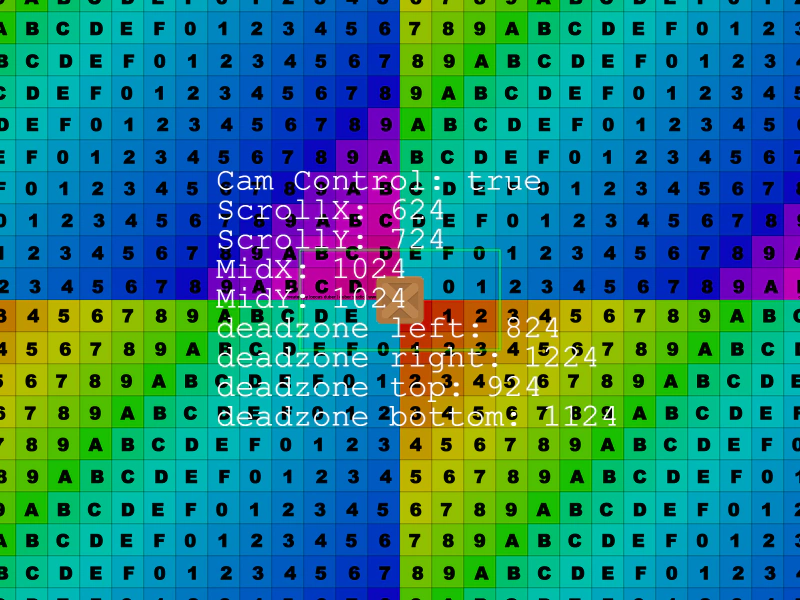 Follow Sprite with DeadzoneDemonstrates how to use a camera deadzone so that the camera only begins scrolling once the followed sprite moves outside of a defined central area.
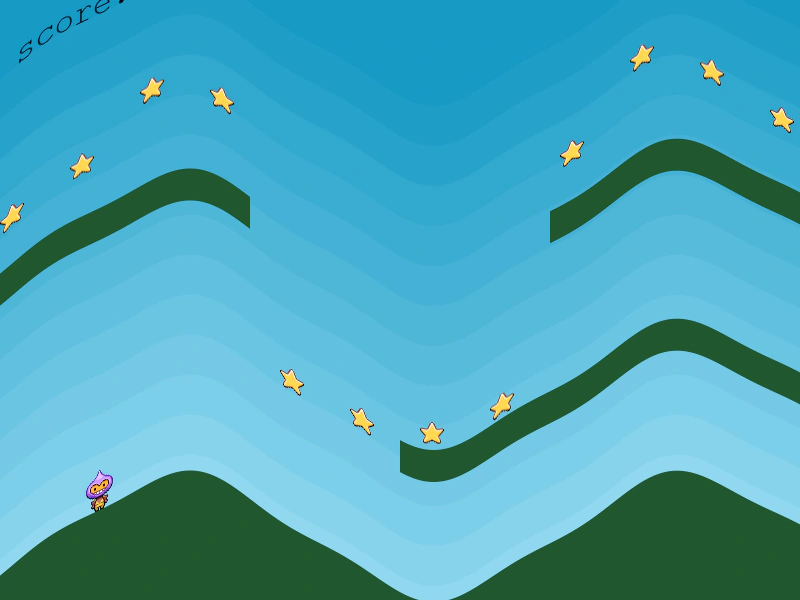 Game Camera Shader FilterThis example demonstrates how to apply a custom post-processing shader effect to the main camera view within a physics-based platformer scene.
 Get World PointConvert screen coordinates into world coordinates using the camera, accounting for zoom and scroll positions.
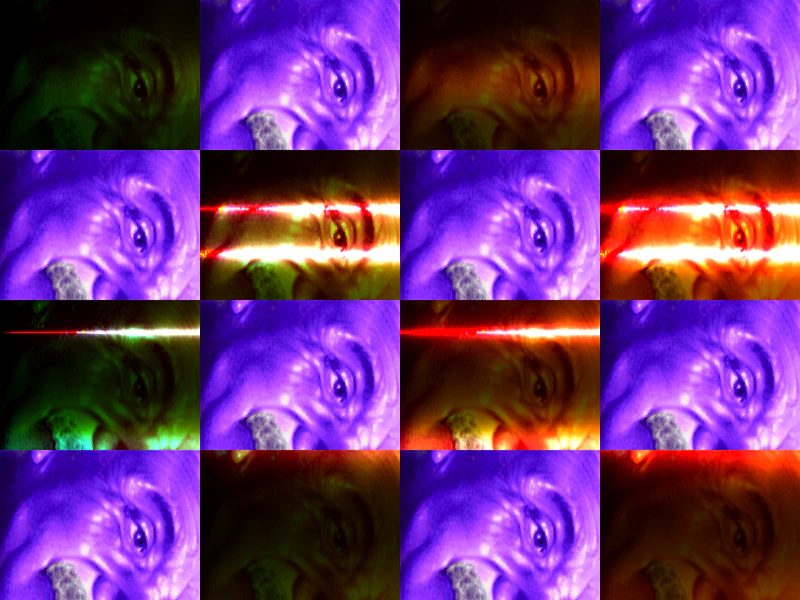 Grid of 16 Cameras with ShadersDemonstrates creating a 4x4 grid of 16 cameras, where each individual camera applies a different post-processing shader filter to the same scene.
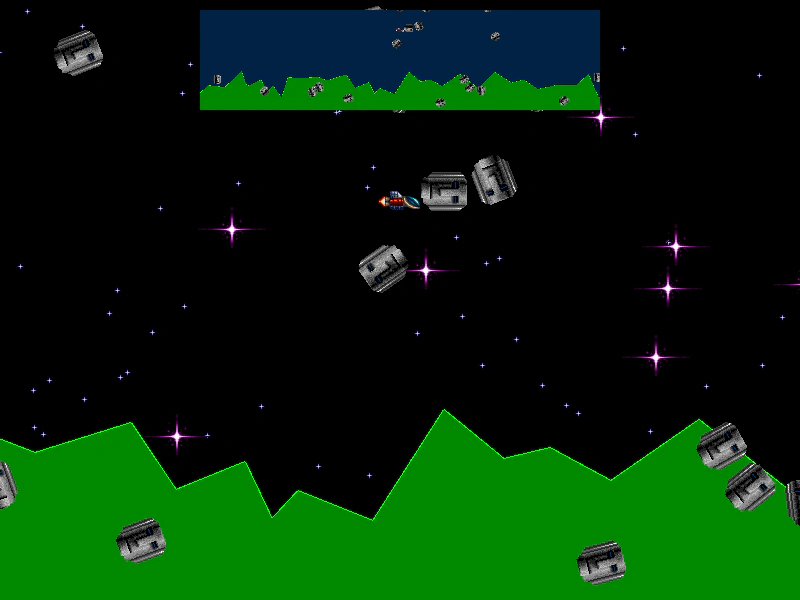 Minimap CameraLearn how to create a persistent minimap using a second camera. This example demonstrates camera positioning, zooming, and using the ignore method to hide specific game objects from the minimap view.
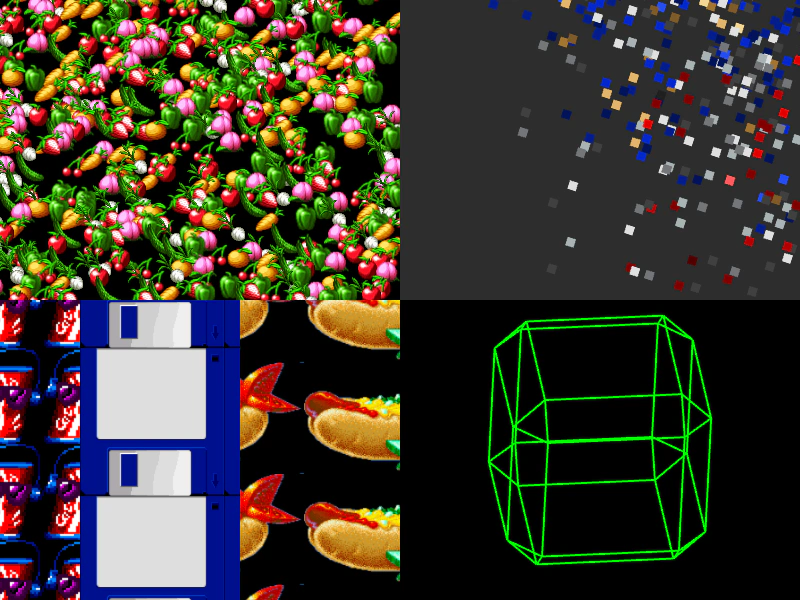 Multi-Scene Camera ManagementLearn how to manipulate the cameras of multiple active scenes simultaneously. A central controller scene uses tweens to move, zoom, and swap the viewports of four distinct scenes, creating dynamic layouts and transitions.
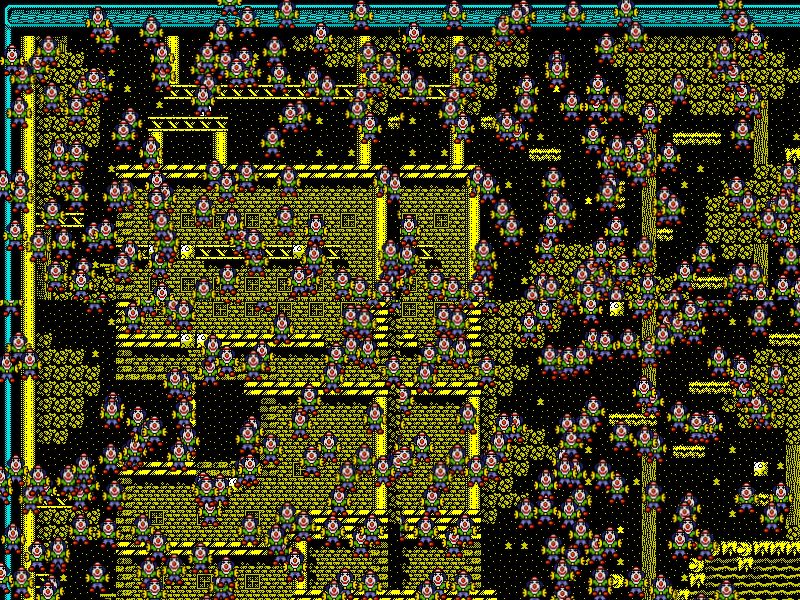 Multiple Camera Scroll ViewsDemonstrates using multiple cameras to view different parts of a scene simultaneously with independent horizontal, vertical, and circular scrolling offsets.
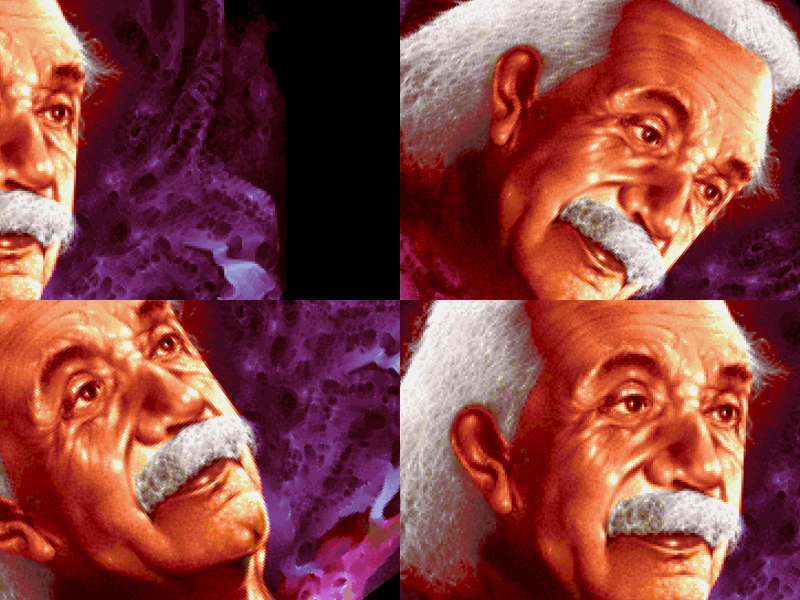 Multiple Camera ViewportsDemonstrates creating and manipulating multiple cameras, each with its own viewport, zoom level, rotation, and scroll position to view the same scene.
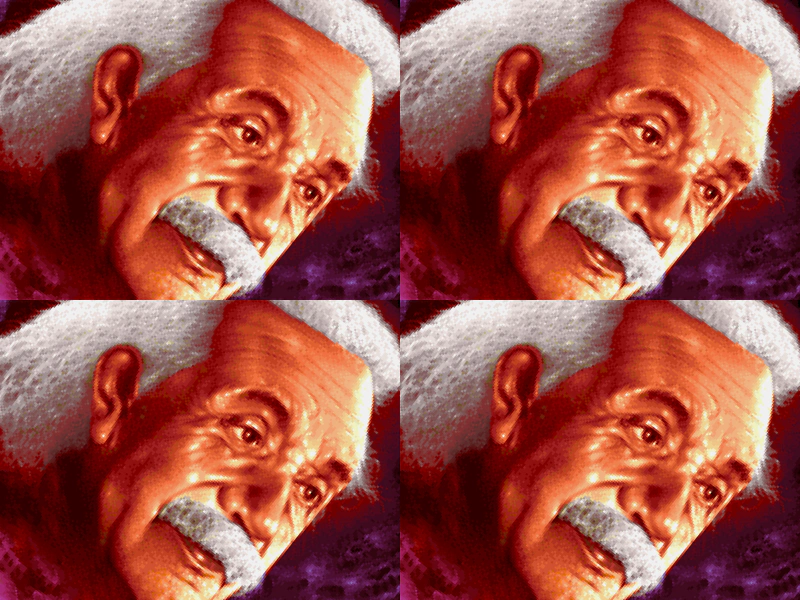 Multiple CamerasLearn how to divide the game canvas into multiple viewports by adding and positioning several cameras within a single scene.
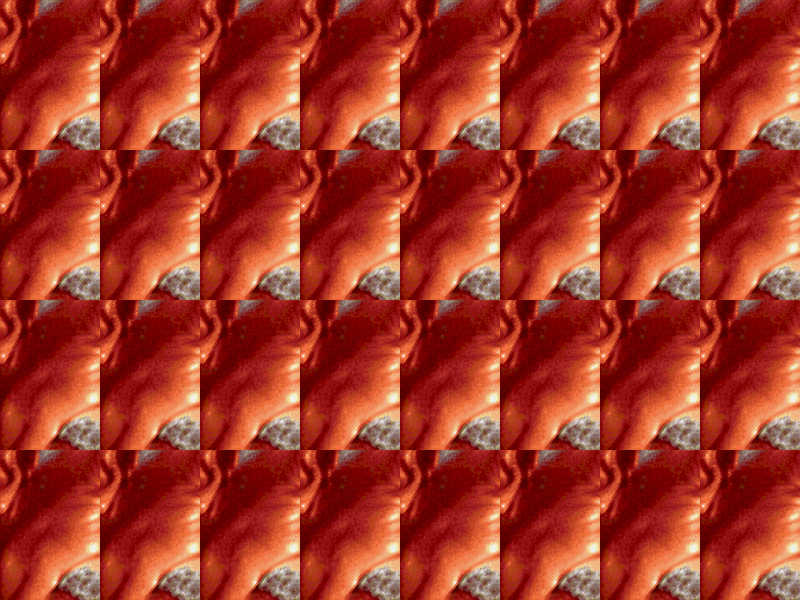 Multiple Cameras GridDemonstrates how to create and arrange 32 separate cameras in a grid layout to view the same scene content.
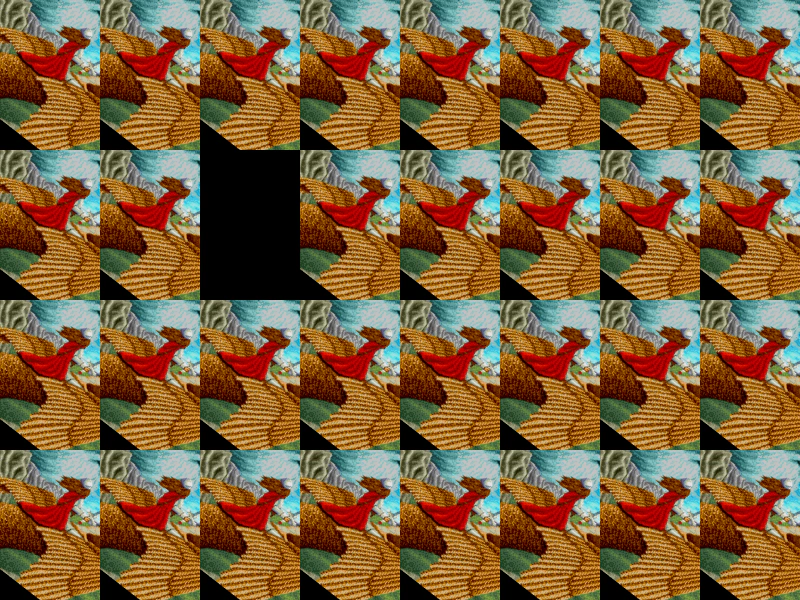 Remove Camera On ClickDemonstrates how to dynamically remove cameras from the Camera Manager using pointer input and add new cameras to specific screen coordinates.
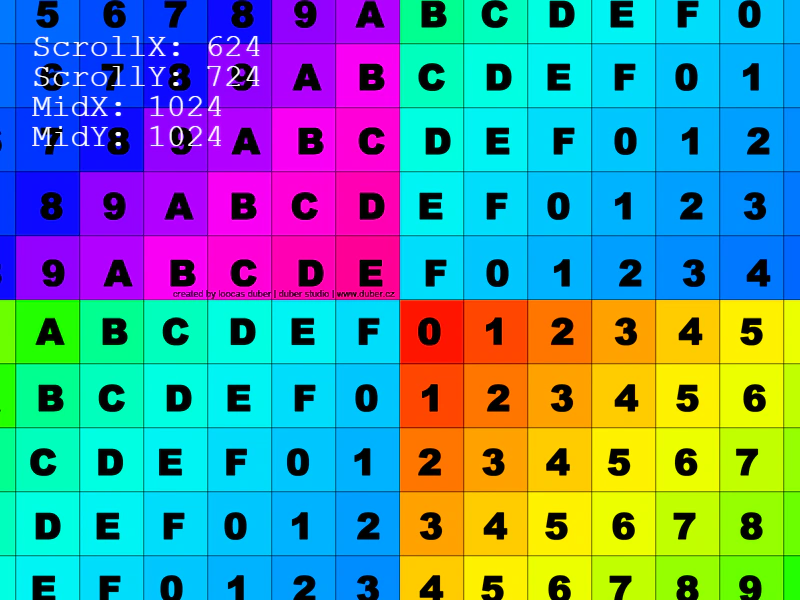 Rotate CameraRotate and pan the camera view using keyboard input while observing scroll coordinates and camera midpoint values.
 Round PixelsLearn how to use the Camera roundPixels setting to ensure sprites are rendered on integer coordinates, preventing sub-pixel blurring even when using non-integer positions or zoom levels.
 Set Camera BoundsThis example demonstrates how to restrict a camera's movement to a specific rectangular area using the setBounds method, preventing it from panning outside the defined limits of the game world.
 Set Scroll FactorDemonstrates how to use setScrollFactor to control the movement speed of Game Objects relative to camera scrolling, ideal for creating parallax effects or fixed UI elements.
 Set Small Camera BoundsRestricts camera movement to a defined area using setBounds, allowing for horizontal scrolling while limiting vertical movement.
 Single Small CameraDemonstrates how to adjust the camera viewport, zoom, and scroll position to render a scene within a smaller, specific portion of the game canvas.
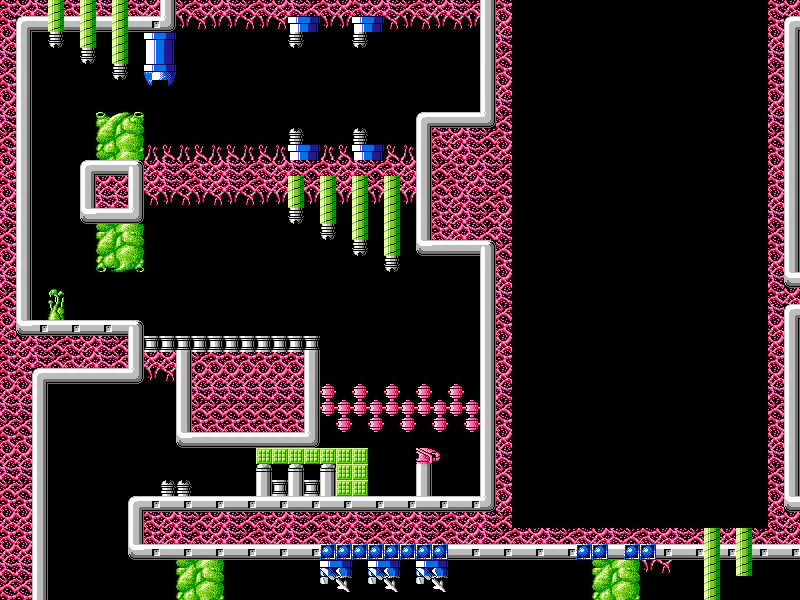 Tile Map Camera ShakeDemonstrates how to apply a screen shake effect to the camera while navigating a large tilemap using fixed keyboard controls.
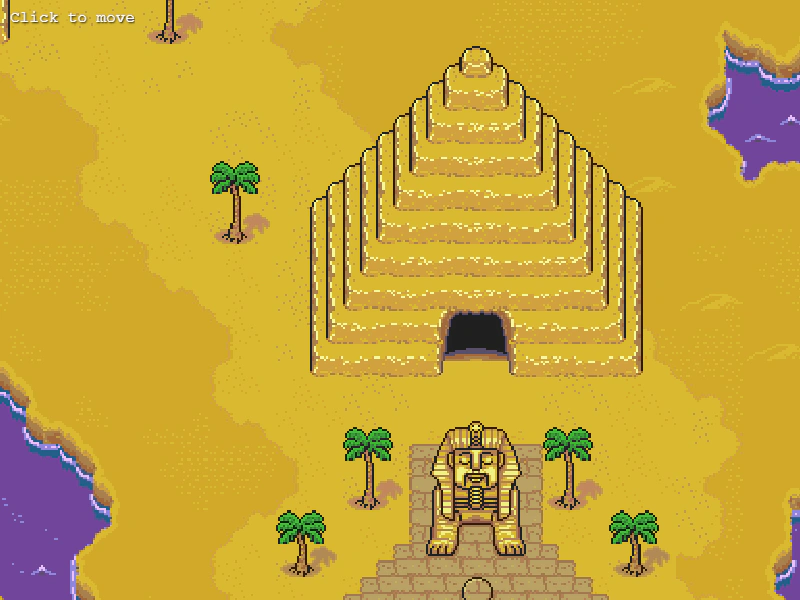 World Coordinates from Another SceneConvert screen pointer coordinates into world coordinates using a camera reference from a different scene, accounting for that camera's specific zoom and scroll values.