Phaser 4 examples
Scalemanager
- 24 examples
Examples 24
 Device Orientation DetectionHow to detect orientation changes between portrait and landscape modes using the Scale Manager to display prompts or adjust game state.
 Envelop Scale ModeDemonstrates the ENVELOP scale mode which scales the game to completely fill the parent container while maintaining aspect ratio, potentially cropping the canvas to fit.
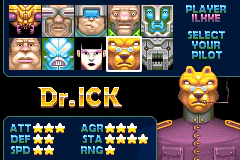 Fit and SnapDemonstrates using the Scale Manager's FIT mode combined with a snap configuration to scale the game canvas in discrete increments based on a fixed resolution.
 Fit Scale ModeThis example demonstrates how to use the FIT scale mode to automatically resize the game canvas to fit its parent container while strictly maintaining the aspect ratio.
 Fit Scale Mode with Min and MaxDemonstrates how to use the FIT scale mode while enforcing minimum and maximum width and height constraints on the game canvas.
 Fit with Auto CenterScales the game to fit the parent container while maintaining its aspect ratio and centering the canvas both horizontally and vertically.
 Fullscreen Mode ToggleDemonstrates how to switch the game to fullscreen and back using either an interactive UI button or a keyboard shortcut (F key) via the Scale Manager.
 Height Controls Width Scale ModeThis example demonstrates the HEIGHT_CONTROLS_WIDTH scale mode, which automatically adjusts the game width based on the height of the parent container while maintaining the aspect ratio.
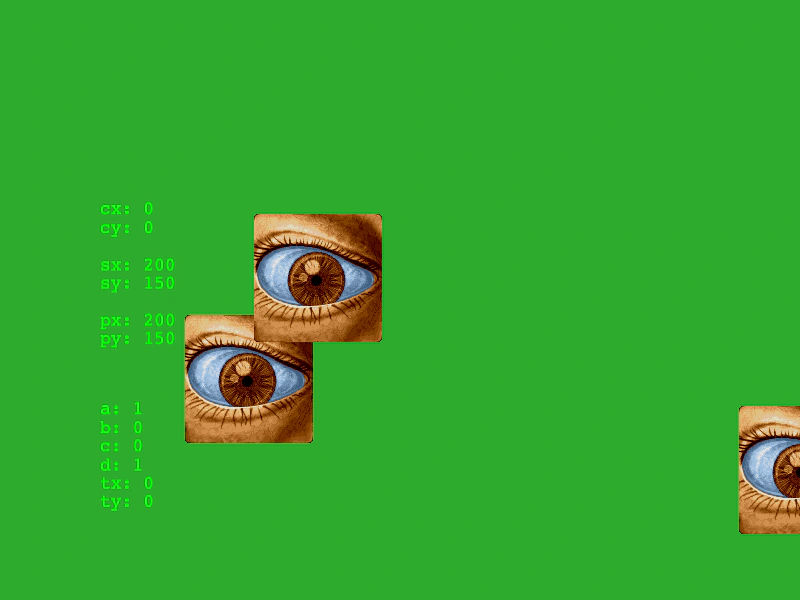 Input with Camera TransformsDemonstrates how to map pointer coordinates from screen space to world space while the camera is panned, zoomed, or rotated.
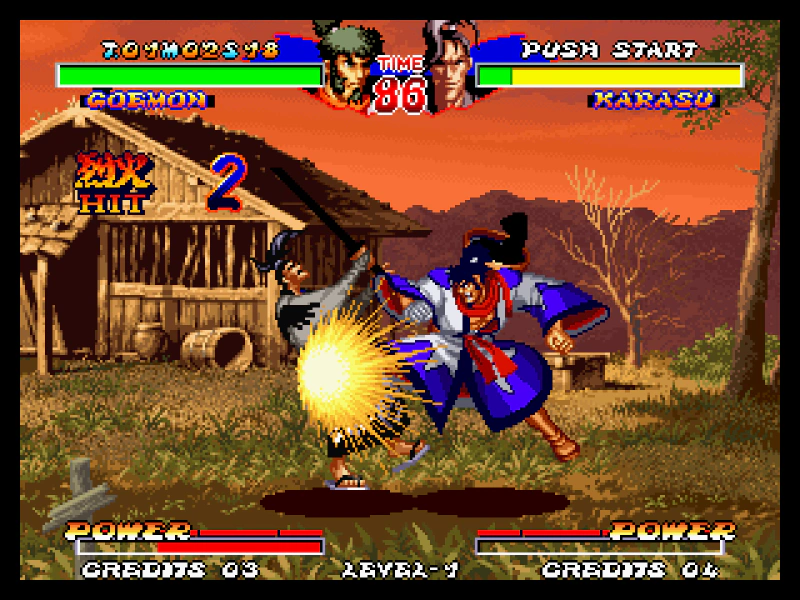 Manual Resize and Aspect Ratio FitDemonstrates how to use the RESIZE scale mode to manually manage multiple scenes with different scaling rules. One scene fills the entire window while another maintains a fixed aspect ratio and centers itself using camera viewports.
 Manually ResizeDemonstrates how to handle game resizing manually by disabling automatic scaling and updating the camera and game objects in response to window resize events.
 Manually Resize With ZoomDemonstrates how to manually update the game scale and recalculate the maximum zoom level using Phaser.Scale.MAX_ZOOM when the Scale Manager mode is set to NONE.
 Mobile Responsive Game LayoutDemonstrates a multi-scene approach for mobile games where a flexible background fills the entire screen while the main game area maintains a fixed aspect ratio. It uses the Scale Manager's resize event, camera viewports, and manual zoom calculations to keep the game centered and scaled across different device resolutions.
 No Scale with Auto CenterThis example shows how to disable canvas scaling while keeping the game centered both horizontally and vertically within its parent container.
 Resize Game on ClickDemonstrates how to dynamically change the game dimensions at runtime using the Scale Manager's resize method in response to user input.
 Resize with Minimum and Maximum LimitsDemonstrates how to use the Scale Manager to resize the game while enforcing minimum and maximum dimensions via the game configuration.
 Scale Manager Envelop Mode with Min and MaxDemonstrates using the ENVELOP scale mode to fill a parent container while enforcing specific minimum and maximum size constraints on the game canvas.
 Scale Manager Fit Mode with GameDemonstrates using the Scale Manager FIT mode to resize a platformer game, ensuring it scales to fill the available space while maintaining its aspect ratio and staying centered.
 Scale Manager Resize EventDemonstrates how to use the RESIZE scale mode and the resize event to dynamically update camera dimensions and reposition game objects when the browser window is resized.
 Scale Mode: NONEThis example demonstrates how to disable automatic canvas scaling by setting the scale mode to NONE, keeping the game at its fixed internal resolution.
 Width Controls Height Scale ModeDemonstrates the WIDTH_CONTROLS_HEIGHT scale mode, which automatically adjusts the game's height based on the available width while maintaining the aspect ratio.
 Zoom Manual ResizeDemonstrates how to dynamically update the canvas zoom level at runtime using the Scale Manager.
 Zoom With FitDemonstrates how to use the zoom property in combination with the FIT scale mode to upscale a low-resolution canvas while maintaining its aspect ratio within the parent container.
 Zoom With No ScaleDemonstrates how to enlarge a low-resolution game canvas using the zoom property while keeping the scale mode disabled.