Phaser 4 examples
Video
- 17 examples
Examples 17
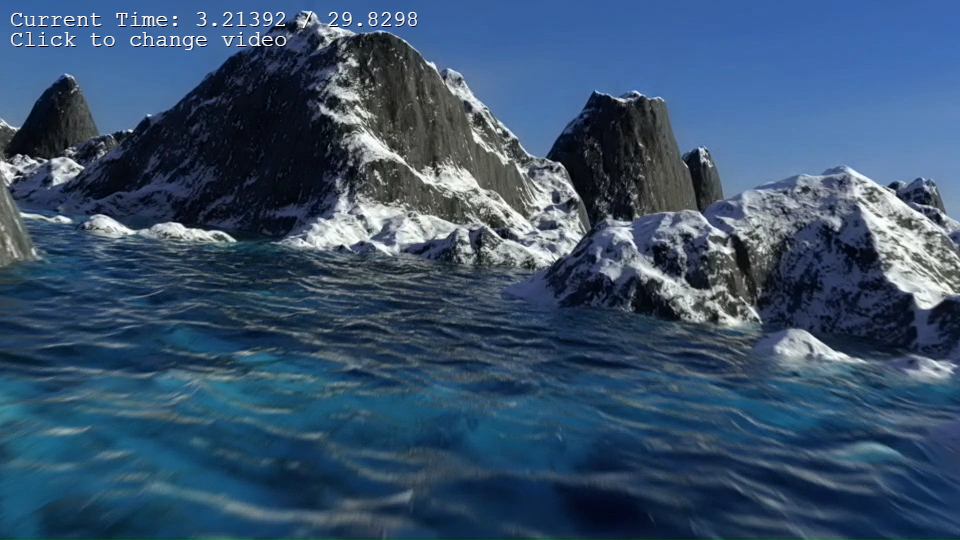 Change Video SourceDemonstrates how to dynamically switch the source of a Video Game Object between different preloaded video assets during runtime.
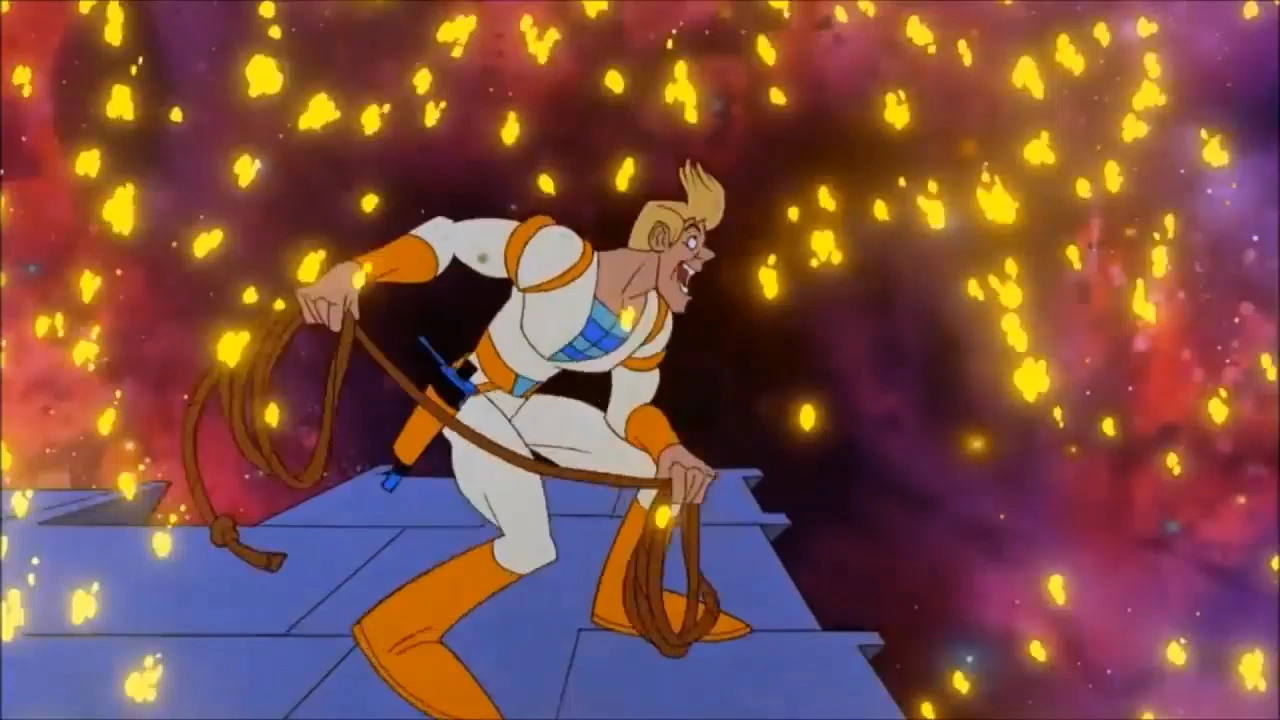 Get First Video FrameDemonstrates how to use the getFirstFrame method to display the initial frame of a video as a static preview before playback starts.
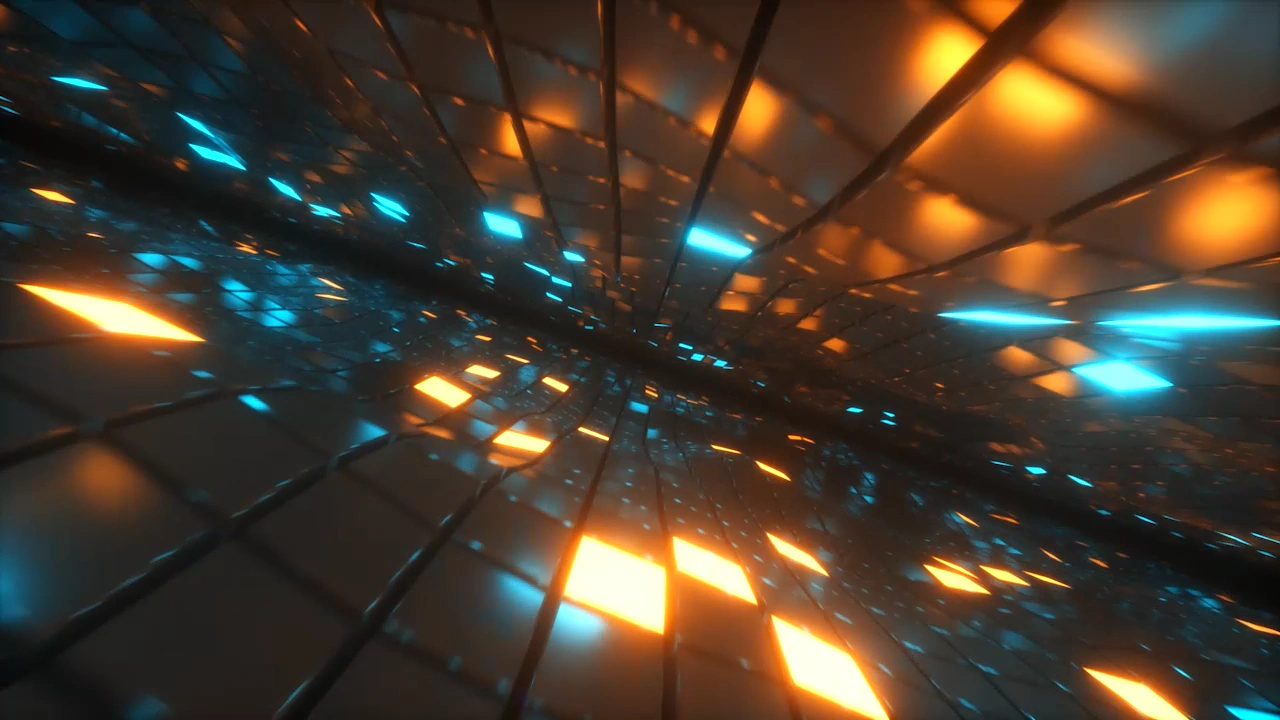 Load Video From URLDemonstrates how to create a Video Game Object and load a video file directly via a URL at runtime instead of using the preloader.
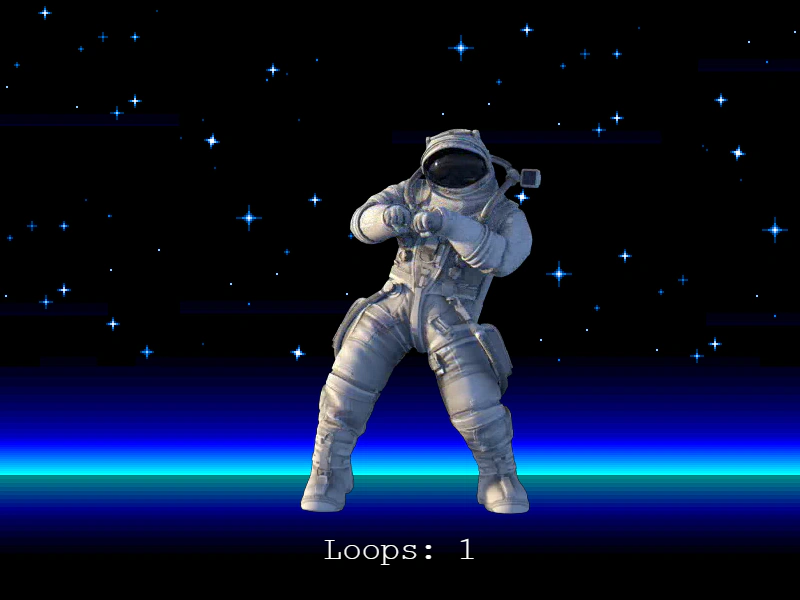 Loop VideoThis example demonstrates how to play a video on a continuous loop, handle browser autoplay restrictions, and listen for the 'loop' event to track repetitions.
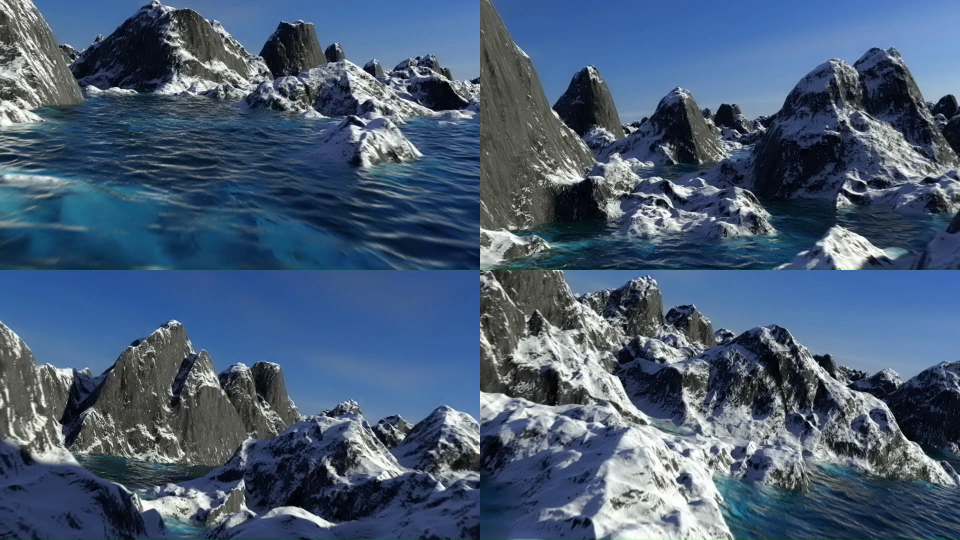 Multiple Video InstancesLearn how to display multiple video Game Objects using the same video asset, each playing independently with a different start time offset.
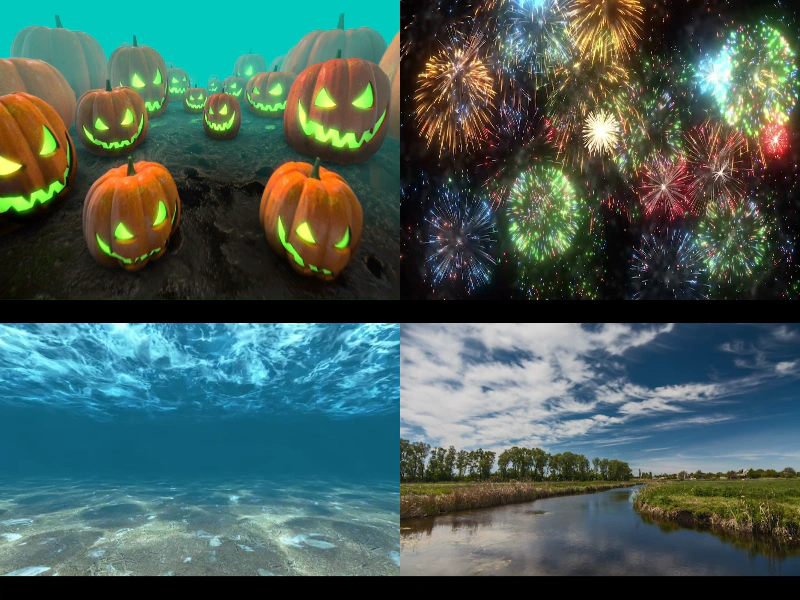 Multiple VideosThis example demonstrates how to load, display, and play multiple video files simultaneously in a grid layout.
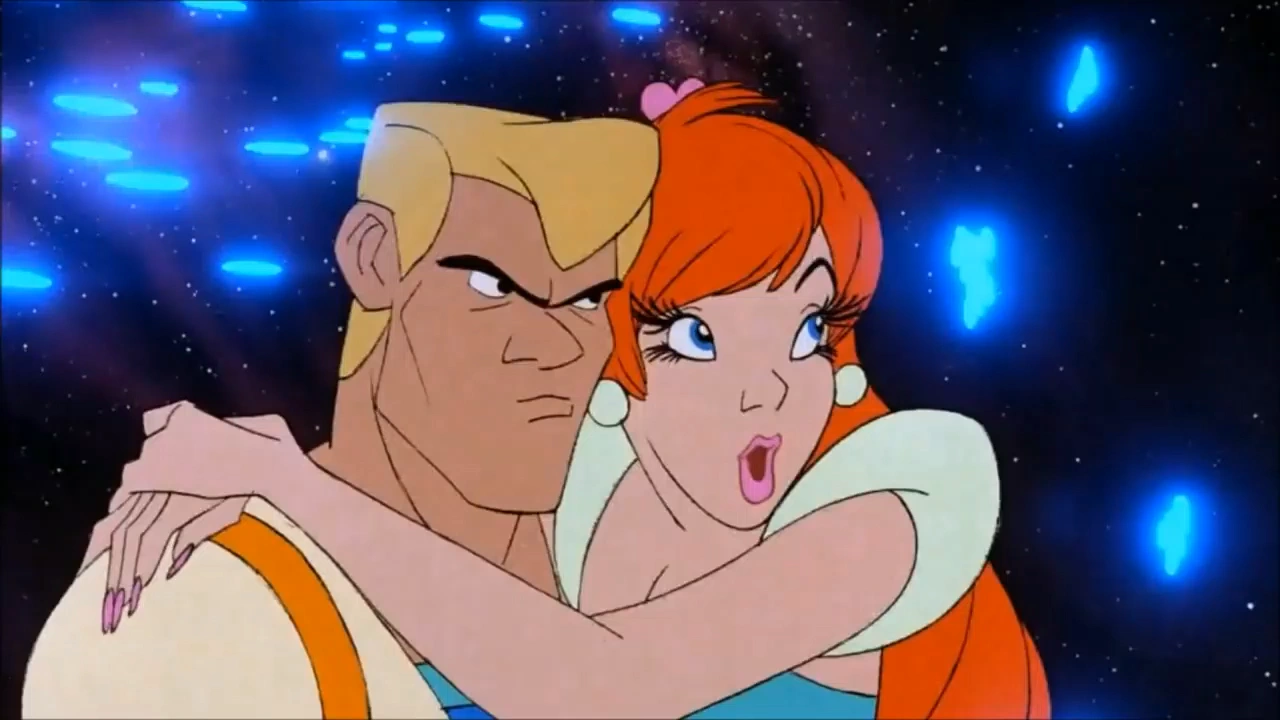 Play Video with InteractionDemonstrates how to load and play a video file, including handling browser autoplay restrictions and toggling play/pause states via user input.
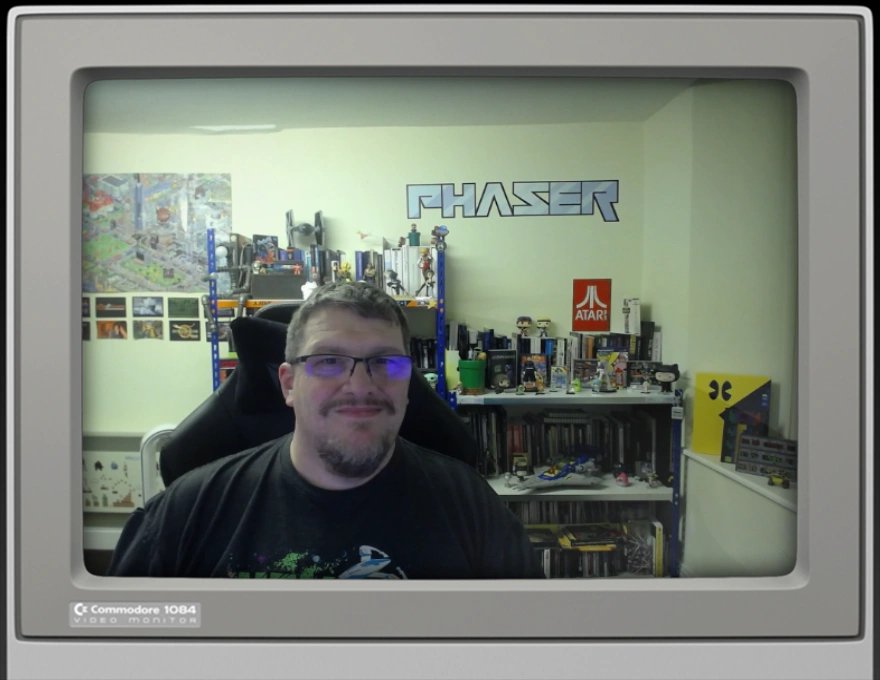 Stream Video From WebcamDemonstrates how to capture a user's webcam stream using the browser MediaDevices API and display it within a Phaser Video Game Object.
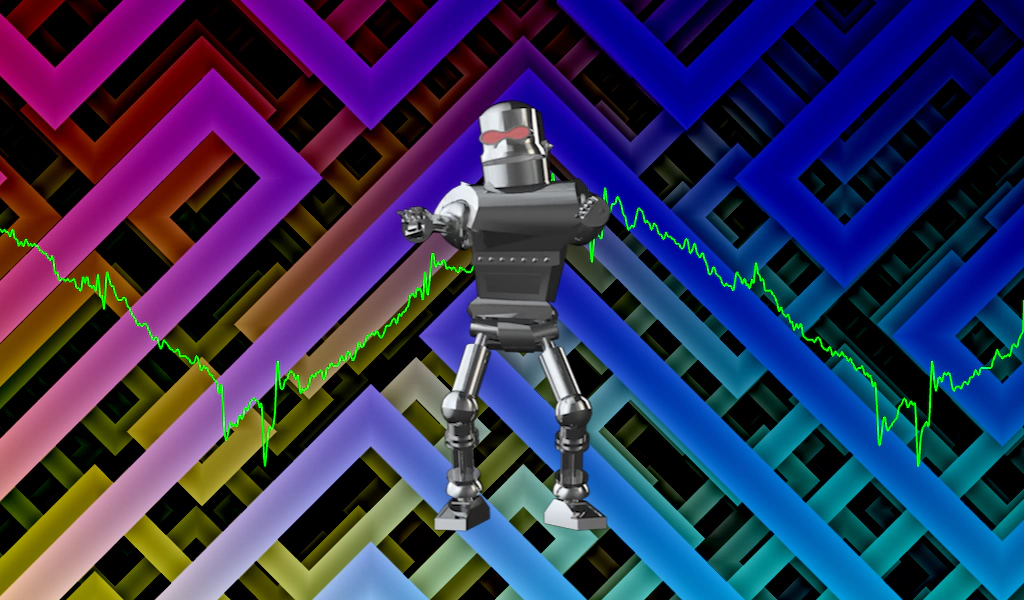 Transparent VideoDemonstrates playing a transparent WebM video over a background shader and an audio-reactive waveform visualization.
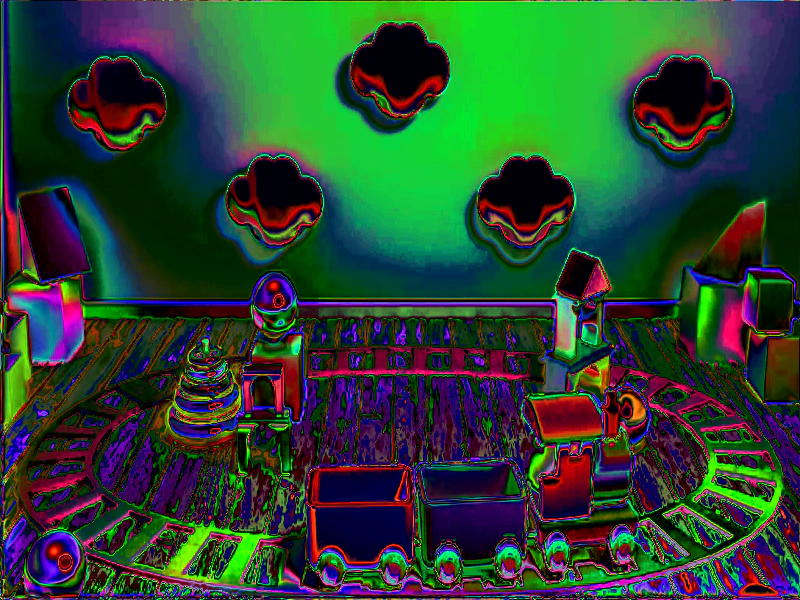 Video as Shader TextureDemonstrates how to use a playing video as a dynamic input texture for a GLSL shader. It shows how to register a video stream as a texture and pass it as a uniform into a shader object for real-time visual effects.
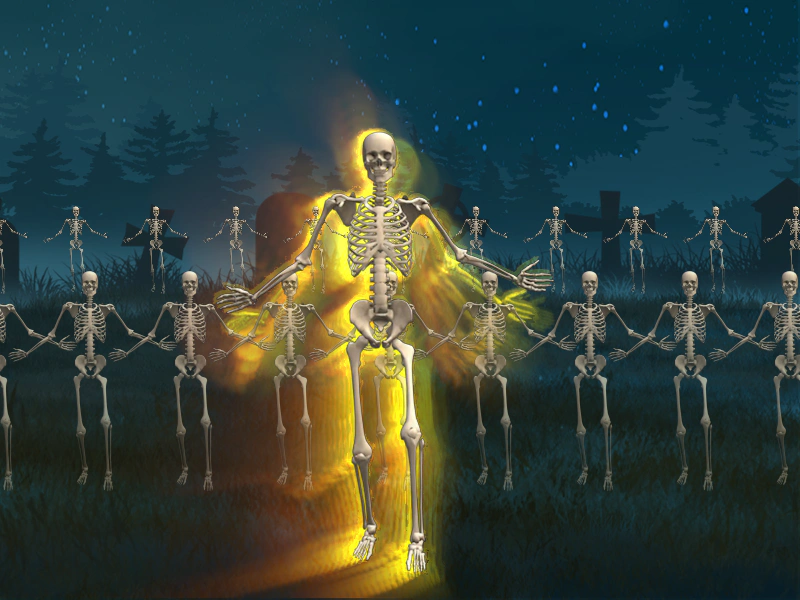 Video as Sprite TextureDemonstrates how to use a single playing video as a dynamic texture source for multiple Image Game Objects and multi-pass shaders simultaneously.
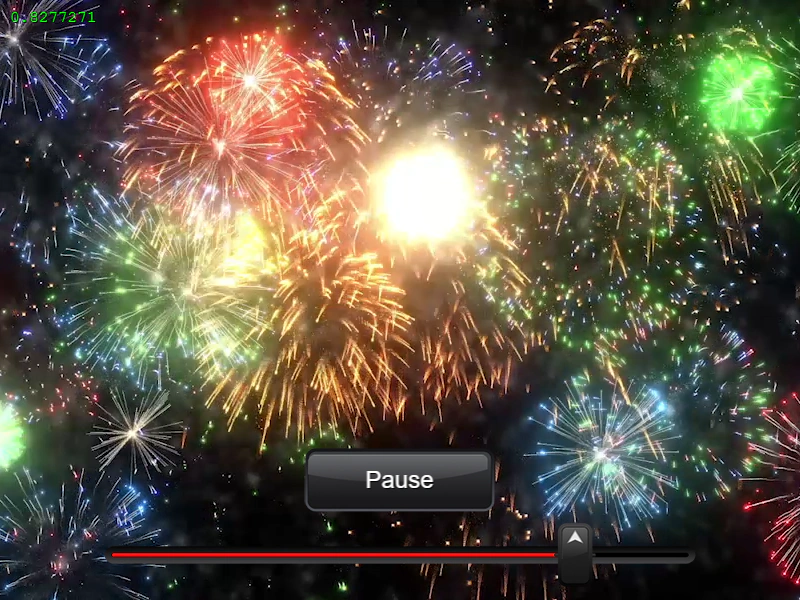 Video ControlsDemonstrates how to control video playback in Phaser, including play, pause, and resume functions, as well as tracking progress and seeking to specific timestamps using a slider.
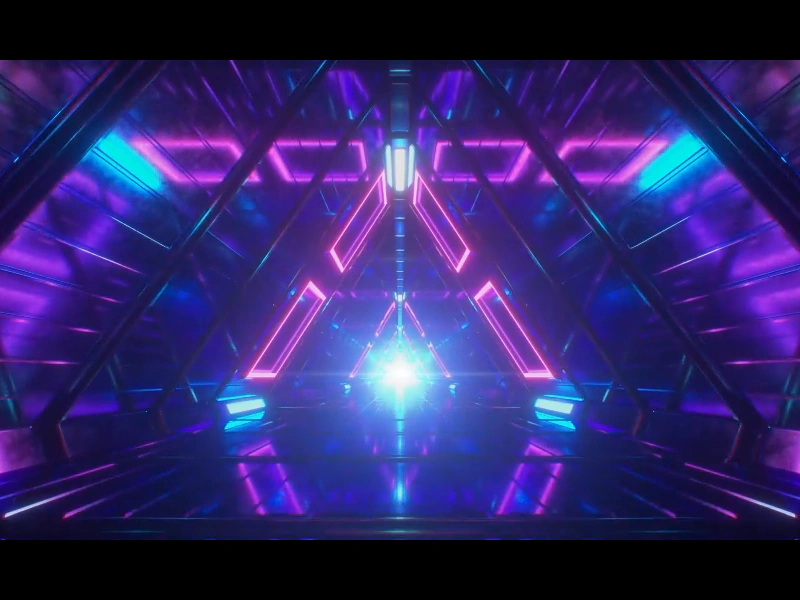 Video On Complete EventListen for the 'complete' event on a Video Game Object to trigger actions, such as displaying UI or restarting playback, once a video finishes playing.
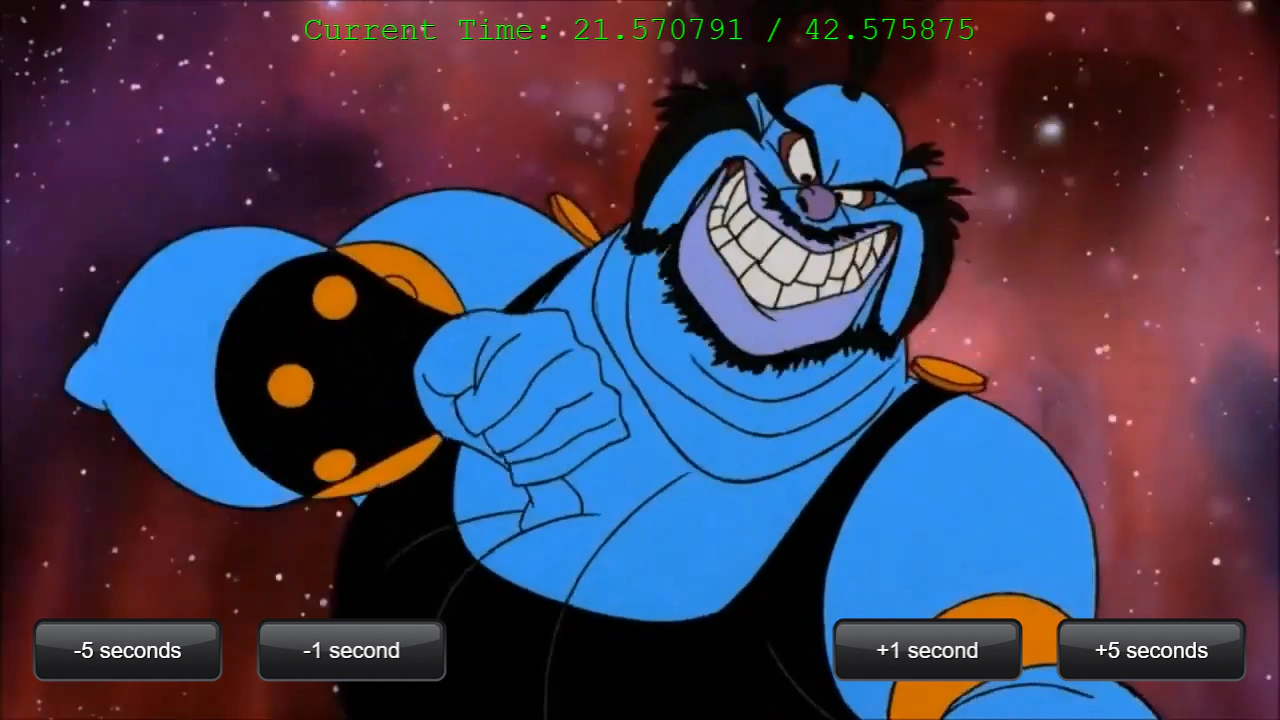 Video Seek and Current TimeDemonstrates how to seek forward or backward in a video using relative time values and monitor playback progress.
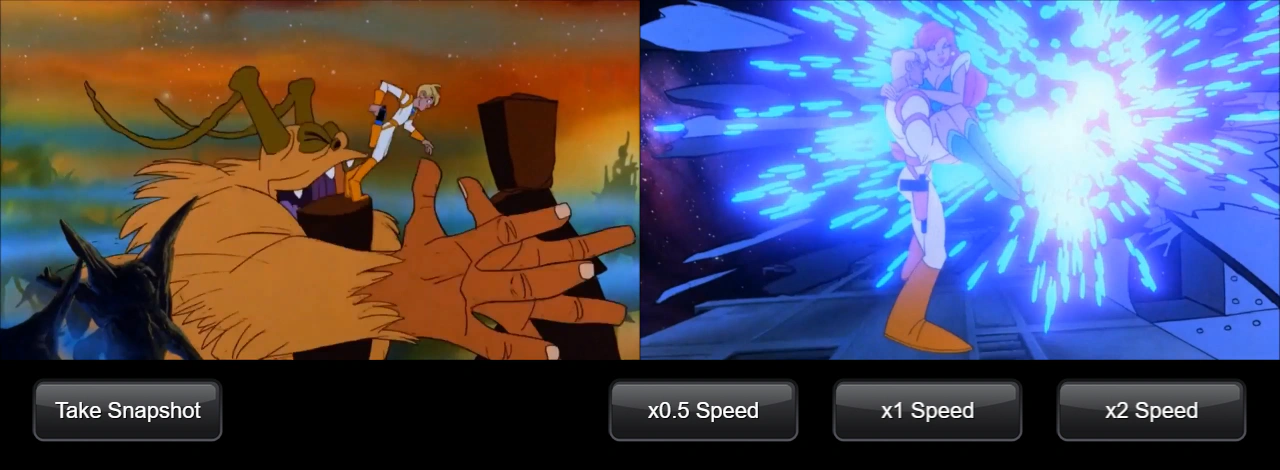 Video SnapshotCapture a snapshot of a playing video at its current frame and use it as a texture for an Image game object. This example also demonstrates how to adjust video playback speed.
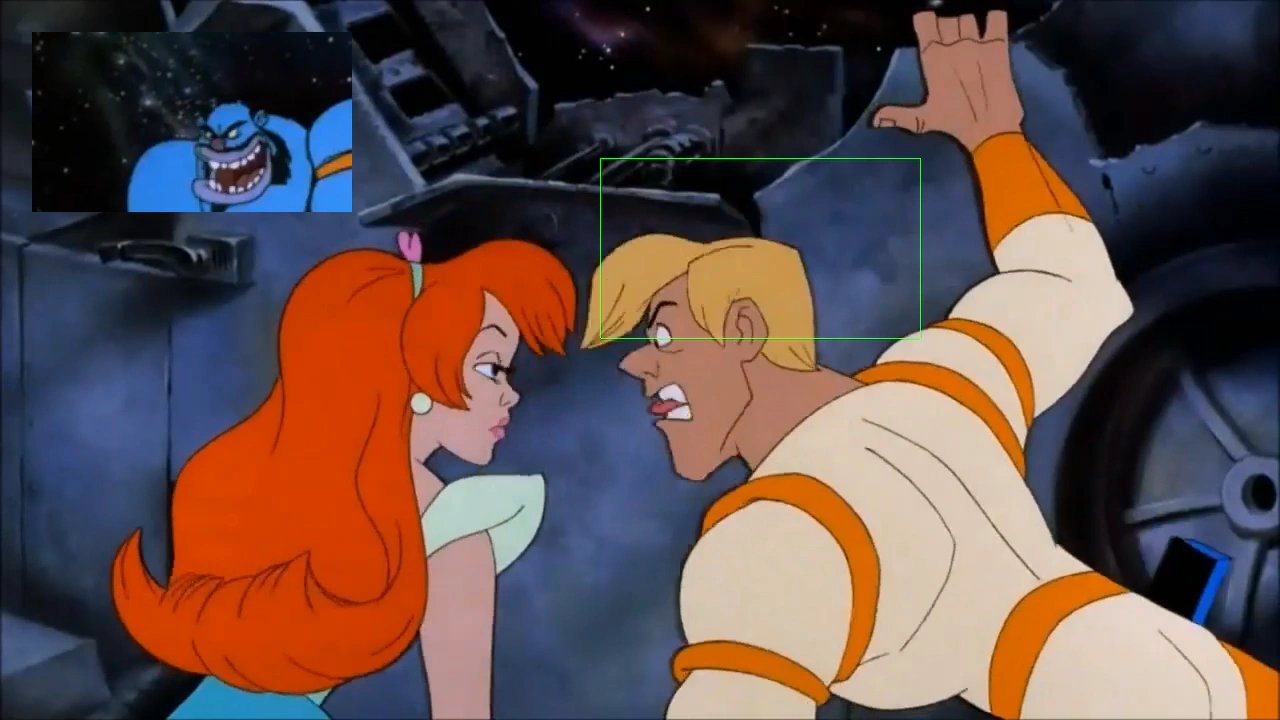 Video Snapshot AreaDemonstrates how to capture a specific rectangular region of a playing video and apply it as a texture to another Game Object.
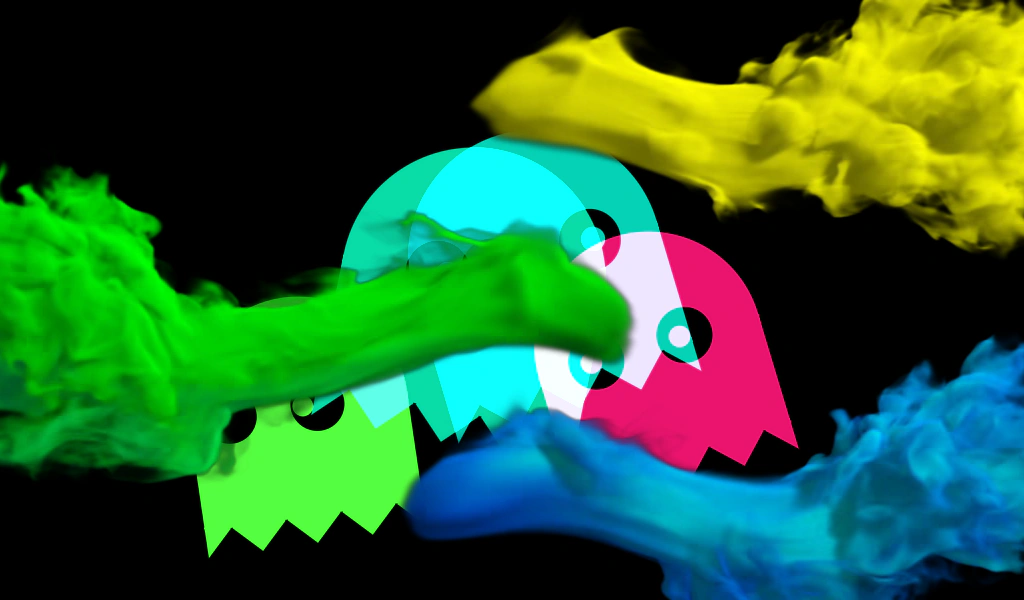 Video TransitionDemonstrates how to use a transparent WebM video as a transition layer to swap visibility between two game objects (a shader and another video) at a specific point in the playback.