Phaser 4 examples
Textures
- 50 examples
- 2 folders
Folders 2

Examples 36
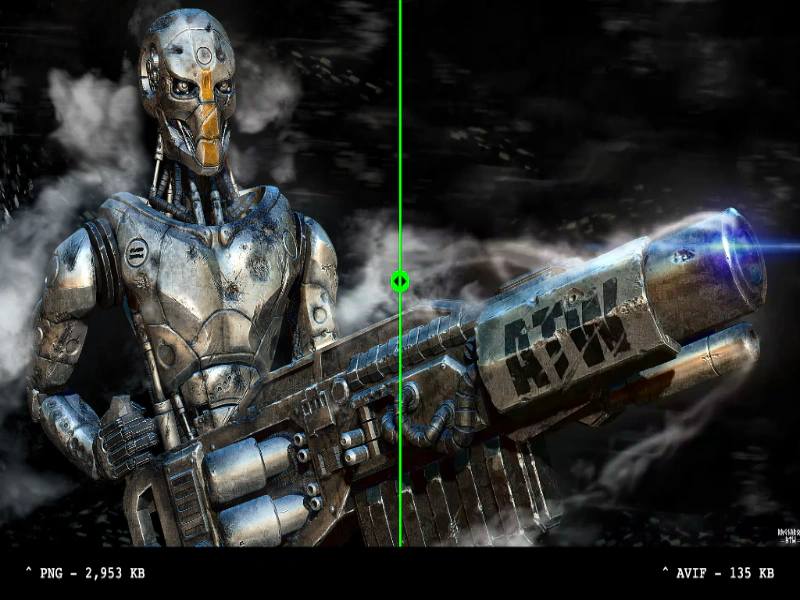 AVIF Texture SupportLoad and display AVIF images to compare visual quality and significant file size savings against standard PNGs using an interactive comparison slider.
 Compressed Multi-Texture AtlasDemonstrates loading a multi-file texture atlas using various hardware-compressed formats like ASTC, ETC, PVRTC, and S3TC with an image fallback.
 Compressed Texture AtlasDemonstrates how to load a multi-format compressed texture atlas. Phaser automatically detects device support for formats like ASTC, ETC, PVRTC, and S3TC, loading the optimal file or falling back to a standard PNG.
 Compressed Texture Atlas via File ConfigLoad a texture atlas by providing multiple compressed texture formats (ASTC, ETC, PVRTC, S3TC) and a PNG fallback within a single configuration object.
 Compressed Texture Atlas via File PackDemonstrates how to load a multi-format compressed texture atlas using a File Pack object, allowing the engine to automatically select the best format (ASTC, ETC, PVRTC, or S3TC) supported by the hardware.
 Compressed Texture From File PackDemonstrates how to load multiple compressed texture formats using a File Pack object. This allows the loader to automatically select the most suitable format (ASTC, ETC, S3TC, or PVRTC) based on the hardware's capabilities.
 Compressed Texture LoadingDemonstrates how to load multi-format compressed textures (ASTC, ETC, PVRTC, and S3TC) with an automatic fallback for maximum hardware compatibility.
 Compressed Texture Loading via ConfigurationDemonstrates how to load textures by providing a configuration object with multiple compressed formats (ASTC, ETC, PVRTC, S3TC) and a fallback image, allowing Phaser to automatically select the optimal format for the hardware.
 Crop Animated SpriteLearn how to apply and dynamically update a rectangular crop on an animated sprite to show only a specific portion of the animation.
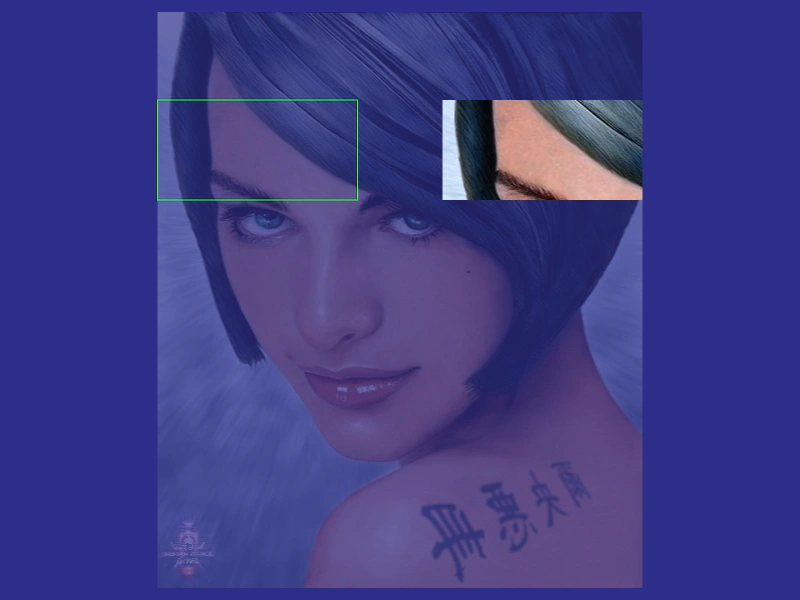 Crop Flipped TextureDemonstrates how to apply and update a crop area on an Image that has been horizontally flipped.
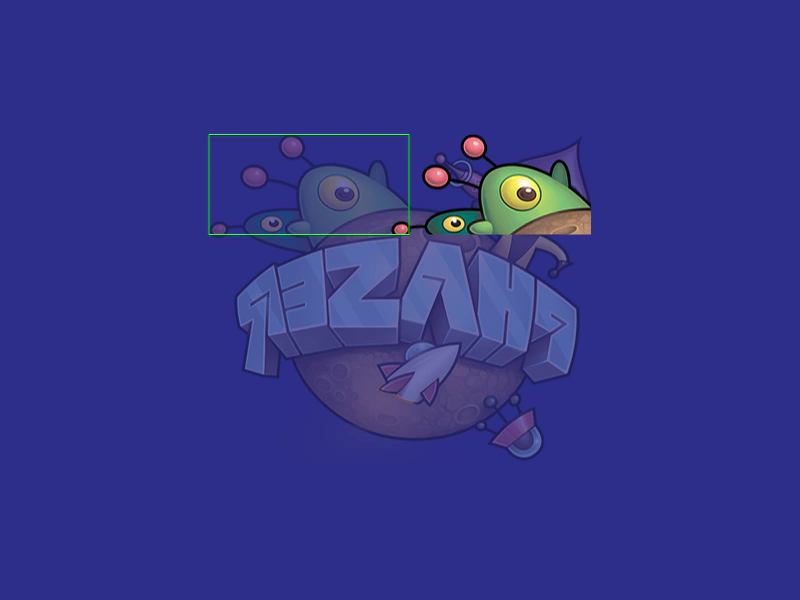 Crop Flipped Texture Atlas FrameDemonstrates how to apply a crop area to an image that is both horizontally flipped and sourced from a texture atlas frame.
 Crop Flipped Texture Atlas FrameDemonstrates applying a dynamic crop area to a flipped image using a frame from a texture atlas.
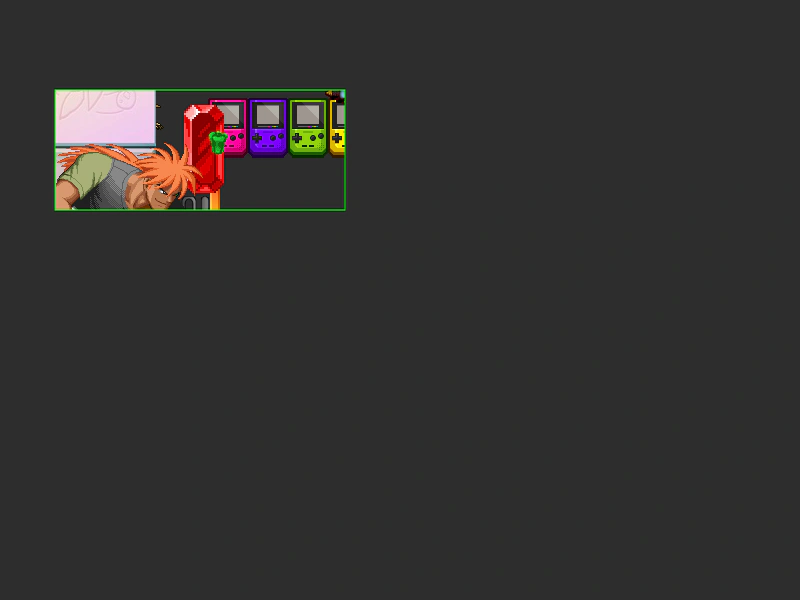 Crop Render TextureDemonstrates how to apply a crop area to a Render Texture and update its position dynamically using pointer input.
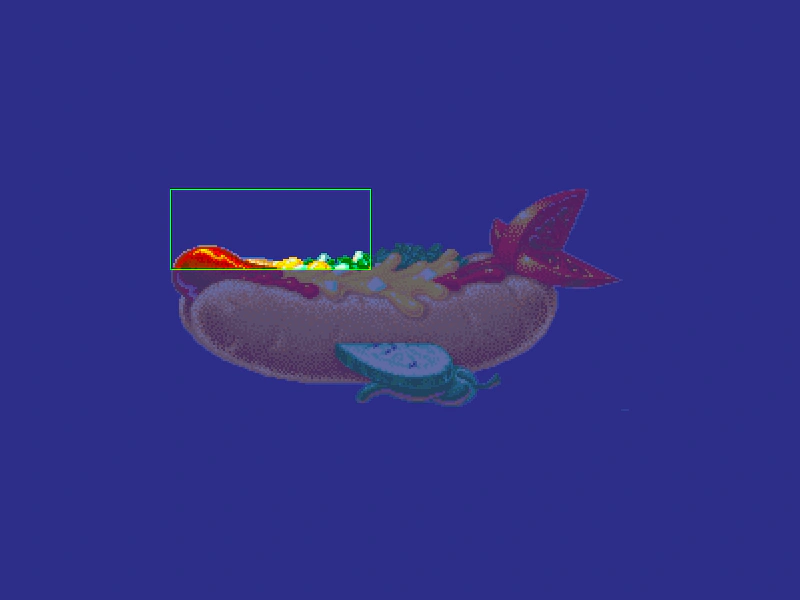 Crop Scaled ImageDemonstrates how to apply and update a crop rectangle on an Image that has been scaled, mapping coordinates to account for the scale factor.
 Crop Texture Atlas FrameApply a crop rectangle to a specific frame within a texture atlas and update the crop area dynamically based on pointer movement.
 Crop Texture Atlas Frame TrimmedDemonstrates how to apply and dynamically update a crop area on an image using a trimmed frame from a texture atlas.
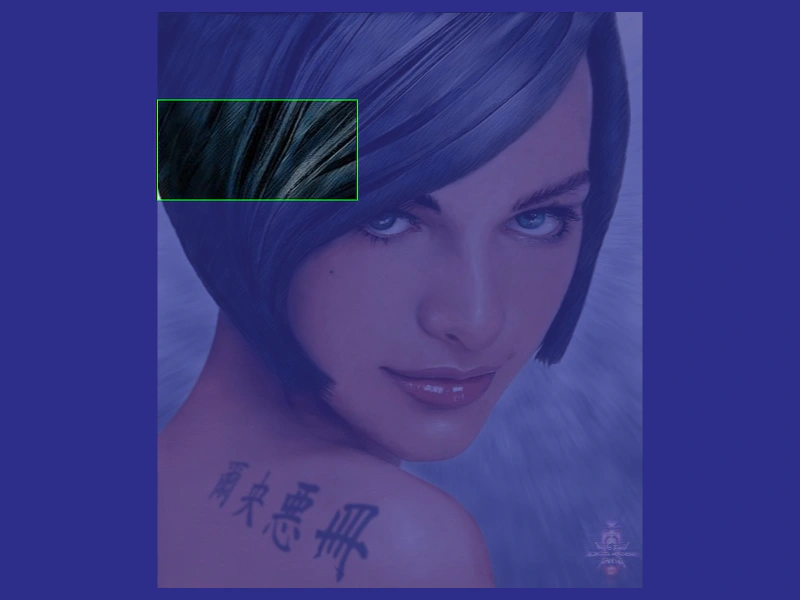 Crop Texture ImageDemonstrates how to use the setCrop method to display a specific rectangular area of an image and update those crop coordinates dynamically based on pointer input.
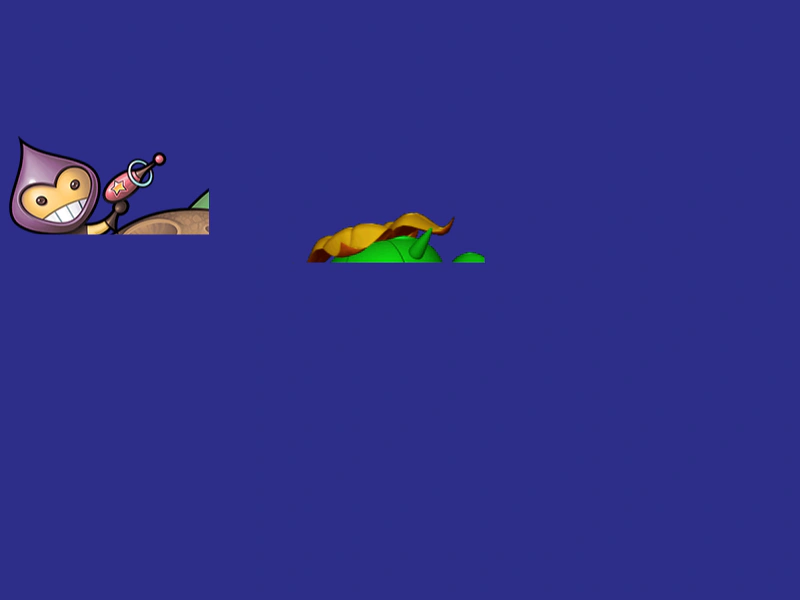 Cropping Multiple Texture Atlas FramesDemonstrates how to apply individual crop rectangles to multiple images that are using different frames from the same texture atlas.
 Dynamic Text CroppingDemonstrates how to apply and update a rectangular crop on a Text object using the setCrop method to reveal only specific portions of the text interactively.
 Edit Texture Hue ShiftDemonstrates how to modify texture pixel data in real-time by creating a Canvas Texture, manipulating its HSV values using getImageData, and updating the renderer with the refresh method.
 Edit Texture SilhouetteDemonstrates how to create a silhouette effect by creating a Canvas texture and manually modifying its pixel data using the 2D context getImageData and putImageData methods.
 Frames From a Single Texture AtlasDemonstrates how to load a single texture atlas and display multiple different images by referencing their individual frame names.
 Get Pixel From ImageDemonstrates how to use the Texture Manager to retrieve the color value of a specific pixel from a loaded image using its X and Y coordinates.
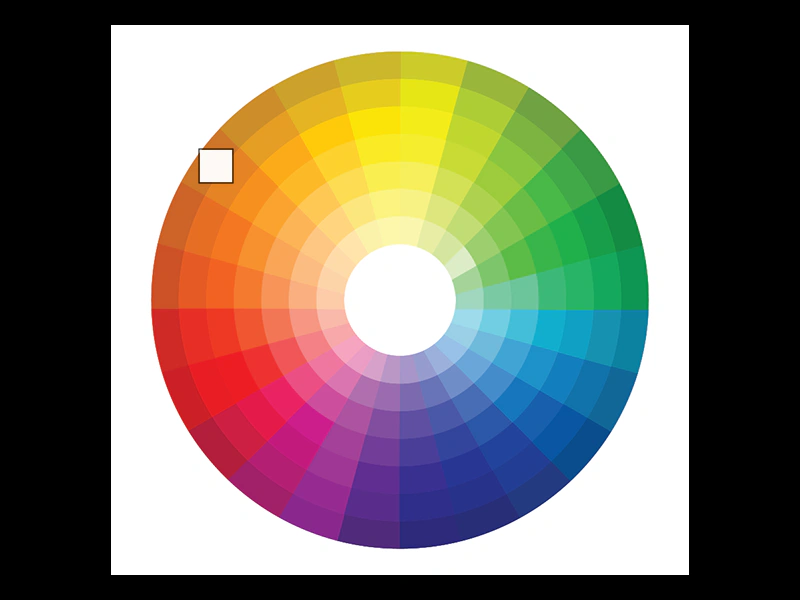 Get Pixel Under PointerDemonstrates how to retrieve color data from a specific texture at a given coordinate in real-time as the pointer moves.
 Get Texture PixelsDemonstrates how to read color data from an image by drawing it to a CanvasTexture and using the getPixel method to iterate through its individual pixels.
 Multi-AtlasDemonstrates how to load and display frames from a multi-page texture atlas where a single JSON manifest manages multiple image files.
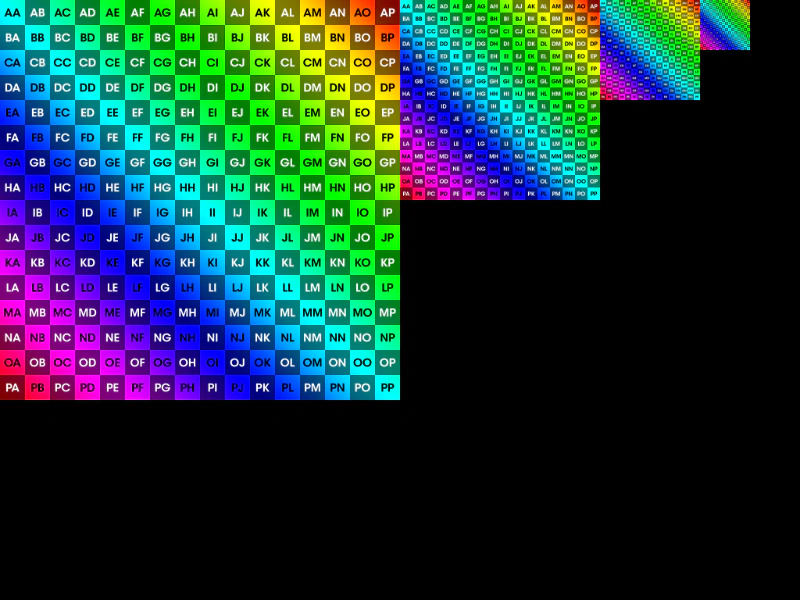 Set Mipmap FilterConfigure the global mipmap filter via the Game Config to improve visual quality when textures are rendered at smaller scales.
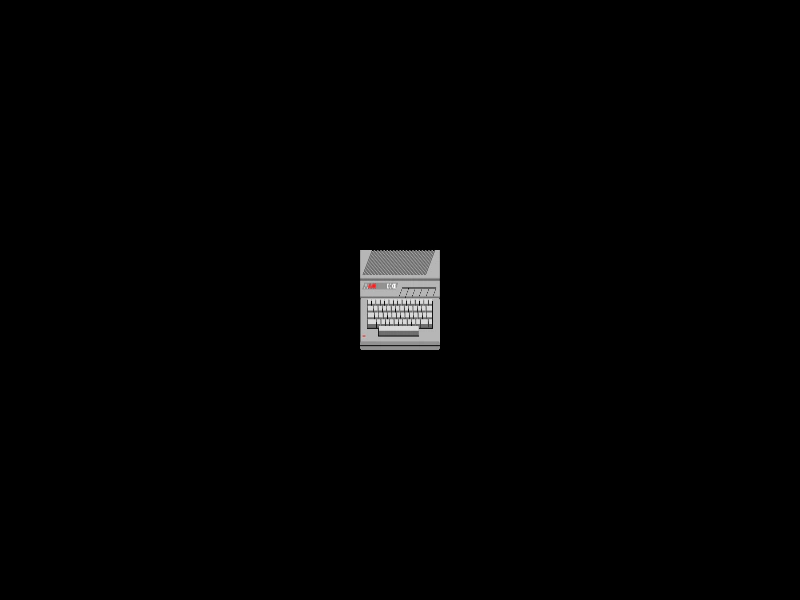 Set Texture SourceDemonstrates how to change the underlying source data of a Texture at runtime, which automatically updates any Game Objects currently using that texture.
 Sprite from Tilemap TextureDemonstrates how to manually parse a loaded image into a SpriteSheet at runtime, allowing you to create Sprites from individual tiles.
 Sprite SheetLoad a sprite sheet with defined frame dimensions and display individual frames using their index.
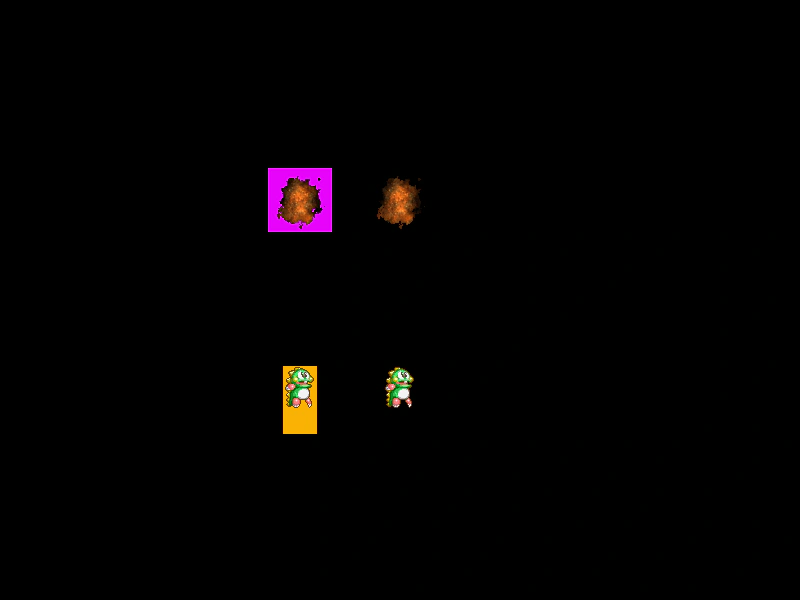 Sprite Sheet From AtlasDemonstrates how to use addSpriteSheetFromAtlas to extract and define a sprite sheet from a specific frame within an existing Texture Atlas, allowing for animations to be generated from packed assets.
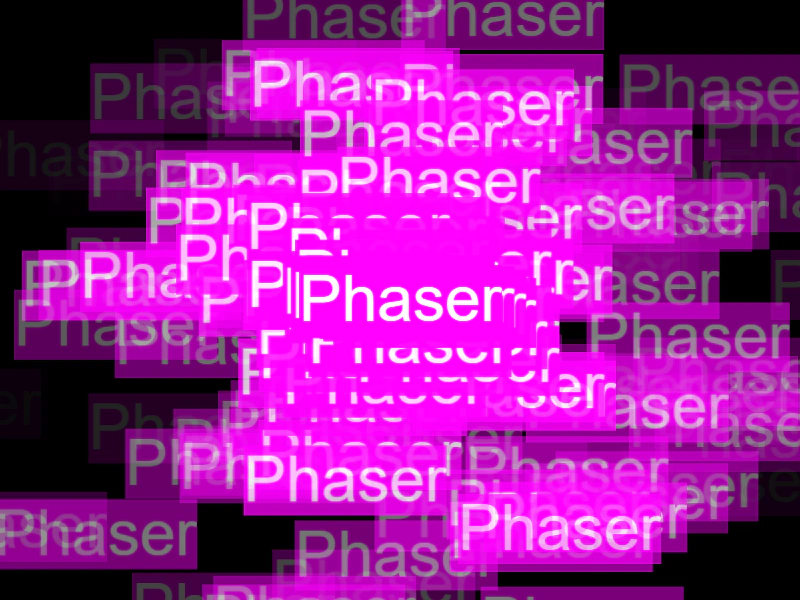 Text TextureDemonstrates how to convert a Text object into a dynamic texture and use it as the source frame for a Particle Emitter.
 Texture From Base64Demonstrates how to create a texture from a Base64 encoded image string and use event listeners to detect when the texture is ready to be displayed.
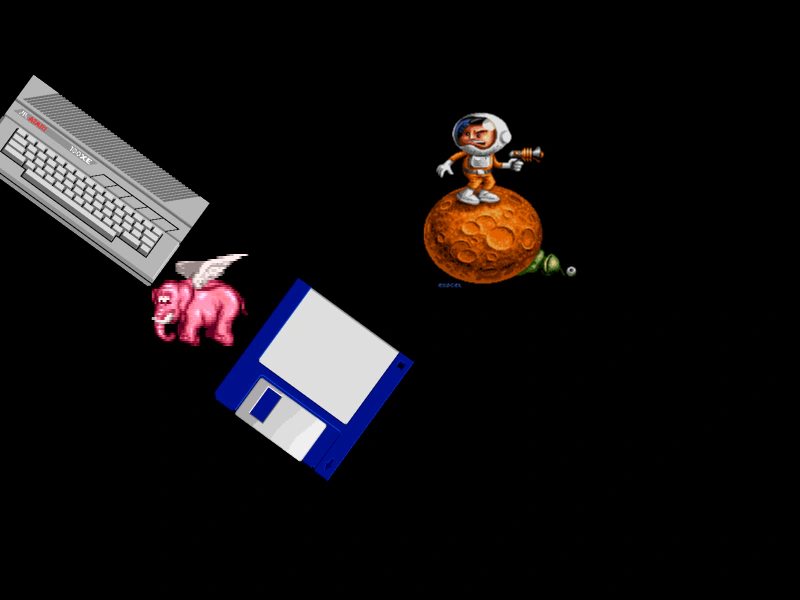 Texture Packer AtlasLoad and display individual frames from a Texture Packer JSON atlas, featuring support for custom pivot points and sprite rotation.
 Trimmed Frame From Multi-AtlasDemonstrates how to load a multi-atlas texture and display a specific trimmed frame by name.
 Trimmed Frame from Texture AtlasDemonstrates loading a texture atlas and displaying a specific frame that has been trimmed, illustrating how Phaser handles original source dimensions versus trimmed sizes.