UI Scene Overlay
Demonstrates how to run a dedicated UI Scene simultaneously with a Game Scene, using the Scene Event Emitter to communicate and update a score display between them.
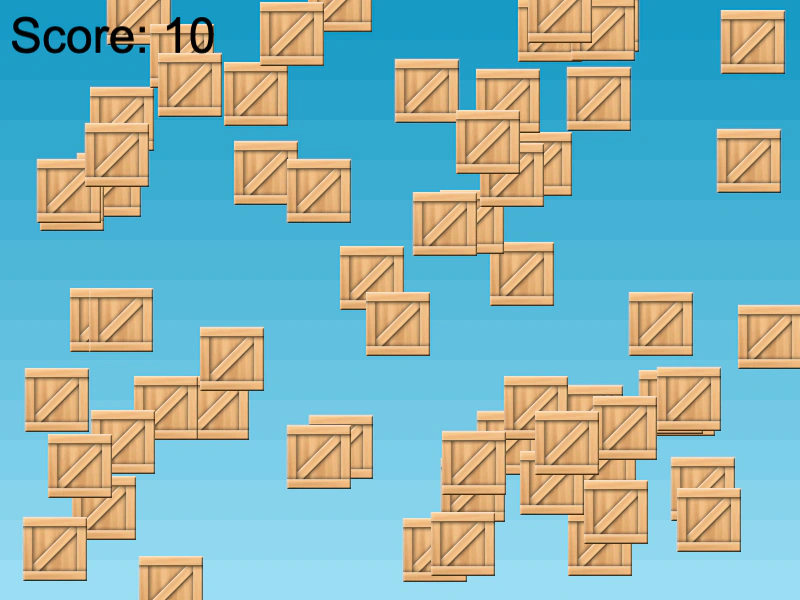
800 × 600
class GameScene extends Phaser.Scene
{
    constructor ()
    {
        super({ key: 'GameScene' });
    }

    preload ()
    {
        this.load.setBaseURL('https://cdn.phaserfiles.com/v410');
        this.load.image('bg', 'assets/skies/sky4.png');
        this.load.image('crate', 'assets/sprites/crate.png');
    }

    create ()
    {
        this.add.image(400, 300, 'bg');

        for (let i = 0; i < 64; i++)
        {
            const x = Phaser.Math.Between(0, 800);
            const y = Phaser.Math.Between(0, 600);

            const box = this.add.image(x, y, 'crate');

            //  Make them all input enabled
            box.setInteractive();
        }

        this.input.on('gameobjectup', this.clickHandler, this);
    }

    clickHandler (pointer, box)
    {
        //  Disable our box
        box.input.enabled = false;
        box.setVisible(false);

        //  Dispatch a Scene event
        this.events.emit('addScore');
    }
}

class UIScene extends Phaser.Scene
{
    constructor ()
    {
        super({ key: 'UIScene', active: true });

        this.score = 0;
    }

    create ()
    {
        //  Our Text object to display the Score
        const info = this.add.text(10, 10, 'Score: 0', { font: '48px Arial', fill: '#000000' });

        //  Grab a reference to the Game Scene
        const ourGame = this.scene.get('GameScene');

        //  Listen for events from it
        ourGame.events.on('addScore', function ()
        {

            this.score += 10;

            info.setText(`Score: ${this.score}`);

        }, this);
    }
}

const config = {
    scale: { mode: Phaser.Scale.FIT },
    type: Phaser.AUTO,
    width: 800,
    height: 600,
    backgroundColor: '#000000',
    parent: 'game-container',
    scene: [ GameScene, UIScene ]
};

const game = new Phaser.Game(config);
More in Scenes52 examples
 Add Scene After Game InstanceDemonstrates how to dynamically add and start a Scene to a Phaser Game instance after it has been initialized, including passing data to the Scene's create method.
 Add Scene From Another SceneDemonstrates how to dynamically add a new Scene to the Scene Manager and start it immediately while passing custom data to its create method.
 Adding and Starting Scenes ManuallyDemonstrates how to add a scene to the Scene Manager and start it manually using the game instance API instead of the game configuration object.
 Boot DataDemonstrates how to pass a data object when starting a scene and access it within the init, preload, and create methods for dynamic asset loading and positioning.