Listen to Game Object Custom Events
Demonstrates how to bridge standard scene input events to custom events emitted directly by Game Objects, allowing objects to handle their own logic through event listeners.
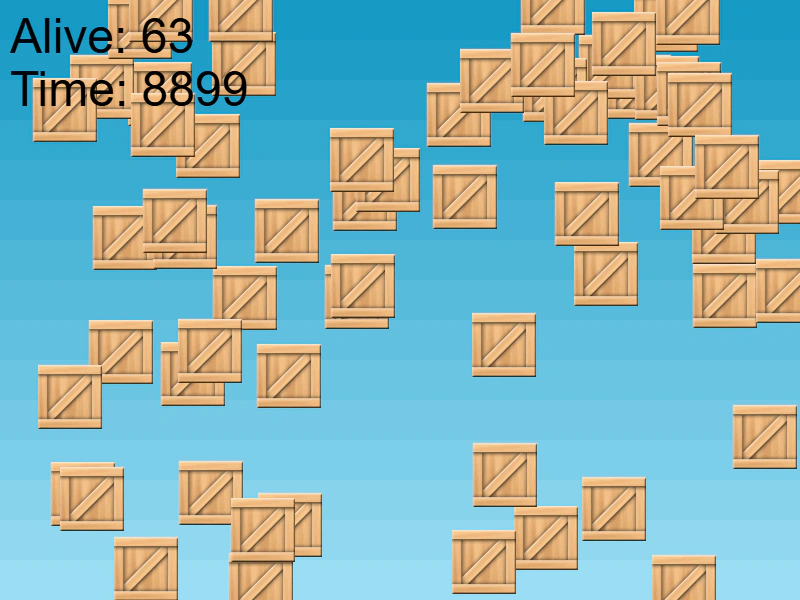
800 × 600
let info;
let timer;
let alive = 0;

class Example extends Phaser.Scene
{
    constructor ()
    {
        super();
    }

    preload ()
    {
        this.load.setBaseURL('https://cdn.phaserfiles.com/v410');
        this.load.image('bg', 'assets/skies/sky4.png');
        this.load.image('crate', 'assets/sprites/crate.png');
    }

    create ()
    {
        //  How many crates can you click on in 10 seconds?
        this.add.image(400, 300, 'bg');

        //  Create a bunch of images
        for (var i = 0; i < 64; i++)
        {
            var x = Phaser.Math.Between(0, 800);
            var y = Phaser.Math.Between(0, 600);

            var box = this.add.image(x, y, 'crate');

            //  Make them all input enabled
            box.setInteractive();

            //  The images will dispatch a 'clicked' event when they are clicked on
            box.on('clicked', this.clickHandler, this);

            alive++;
        }

        //  If a Game Object is clicked on, this event is fired.
        //  We can use it to emit the 'clicked' event on the game object itself.
        this.input.on('gameobjectup', function (pointer, gameObject)
        {
            gameObject.emit('clicked', gameObject);
        }, this);

        //  Display the game stats
        info = this.add.text(10, 10, '', { font: '48px Arial', fill: '#000000' });

        timer = this.time.addEvent({ delay: 10000, callback: this.gameOver, callbackScope: this });
    }

    update ()
    {
        info.setText('Alive: ' + alive + '\nTime: ' + Math.floor(10000 - timer.getElapsed()));
    }

    clickHandler (box)
    {
        alive--;

        box.off('clicked', this.clickHandler);
        box.input.enabled = false;
        box.setVisible(false);
    }

    gameOver ()
    {
        this.input.off('gameobjectup');
    }
}

const config = {
    scale: { mode: Phaser.Scale.FIT },
    type: Phaser.AUTO,
    parent: 'game-container',
    width: 800,
    height: 600,
    scene: Example
};

const game = new Phaser.Game(config);
More in Events9 examples
 Once Event ListenerDemonstrates how to register an event listener that automatically removes itself after being triggered a single time.
 Turn Off Anonymous Event HandlerThis example demonstrates how to remove all listeners for a specific event by calling the off method without a callback reference, which is particularly useful for stopping anonymous functions.
 Turn Off Event HandlerDemonstrates how to programmatically remove an active event listener using the off method after a specific condition is met.
 Create Event EmitterThis example demonstrates how to create a standalone instance of the Phaser Event Emitter, register a custom event listener, and emit events with arguments.