Pixel Perfect Pointer Down
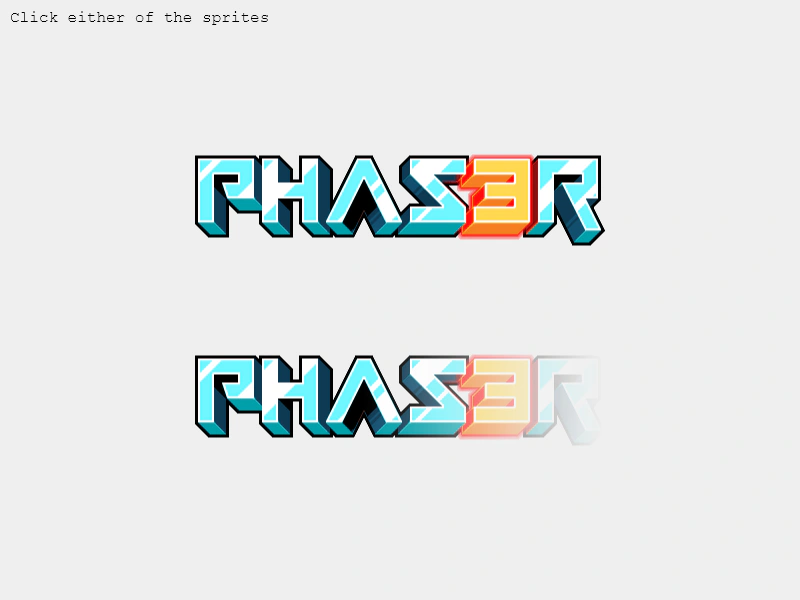
This example demonstrates how to use pixel-perfect hit areas for input detection, allowing clicks only on non-transparent pixels and setting custom alpha thresholds.
800 × 600
class Example extends Phaser.Scene
{
    preload ()
    {
        this.load.setBaseURL('https://cdn.phaserfiles.com/v410');
        this.load.image('logo', 'assets/sprites/phaser3-logo.png');
        this.load.image('logoAlpha', 'assets/sprites/phaser3-logo-alpha.png');
    }

    create ()
    {
        //  This sprite is clickable on any pixel that has an alpha value >= 1
        const sprite1 = this.add.sprite(400, 200, 'logo').setInteractive({ pixelPerfect: true });

        //  This sprite is clickable on any pixel that has an alpha value >= 100 (i.e. the left side of the sprite)
        const sprite2 = this.add.sprite(400, 400, 'logoAlpha').setInteractive(this.input.makePixelPerfect(100));

        const text = this.add.text(10, 10, 'Click either of the sprites', { font: '16px Courier', fill: '#000000' });

        sprite1.on('pointerdown', () =>
        {

            text.setText('Clicked Sprite 1');

        });

        sprite2.on('pointerdown', () =>
        {

            text.setText('Clicked Sprite 2');

        });
    }
}

const config = {
    scale: { mode: Phaser.Scale.FIT },
    type: Phaser.AUTO,
    parent: 'game-container',
    width: 800,
    height: 600,
    backgroundColor: '#efefef',
    scene: Example
};

const game = new Phaser.Game(config);
More in Pixel Perfect7 examples
 Pixel Perfect Pointer MoveDemonstrates how to use pixel-perfect input detection to trigger pointermove events only when the cursor is over non-transparent pixels, including how to set custom alpha thresholds.
 Pixel Perfect Alpha InputDemonstrates how to enable pixel-perfect hit detection on an interactive sprite, ensuring pointer events only trigger on non-transparent areas of the image texture.
 Pixel Perfect Atlas FrameDemonstrates how to use pixel-perfect input detection on a Sprite that uses a frame from a texture atlas.
 Pixel Perfect DraggingDemonstrates how to enable dragging on sprites using pixel-perfect input detection and custom alpha tolerance levels.