What it does
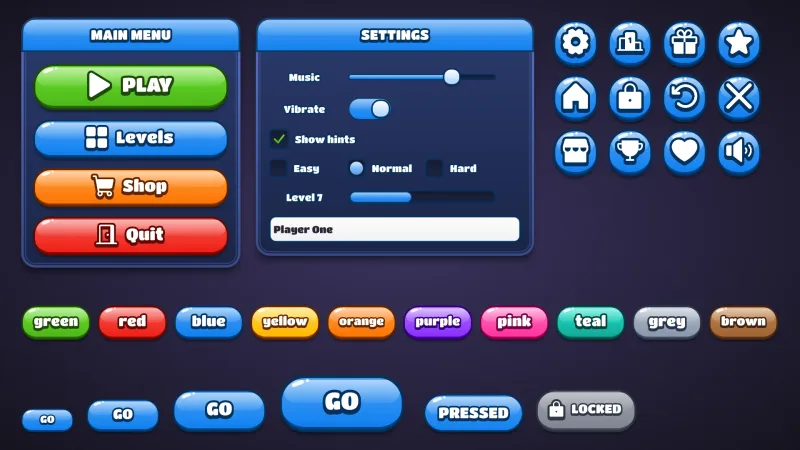
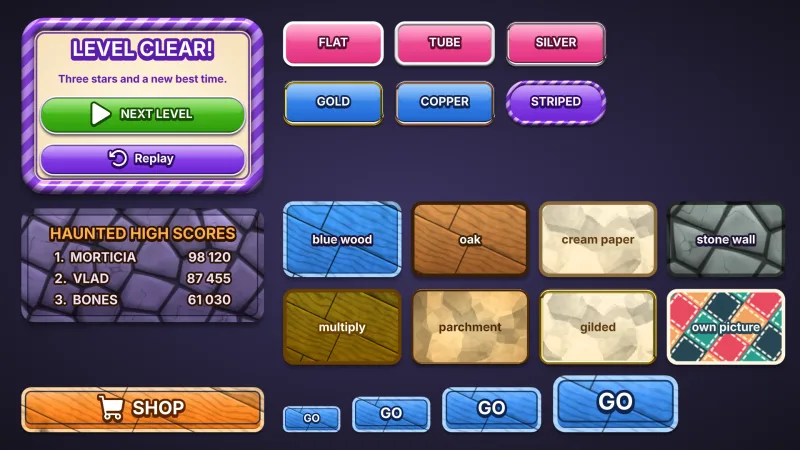
A skin is a whole ui theme made from one material and one colour. The material is the look: a candy pill with a
white rim, a jelly button with a two-tone face. The colour is worked out into the shades a game button is drawn in: a
face and its gradient, a darker lip, an ink for outlines and caption strokes, a highlight, and a caption colour that
reads on the face. Darks lean warm on yellows and oranges, so a yellow button's lip is orange and its outline brown,
never olive, and a pale face takes dark text rather than white.
From the material and the palette the core builds every role the ui widgets draw with: the default button, the
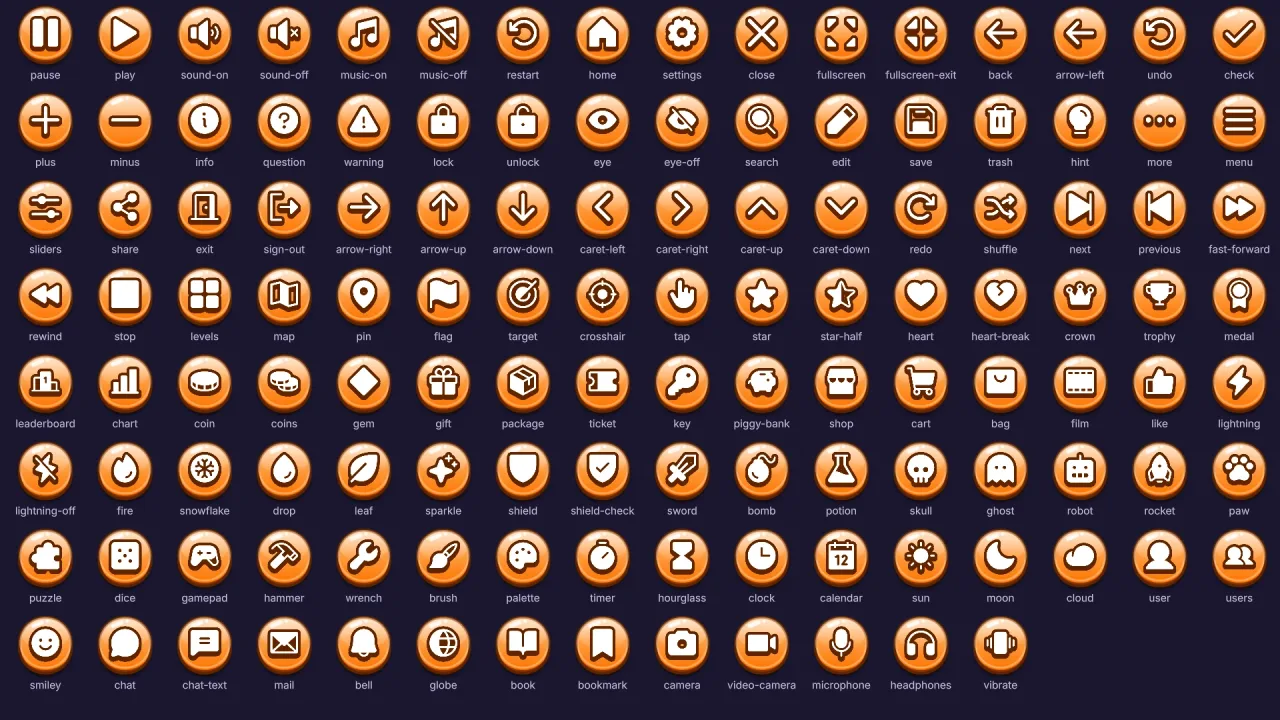
good, warn, bad and flat buttons, one button per named colour, the round icon button that the pause and sound
buttons wear, and the windows, title bars, panels, labels, headings, slider and toggle parts, checkboxes, radios, text
fields, lists and scrollbars. Each button gets a hover, a pressed look that sinks into its lip, and a disabled look in
grey. Each theme also carries a speech box for the dialogue pack, taken from the skin's own window, so a dialogue
opened with no preset already matches.
The looks themselves are separate packs, one per material, and this core registers none, so a game carries only the
skins it composes. A skin pack costs about half a kilobyte compressed and the core about three. Everything is style
data for the ui panel shader: nothing is downloaded but each skin's font.
Features
- Hue-shifted palettes —
uiSkinPaletteturns a colour name or hex into face, gradient, lip, ink, light and text shades. - A whole theme in one call — every widget role, four meaning roles and a button per colour, from a material and its options.
- Ten named colours —
green red blue yellow orange purple pink teal grey brown, a button style in every skin, plus any colours you add. - An accent and a trim — a second colour for title bars, slider fills, knobs, dots and selected rows, and a colour for a material's own rim, bezel or frame.
- Skins at run time —
game.skins.make,use,styleandpalettebuild, define and switch themes live. - A matching speech box — every skin theme has a dialogue section drawn from its window and accent.
- Tools for new skins —
buildUiSkin,buildUiSkinStyle,validateUiSkinandregisterUiSkin, pure and importable by a game or a tool.
Good for
- Casual and mobile games that want chunky, glossy, pressable menus without writing styles by hand.
- A colour per world or season — the same skin remade in another colour with one
game.skins.usecall. - Player-chosen themes — a settings screen that switches between several composed skins.
- One-off buttons — a mint offer button in the current material, made with
game.skins.style. - Tools and editors that build or check themes outside a running game, through the pure helpers.
- A studio's house look, written as a new material and checked like the built-in ones.
Make it yours
Every skin pack takes the same manifest options, and game.skins.make takes them too: name, color, surface
(the windows' colour), accent, trim, radius, depth (the lip; 0 makes flat buttons), roles (the colours of
good, warn, bad and flat), colors (extra named colours) and designHeight. A theme comes back as plain data,
so you can spread it and change any part, such as the speech box's motif, before defining it.
Two different ways to use it. A game composes one skin, fixes its colours in the manifest, say a pink jelly with yellow
accents, and never touches the core directly. Another composes three materials and lets the player pick a material
and a colour, each choice a new theme made, defined and switched to by game.skins.use. For a look no skin pack
gives, a material is a short definition: a name, a font, a caption size, corners, a lip, a button function and an
optional surfaces hook for the windows. validateUiSkin lists anything wrong with it as sentences.
A quick look
Choose a composed skin, add buttons by colour, then remake the skin in pink, live:
// manifest: … typography, ui, ui-skins, ui-skin-candy
game.ui.theme = 'candy';                                                         // every widget, one material
game.ui.button({ anchor: 'center', h: 76, text: 'PLAY', style: 'good', icon: 'play', onClick: start });
game.ui.button({ h: 64, text: 'Shop', style: 'orange', icon: 'cart' });          // any named colour is a style
game.ui.button({ h: 72, icon: 'settings', style: 'icon' });                     // the round icon button
game.skins.use({ material: 'candy', color: 'pink', radius: 'pill', name: 'pink' });  // remake it, live
game.ui.defineStyle('mint', game.skins.style('candy', '#3df0b0'));
Works with
ui— required; the widgets every skin styles, withtypographybeneath.ui-skin-candy,ui-skin-jelly,ui-skin-glossy,ui-skin-bubble,ui-skin-block,ui-skin-cartoon,ui-skin-wood,ui-skin-metal,ui-skin-bezel,ui-skin-candystripe,ui-skin-timber— the looks, one pack each.ui-texture-wood— the grain thatui-skin-timberpaints over.dialogue— speech boxes that wear the active skin with no options of their own.bars— health, timer and XP meters to sit beside the menus.
Good to know
- Each skin's font is 1 to 3 MB from the CDN, fetched when the skin is first chosen, and captions draw in the generic family until it lands. Choose the skin before the first load and it arrives under the loading screen.
- The display fonts cover Latin, Greek and Cyrillic.
designHeightscales by height only, so a row of fixed-width buttons may show long captions at different sizes; leave the width off to let each fit its caption.- For a calm, flat or retro-computer look, define a theme with
game.ui.defineThemeor load a theme file instead.