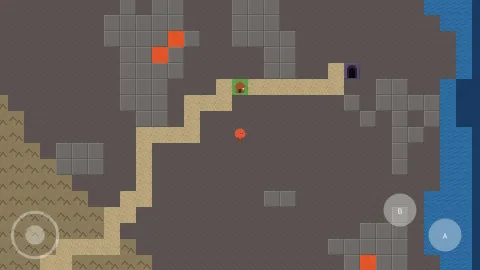

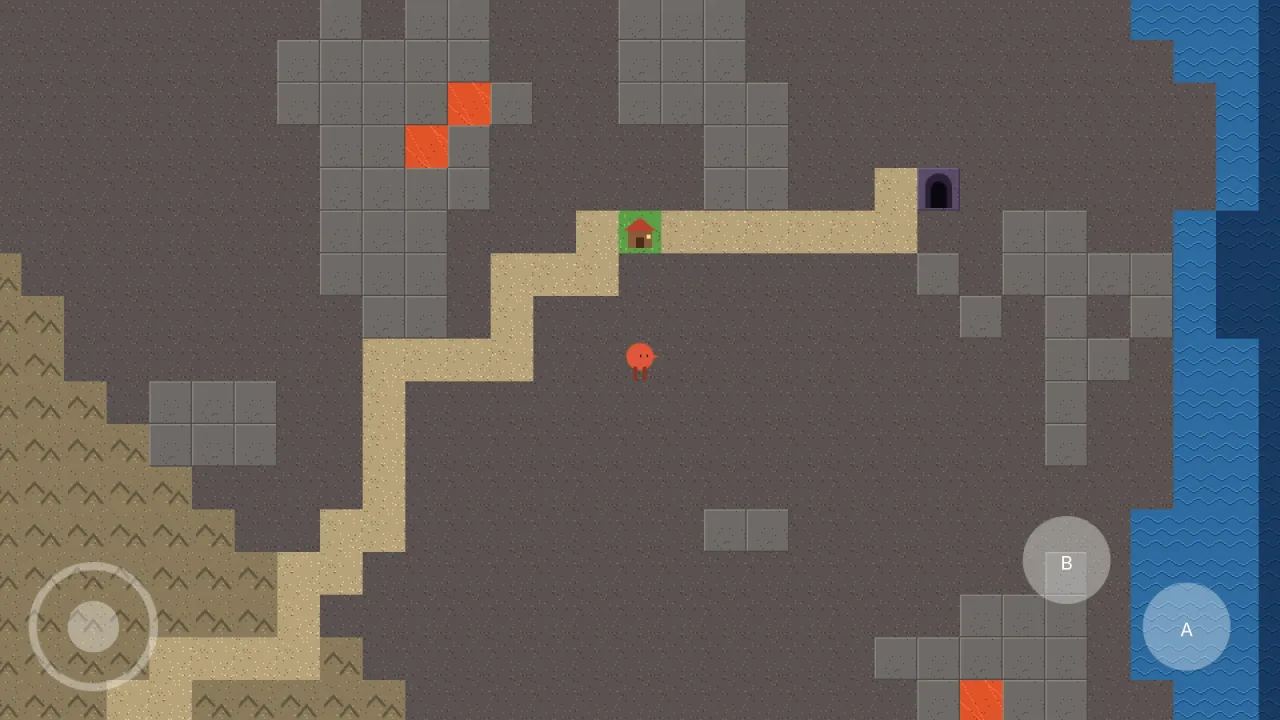
What it does
The usual way to add touch gives a game two ways to move, a stick read in one place and keys bound in another, and
only one of them gets tested. Here each control presses a key code no keyboard has, such as 'Touch:jump' or
'Touch:left', and the game binds it alongside the real keys. From then on there is one rule for movement, and the
touch layout is a skin over it. Codes pressed here reach the game in the same step, with no hidden frame of lag.
The controls are built for thumbs. A button captures its pointer, so a thumb that slides off it keeps it held, because on a phone a thumb always slides and a jump that cancels itself mid-press is unplayable. The stick keeps pushing when a finger goes past its ring rather than letting go, since a finger that overshoots is still asking to go that way, and its dead zone stops a resting thumb flickering between left and right.
They draw themselves: a disc and a ring baked into the atlas at start and spawned on the HUD layer, faint enough to see the game through. By default they appear only on a device that reports touch, so a desktop player never sees a stick over their game. Hiding them releases every code they were holding, so nothing is left stuck down.
Features
- Key codes, not a second input path — every control presses a code the game binds beside its keys.
- A thumb stick — up to four direction codes, a ring radius and a dead zone, clamped past the ring.
- Buttons that hold on — each captures its thumb and can carry a short label and a tint.
- Corner anchoring — controls are placed inward from a corner, so a layout holds on any screen shape.
- Touch only, by default — hidden on devices with no touch unless you force them on.
- Safe hiding —
visible = falsereleases everything the controls hold. - Readable state —
stickgives the thumb offset past the dead zone, andheldthe codes pressed now. - Buttons added later —
buttonadds a control after start, for a level that brings a new action.
Good for
- Platformers on phones — a stick or left and right codes, and a jump button bound beside Space.
- Top-down adventures and RPGs — a thumb stick for walking and an action button.
- Arcade games — a fire button and a stick on the same intents the keyboard uses.
- Games released on desktop and mobile — one set of bindings, with the touch layout appearing only on phones.
- Cutscenes and menus — hide the controls and every key they held is released.
Make it yours
buttons lists each button's code, label, corner, offset, radius and tint, and stick gives the four direction
codes, corner, offset, ring radius, dead zone and tint. touchOnly decides whether the controls hide on non-touch
devices, alpha how faint they are, and layer which layer they draw on.
A side-scrolling platformer might put a stick in the bottom-left corner pressing left and right codes and two
labelled buttons, jump and attack, in the bottom-right. A one-button arcade game might have no stick at all, just a
single large button in the bottom-right corner. Turning touchOnly off shows the layout on a
desktop too, for a demo or a screenshot.
A quick look
A stick and a jump button, bound beside the keyboard keys:
game.kernel.input.bind('jump', ['Space', 'Touch:jump']);
game.kernel.input.bind('left', ['ArrowLeft', 'KeyA', 'Touch:left']);
{ "id": "controls-touch", "options": {
"stick": { "codes": { "left": "Touch:left", "right": "Touch:right", "up": "Touch:up", "down": "Touch:down" } },
"buttons": [{ "code": "Touch:jump", "label": "A" }]
} }Works with
world-screen— required; the screen layer the controls draw on.typography— required; it draws the button labels.controls-2d— its intents bind touch codes such as'Touch:fire'alongside their keys and pad buttons.rig-minecraft— first-person block games, which carry their own joystick and look layout instead.ui— for a rectangular d-pad, a strip of shoulder buttons or a radial menu, built yourself.
Good to know
- The controls are round: discs and rings, baked once and tinted, with no per-control art or opacity.
- A rectangular d-pad, a shoulder strip or a radial menu are your own layouts; they can press codes through the same input call this pack uses.
- It is not a first-person look control;
rig-minecraftbrings its own touch layout for that.