Phaser v4.2.0 "Giedi": Mesh2D, Stencil Rendering and AlphaStrategy
New rendering tools: stencils, textured meshes, cone lights, and more
After some hard work, Phaser 4.2.0 "Giedi" is ready. This release adds a set of powerful new rendering options and techniques, particularly around stencils, which let you temporarily block drawing on parts of the game canvas. There's also a system for rendering textured meshes, so you can finally break out of square sprites. And thanks to a great community contribution, there's a brand new cone lights feature too. As always, feedback is welcome. Several of these techniques are pretty novel, and the team has certainly not found all the best ways to use them yet.
What's New in Phaser v4.2.0
- 🧱 Mesh2D game object
- 🔲 Stencil and StencilReference game objects
- ⚙️ CustomContext game object
- 🎨 TintModes.MULTIPLY_TWO mode
- 🌫️ AlphaStrategy options
- ⏱️ Timestep#setFPSLimit method
- 🛠️ New game config options
- 🔧 Render system enhancements
Mesh2D: Textured Triangle Rendering in Phaser 4
The Mesh2D game object lets you draw textured triangles. It's designed to easily receive geometry from custom sources and render it efficiently in the same batch as regular sprites. Adjacent triangles get jammed together into quads to make better use of the quad-based render system.
Mesh2D lets you build and cache an ordering of triangles, which renders faster. That's good for meshes which keep the same topology, where the arrangement of triangles doesn't change, even if the vertex positions do. If your mesh is dynamic, changing from frame to frame, you can opt into a separate batch type that uses triangles instead of quads. This saves memory and processing: we don't have to check whether triangles can be combined into quads every frame.
Mesh2D is not for 3D models. It uses the same 2D shaders as other game objects, including lighting options, and has no depth information.
Stencil and StencilReference: Direct Stencil Buffer Access
The Stencil game object is a special kind of Container. Its contents are drawn to the stencil buffer, a special WebGL buffer used to block drawing to parts of the screen. Think of Stencil as holding up layers of cards in front of the canvas to block drawing. It's like a Mask filter, but more direct. Stencil is either on or off. It doesn't have partial transparency like alpha.
Once drawn, a stencil layer persists for the rest of the frame, so you can affect multiple objects with the same stencil. Layers can be stacked, added, and removed, and they're order-independent. You remove a layer by subtracting from the stencil buffer. To make that easier, the StencilReference game object can copy geometry from a target Stencil object and draw it with different rules.
Phaser 3 used the WebGL stencil for GeometryMask shapes. You can use Stencil in Phaser 4 like a mask, but it's no longer bound to single objects, so you can be more efficient with it. Thanks to alpha strategies, it can also handle any game object as a stencil source, not just geometric shapes.
A rule of thumb: use Stencil for hard-edged masks, where its lower quality matters less than performance. Use Mask filters when you want to control alpha more precisely, or apply masks midway through a set of filters.
CustomContext: Advanced Rendering Callbacks
The CustomContext game object is another special Container. It runs a callback that receives a DrawingContext from the render system. You can modify that DrawingContext to change the rendering rules for the Container's children. This is an advanced technique. For example, you could disable stencil testing within the context, set different stencil test rules, or change the alpha strategy. It's often the most efficient way to achieve a particular rendering goal.
MULTIPLY_TWO Tint Mode
The new MULTIPLY_TWO tint mode is available on tintable game objects. It applies a second tint color to dark areas, allowing more expressive tinting effects. You can even invert colors by setting the first tint to black and the second to white, without ever changing the render batch. The vertex buffer layout was updated to support this, fitting the extra data into the same amount of memory. Ideas for other ways to use this extra data are welcome.
AlphaStrategy: New Transparency Options for Phaser 4
An AlphaStrategy is a render system setting that allows different approaches to transparency. By default, shaders output transparent colors, with the level of transparency controlled by the color's alpha value. That's the keep strategy.
The dither strategy instead renders each pixel as fully opaque or fully transparent, based on the computed alpha and a dither pattern. This lets you render semi-transparent objects as a dissolving cloud of pixels. The threshold strategy cuts from opaque to transparent at a preset alpha threshold, creating clean lines across transparency gradients instead of dissolving clouds.
The dither and threshold strategies ask shaders to discard pixels, which can be inefficient, so it's wise to check performance before over-using them. Shaders must be written to handle the request, but you can use a Container with filtersForceComposite to force the output through one of Phaser's compatible shaders, at the cost of drawing that composite.
Alpha strategies are vital for Stencil rendering. By discarding pixels, they avoid a nasty habit of the stencil buffer: it doesn't care about alpha. A fully transparent pixel still sets the stencil buffer and blocks drawing. With alpha strategies, that problem is eliminated.
Cone Lights: A Community Contribution
A big thank you to FSDevelop for contributing the new cone lights feature. It's a genuinely good addition.
Cone lights are standard Phaser dynamic lights restricted to a directional cone. They're useful for flashlights, lantern beams, vision cones, headlights, searchlights, and any other focal light source.
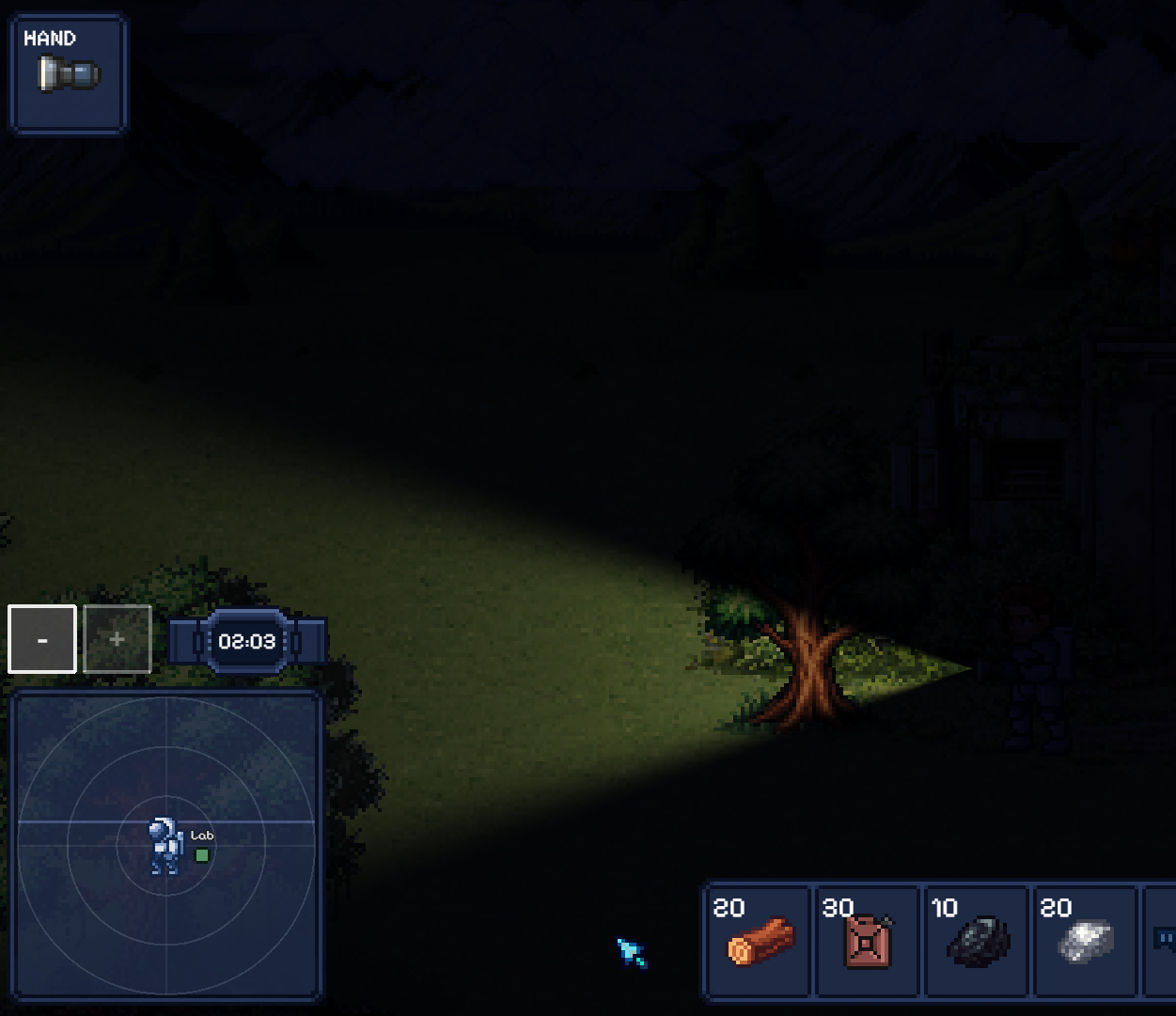
They run through the existing WebGL lighting shader. They don't require a mask, a second Camera, or rendering the map twice. Any game object that already works with Phaser lighting can be lit by a cone light.
The quickest way to make one is addConeLight:
const light = this.lights.addConeLight(
    400,                       // x
    300,                       // y
    320,                       // radius
    0xffcc88,                  // color
    2,                         // intensity
    Phaser.Math.DegToRad(0),   // rotation
    Phaser.Math.DegToRad(30),  // inner angle
    Phaser.Math.DegToRad(60)   // outer angle
);
The cone angles are full cone widths, not half-angles. Fragments inside the inner angle get full light, fragments between the inner and outer angles fade out smoothly, and fragments beyond the outer angle get nothing from this light. Omit the outer angle for a hard edge. You can also restrict an existing light with setCone, follow a player by updating position and setConeRotation each frame, reshape the cone with setConeAngles, and return to normal radius behavior with disableCone.
Use cone lights when the light should affect lit game objects and normal maps. Use Point Light game objects when you only need a fast radial glow that doesn't light anything else.
Timestep#setFPSLimit at Runtime
You can now change the FPS limit at runtime. This is handy when you want to temporarily reduce update rates to conserve device power when not much is happening on screen.
New Game Config Options in Phaser 4.2.0
The game config now supports three new options:
render.stencil: disable the stencil buffer.Stencilobjects won't work, but you save video memory because the stencil buffer isn't created for the canvas or framebuffers. The saving can be larger than expected, because some devices combine stencil and depth buffers even if you only wanted one.render.alphaStrategy: a global alpha strategy rule.render.stencilAlphaStrategy: a global alpha strategy rule used only byStencilandStencilReferenceobjects. Use this if you don't want the defaultdithersetting.
Render System Enhancements
A lot of internal changes went in to improve the flexibility of the render system and support the new features. These should only concern developers who work with render nodes and the render system directly. Check the changelog in the repository for the details.
Bug Fixes in Phaser 4.2.0
- ✅ Removed unused steps from
LayerandDrawingContext - ✅ Removed unused or invalid elements from
SpriteGPULayer
How to Upgrade to Phaser 4.2.0
Phaser 4.2.0 "Giedi" is available immediately. You can download it from GitHub or install it from npm:
npm install [email protected]Give the new features a try and let us know how you get on. We want to hear what works, what doesn't, and what you build with it 🙂