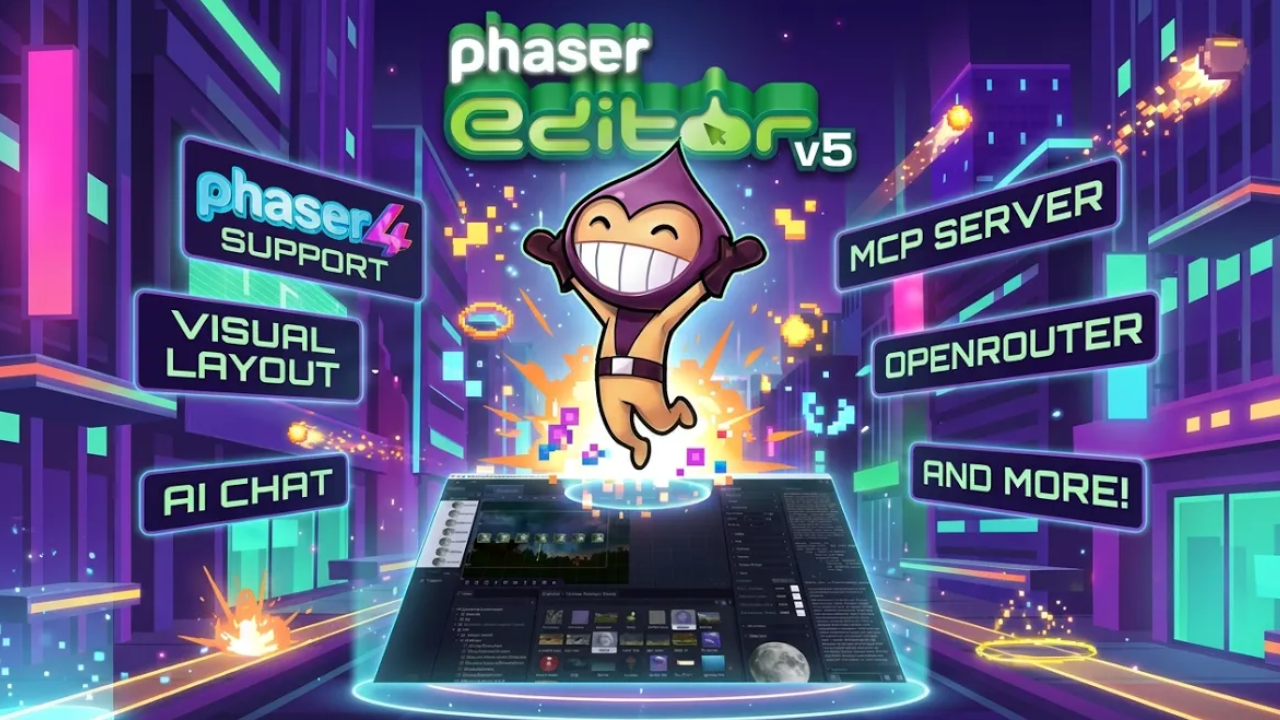

The beta started in February. You tested it, broke it, gave feedback, and made it better. Phaser Editor v5 is now officially out.
This is a big one. Phaser Editor v5 brings full Phaser 4 support, a completely new AI integration system, enterprise-grade workflow features, and a long list of improvements to the Scene Editor. Whether you're building your first game or managing a large production, there's something meaningful in this release for you.
Watch the full overview below, or keep reading for the details.
Full Phaser 4 Support
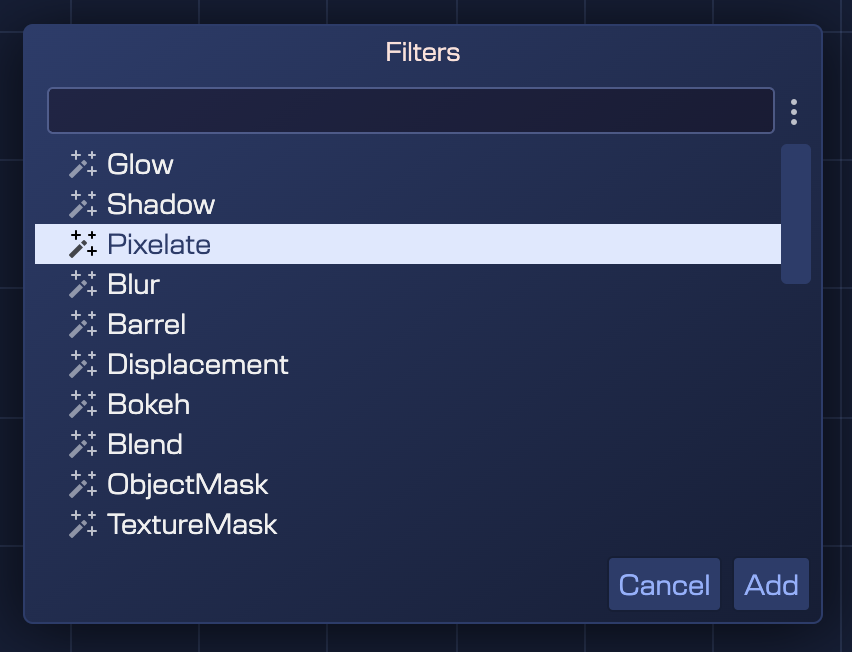
Phaser 4 is here, and v5 is fully ready for it. The most visible change is the new Filters system, which replaces the old FX system. You can now add and configure filters visually (Glow, Shadow, Blur, Pixelate, Bokeh, ColorMatrix, Displacement, and more) directly in the Scene Editor's Inspector view, in real time.

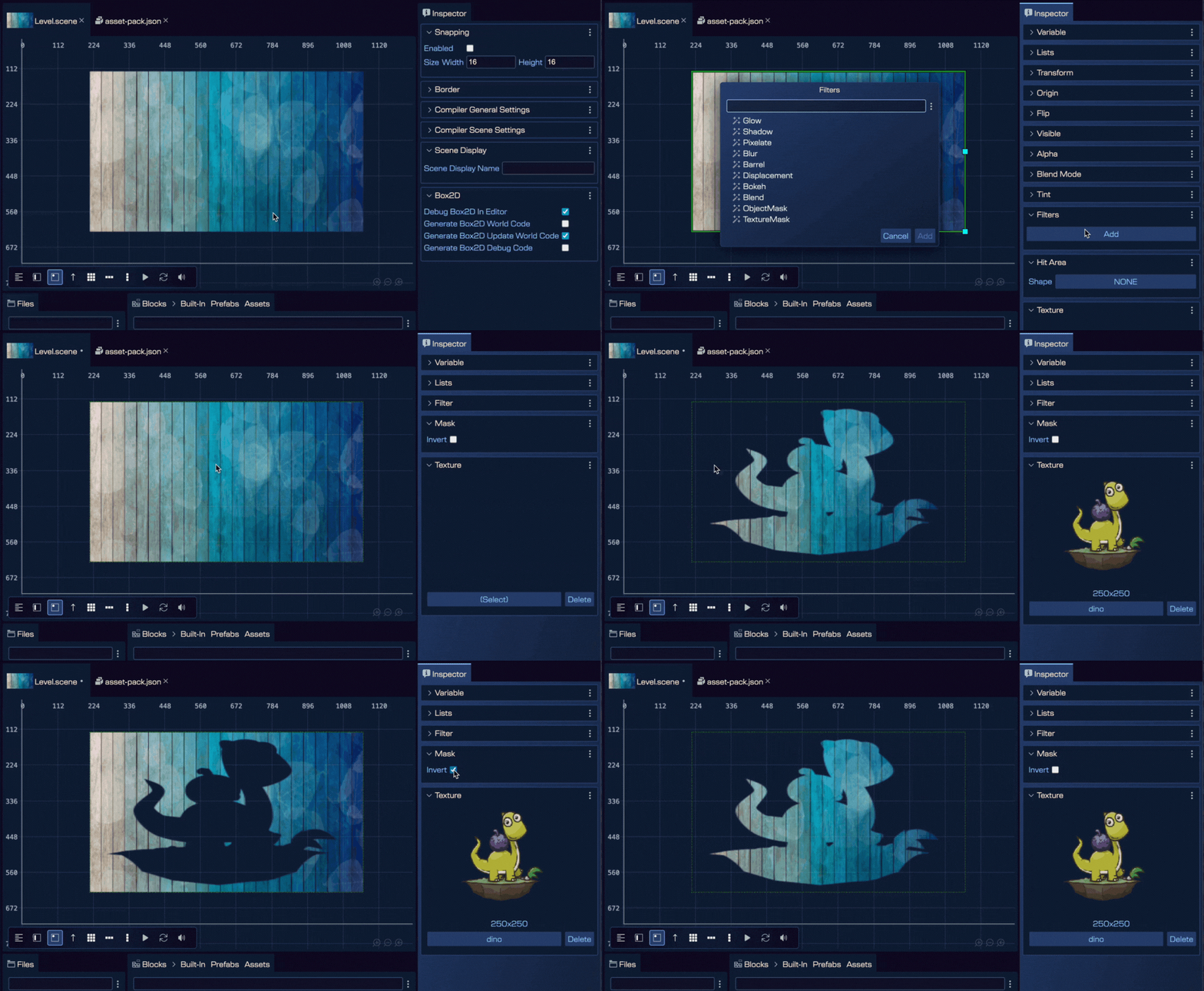
The new Mask filter is particularly exciting: it lets you use textures or even other game objects as masks, opening up effects that were previously tricky to set up visually.
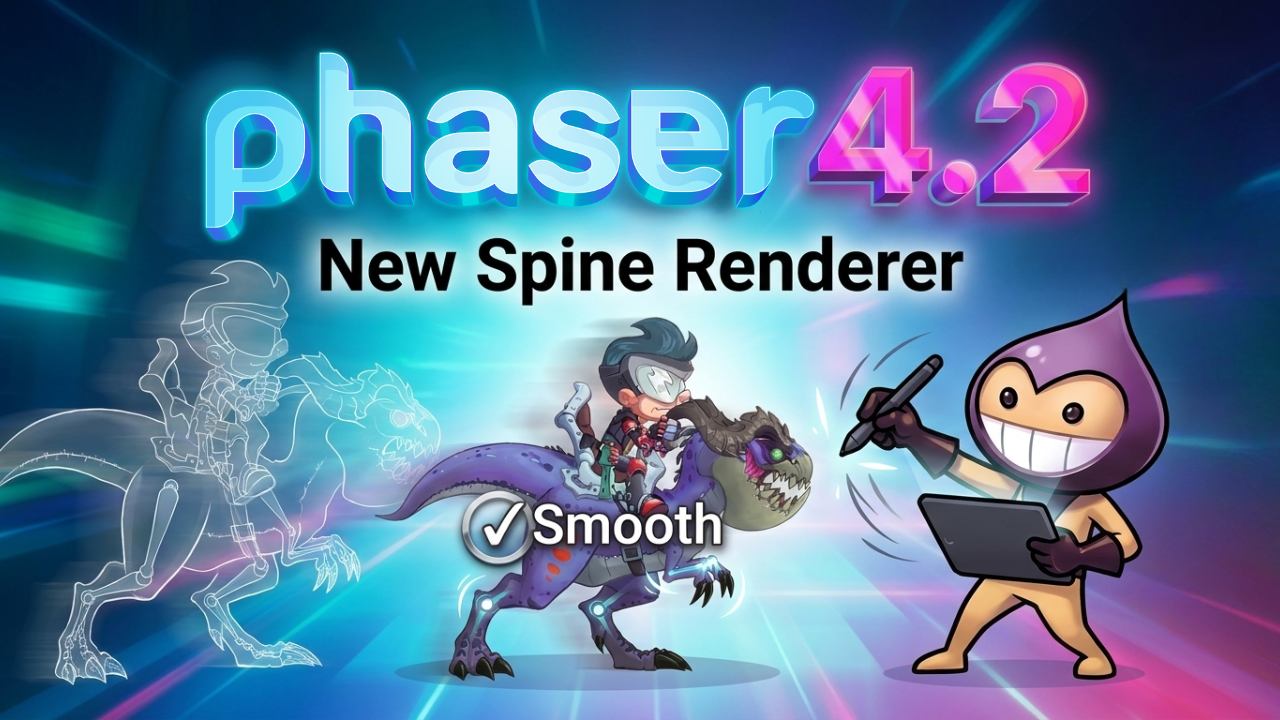
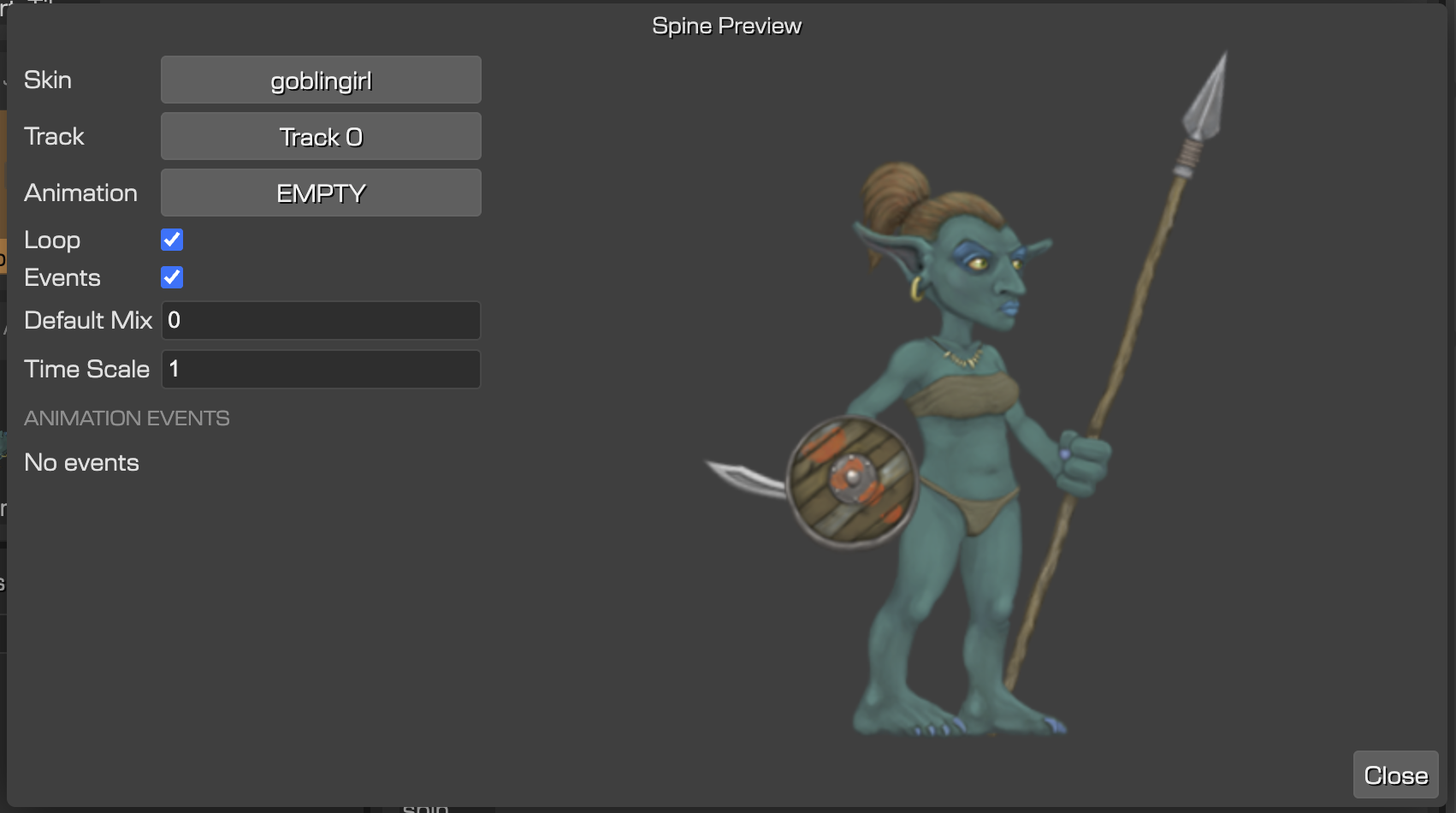
Spine 4.2 is also supported, with virtually no changes needed to your existing animations. The Spine Preview window now shows animation event data, making it much easier to sync game logic with animation timing. And all project templates have been migrated to Phaser 4, so new projects start on the right foot from day one.
Phaser 3 compatibility is fully maintained, so there's no pressure to migrate if you're not ready.
AI Integration: Two Ways to Work Smarter
This is the headline feature of v5. The philosophy is simple: AI handles the repetitive and time-consuming parts, so you can focus on the creative ones. There are two complementary ways to bring AI into your workflow.
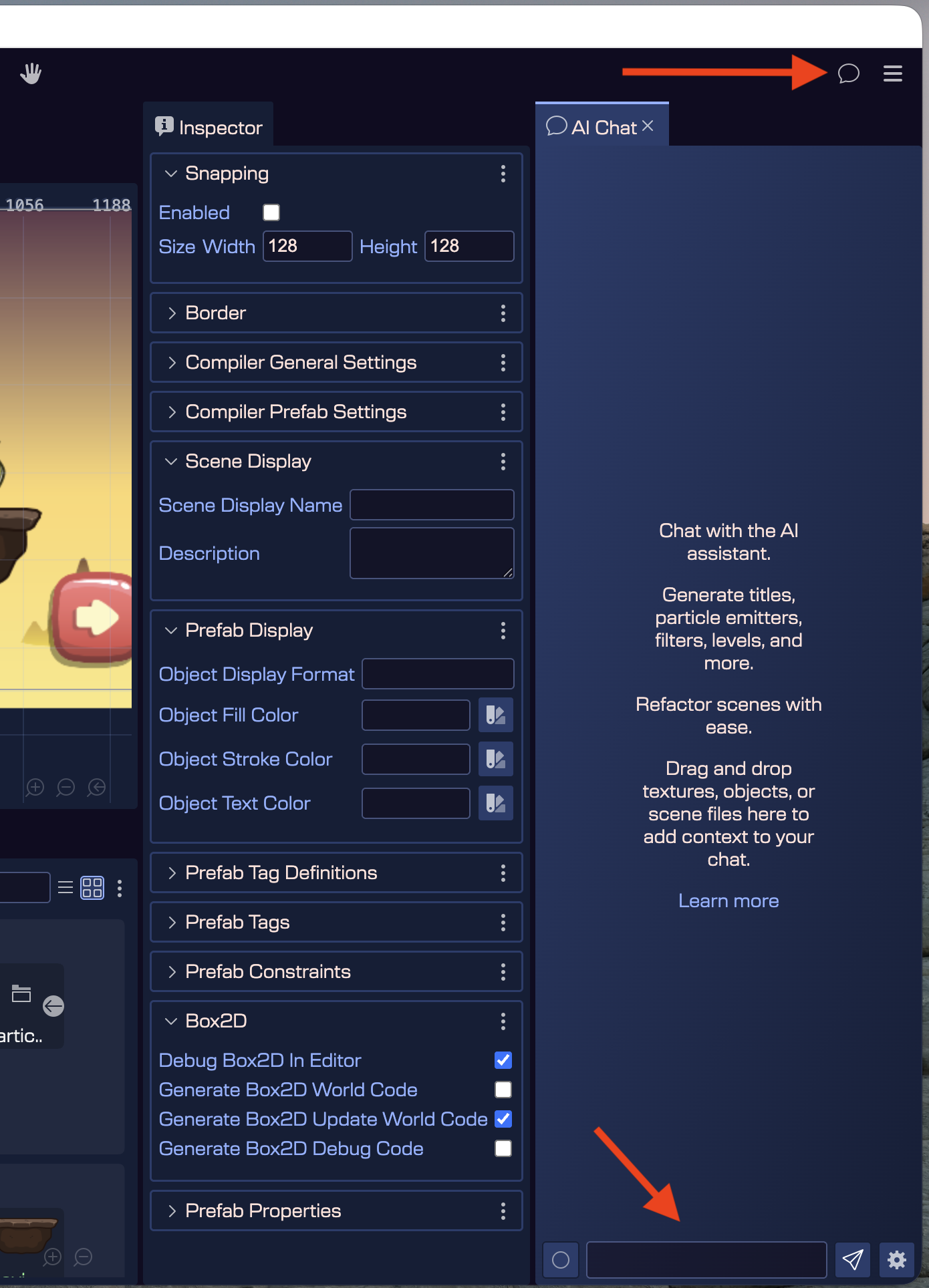
The built-in AI Chat lives right inside the editor. Configure it with Gemini, Claude, Cursor, any OpenAI-compatible model, or the wide range of models supported by OpenRouter, drag assets or scene files into the chat for context, and ask it to do things. Create a particle emitter, reorganize a scene into layers, rename a bunch of objects — it handles it without switching tools.
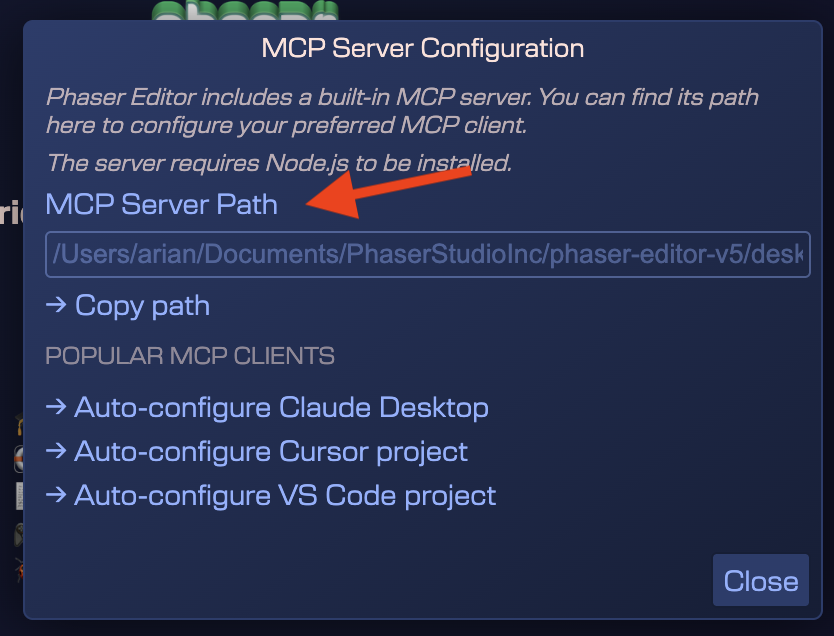
For power users, the MCP Server goes deeper. It implements over 40 specialized tools and integrates directly with Claude Desktop, Cursor, GitHub Copilot, and other MCP-compatible tools. Setup is now a single click via AI → MCP Server Configuration — no manual JSON editing.
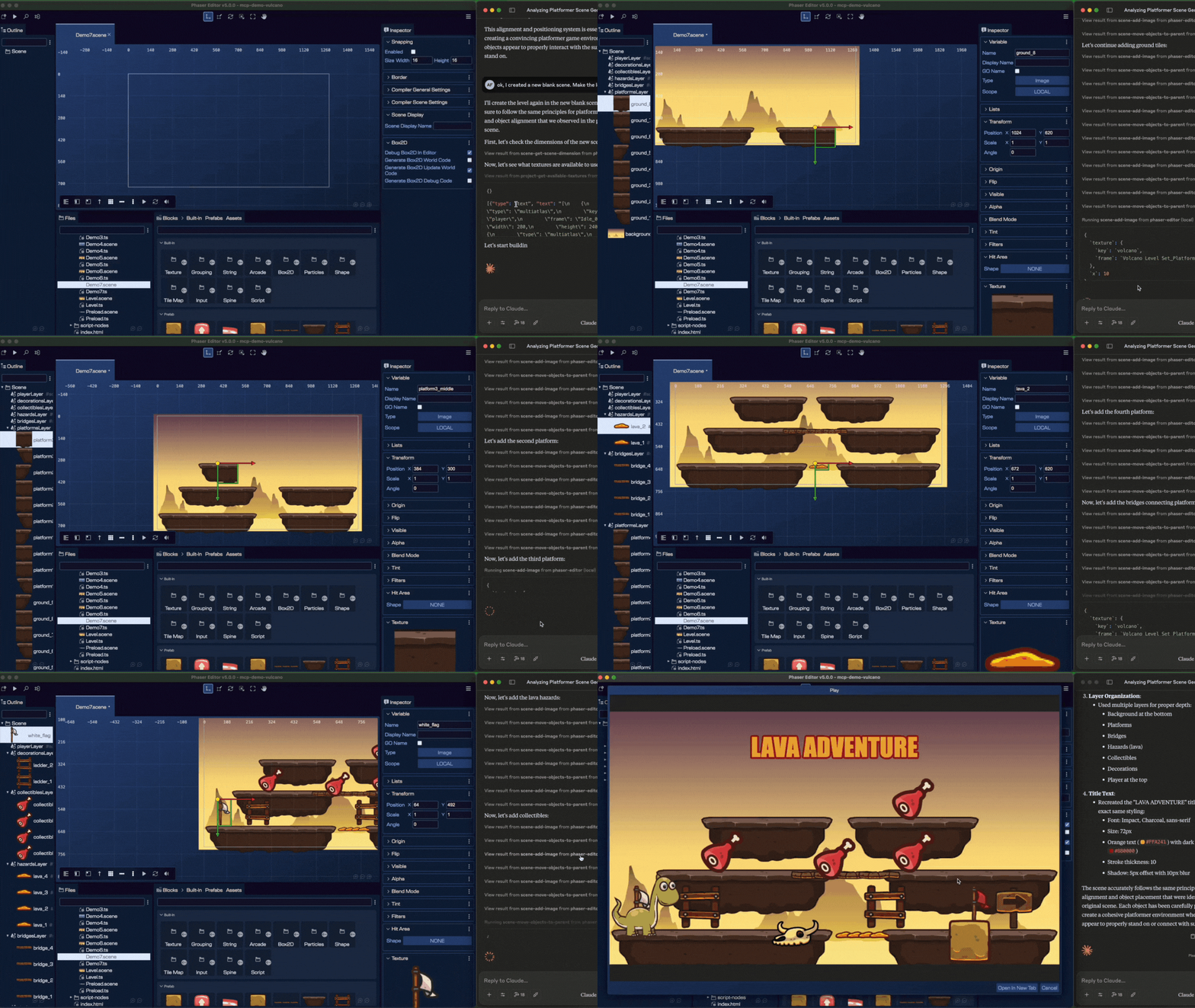
The AI works with your actual project assets, not generic placeholders. It understands texture dimensions, origins, and spatial relationships, so the output fits your game from the start. In testing, Claude Sonnet has shown the best understanding of Phaser Editor's context.
Pro tip
If the AI isn't positioning things quite right, build one example manually and ask it to study it. It learns your conventions quickly.
More Features Worth Knowing About
📦 Unbox Prefab Instance
Use prefabs as templates, then unbox instances to customize them freely without touching the original. Great for level variations.
🎨 Prefab Custom Colors
Assign colors to prefab types in the Outline view. When you have hundreds of objects, being able to spot types at a glance is a real workflow boost.
👁️ Render in Editor
Hide objects while editing without affecting runtime. Press H to toggle. Perfect for keeping spawn points and trigger zones out of the way.
🏢 Enterprise Constraints
Define rules for how objects and components relate. Designers can work independently without breaking game logic. Built with large studios in mind.
There's also a new Tileset Info Tool that shows tile indices on hover, rounded rectangle support via a simple property toggle, particle emitter animations configurable in the Scene Editor, and a Log View for tracking down issues. System clipboard integration means you can now copy-paste objects between different projects.
Ready to Upgrade?
Phaser Editor v5 is a genuinely significant release. The AI integration alone changes how a lot of the tedious work gets done, and the Phaser 4 support means you can move forward with confidence. Download it from the button below, check the change log for guides on the new features, and configure AI in seconds via AI → MCP Server Configuration.
And if you want to talk about what you're building, join the community on Discord.