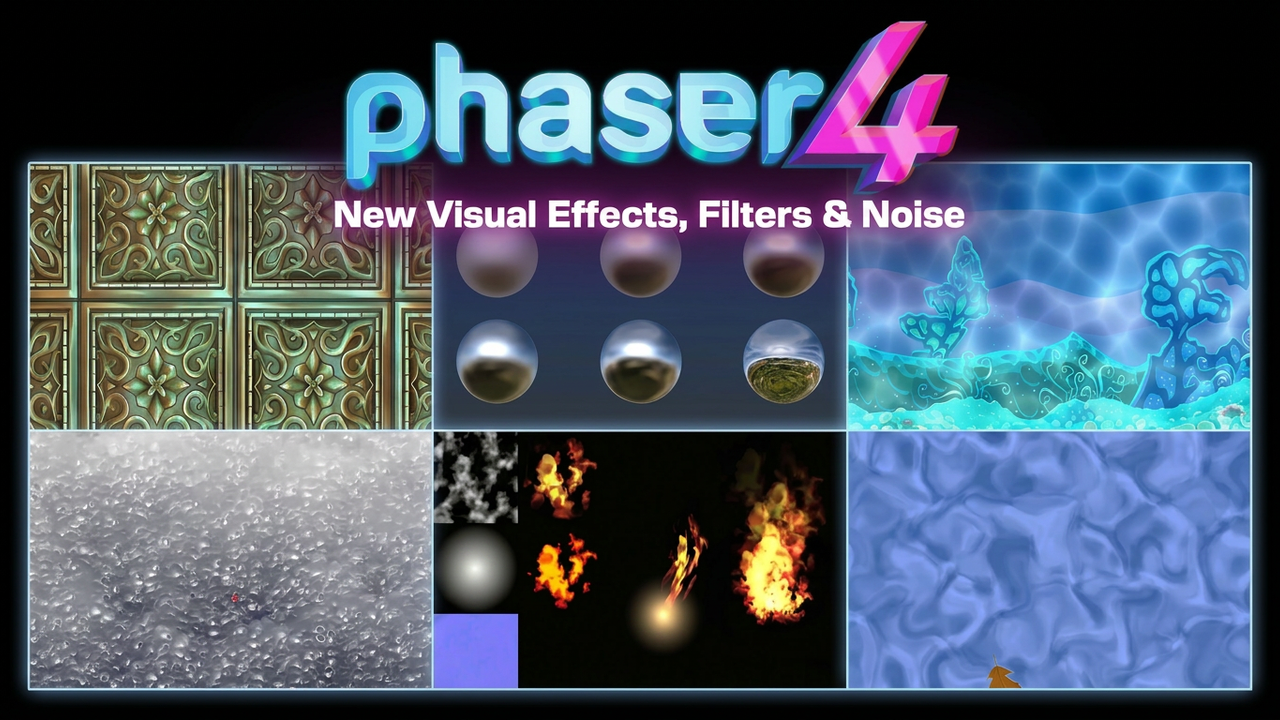

Phaser 4 introduces a completely rebuilt visual effects system, and it is one of the most developer-friendly upgrades in the engine's history. Gone are the days of wrestling with separate FX and Mask systems, fighting restrictions on which objects could use them, and navigating preFX and postFX quirks. In Phaser 4, everything goes through a single, unified Filter pipeline that works consistently on every game object, every camera, and every scene. More powerful, more flexible, and dramatically easier to use.
What Changed from Phaser 3 to Phaser 4
One of the most exciting upgrades in Phaser 4 is how visual effects work. If you have used Phaser 3 before, you are probably familiar with FX and Masks, two separate systems that did not always play nicely together and came with frustrating restrictions on which objects could use them. In Phaser 4, both have been completely replaced by a single, unified system called Filters. It is not just a cleanup. It is a fundamental rethink of how visual effects work in the engine.
What Are Filters in Phaser 4?
A Filter takes an input image and produces an output image through a shader program. The key breakthrough in Phaser 4 is that every filter follows the same internal contract, which means they are fully compatible with each other, can be stacked in any order, and combined freely without unexpected conflicts or rendering bugs.
And here is the part that changes everything: filters can now be applied to absolutely any game object or scene camera with zero restrictions. Sprites, text, tilemaps, containers, cameras, even Extern objects. In Phaser 3, only certain objects supported FX, and you had to navigate preFX and postFX quirks depending on what you were working with. That complexity is completely gone.
Internal vs External Filters
Phaser 4 gives you precise control over how effects are applied through two distinct filter spaces:
- Internal filters affect only the object itself and match its exact position on screen. Perfect for effects that should stick to a specific game object, like a glow on a sprite, a pixelation effect on an enemy, or a color shift on a UI element.
- External filters affect the object within its full rendering context, typically the entire screen. This is where cinematic effects live: bloom, vignettes, screen-wide color grading, and atmospheric post-processing that elevates the overall look of your game.
Applying Filters to Game Objects and Cameras
One of the design goals of the new system is that it should be simple to use regardless of your experience level. Filters can be applied to any game object directly, and the same applies to scene cameras. This means you can apply a color grade or a vignette to an entire camera, affecting everything it renders, without touching individual game objects at all.
This opens up powerful workflows. You can have one camera rendering your game world with a desaturation filter for a flashback sequence, and another camera rendering your UI completely unaffected. Combining filters on cameras with filters on individual objects gives you a layered post-processing pipeline that is fully under your control.
A Filter Library That Actually Delivers
Phaser 4 ships with a rich collection of built-in filters that are ready to use out of the box. Here is what you get:
- Blend lets you combine textures using all the blend modes available in the Canvas renderer, not just WebGL's four native modes, and even supports overdriving color values beyond the usual range for creative effects.
- GradientMap recolors entire images using a gradient based on their brightness, opening up stylized looks that would otherwise require custom shaders.
- ImageLight brings image-based lighting to Phaser, including support for 360 degree panoramas for realistic reflections, giving browser games a level of visual quality rarely seen at this scale.
- Quantize reduces colors with high-quality dithering using Interleaved Gradient Noise, ideal for retro aesthetics or stylized visuals.
- Blocky is great for pixel art: it preserves the exact palette of your artwork while letting you render at high resolution, and it is designed to work well with additional filters on top.
- Parallel Filters lets you run two completely independent filter chains simultaneously and combine their outputs at the end. Complex post-processing pipelines that would have been extremely difficult to build in Phaser 3 are now straightforward.
- Vignette returns from Phaser 3 with new capabilities, including a configurable border color and limited blend mode support, making it much more flexible than before.
- Wipe also returns from Phaser 3 upgraded, now allowing you to set the texture displayed in wiped-away regions and providing helper functions to set directional reveal and wipe effects out of the box.
- Key lets you remove or isolate specific colors from an image, useful for compositing effects and creative color work.
- Threshold applies a soft or hard threshold to the colors in an image, great for stylized or high-contrast visuals.
- NormalTools gives you control over normal maps directly in the filter pipeline, supporting rotation, squishing, and ratio output for surface-facing calculations.
- CombineColorMatrix allows you to remix alpha and other channels between images, useful in advanced compositing workflows.
- Sampler extracts pixel data from a WebGL texture and sends it back to the CPU via a callback, handy when you need to read visual data from the GPU during gameplay.
- The Mask filter replaces the old Masks system with something far more capable. Any Container with its own children, filters, and nested masks is a valid mask source. It also supports scaled-down framebuffers to keep memory lean in large games.
Migrating from Phaser 3: What to Know
If you are coming from Phaser 3, here is what has changed on the effects side. BitmapMask has been removed entirely, as the new Mask filter covers everything it did and more. GeometryMask remains available in the Canvas renderer but is not used in WebGL. The preFX and postFX distinction no longer exists. Instead, you work with internal and external filters, which are more predictable and consistent.
Some Phaser 3 FX have been replaced by Actions rather than filters. Bloom is now set up via Actions.AddEffectBloom(), Shine via Actions.AddEffectShine(), and Circle masking via Actions.AddMaskShape(). These Actions create and configure the appropriate filters and game objects for you, keeping the API clean while preserving the functionality.
Why the Phaser 4 Filter System Is a Game Changer
The new filter system is one of the clearest demonstrations of what Phaser 4 is capable of. Consistent behavior across every game object, no arbitrary restrictions, a library of production-ready effects, and the flexibility to build anything on top of it. Whether you are adding a subtle glow to a UI button or crafting a full cinematic post-processing pipeline, Phaser 4 gives you the tools to do it properly, without fighting the engine to get there.
Phaser 4 is out now. Check out the full changelog to see everything that's new, and head to the migration guide if you're coming from Phaser 3.